

Maintenance & Troubleshooting
This page brings together the after-sales troubleshooting toolchain: fault lookup → per-device diagnostics (firmware, logs, upgrades, telemetry) → data migration when replacing a unit.
Maintenance → System Fault Lookup
In the Side Bar, select Maintenance, then System Fault Lookup. This is a cross-device fault register, not tied to a single system.
- Filter by System SN, Fault Category and Select Time (date range), then click Search.
- The table lists System SN, Fault Category, Fault Information, Error code, Status (
occur/clear), Level, Time of Occurrence and Clear Time. - Use Filter to narrow the columns shown, or Export to download the current result set.
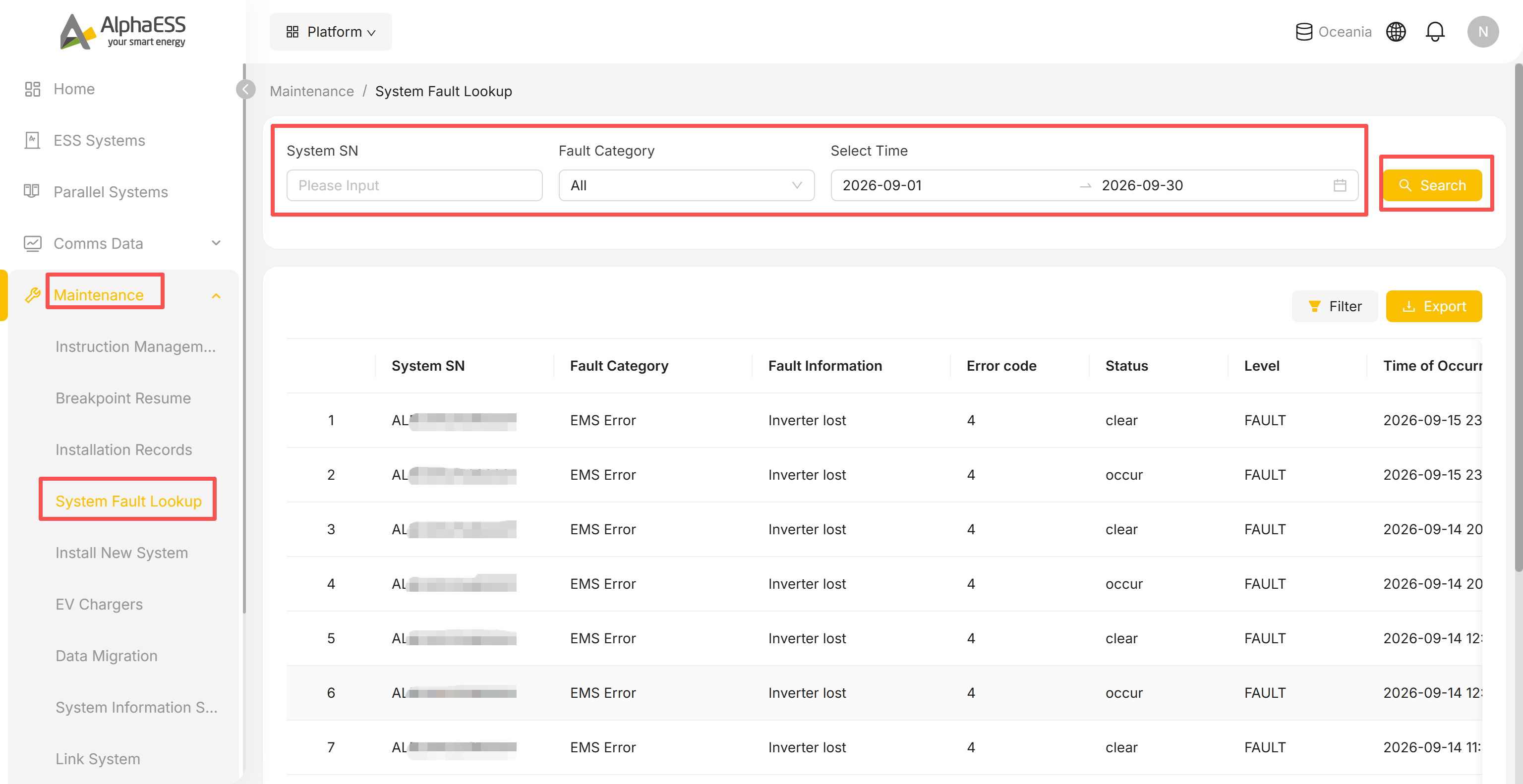
💡 Suggested workflow: spot a Fault on the Home dashboard → look up the error code and level here → open that device's Dashboard / Logs tab to pinpoint the cause.
Device details page: diagnostics tabs
Open a device details page (ESS Systems → click its SN) to reach the tab bar:
- Site, System Settings, Firmware Versions, Warranty, Logs, Upgrades, Telemetry, Dashboard, Data Analysis, Function Code
The tabs below are the ones used for troubleshooting a single device — for Dashboard (the live operating-data snapshot), see 3.1 Daily Monitoring.
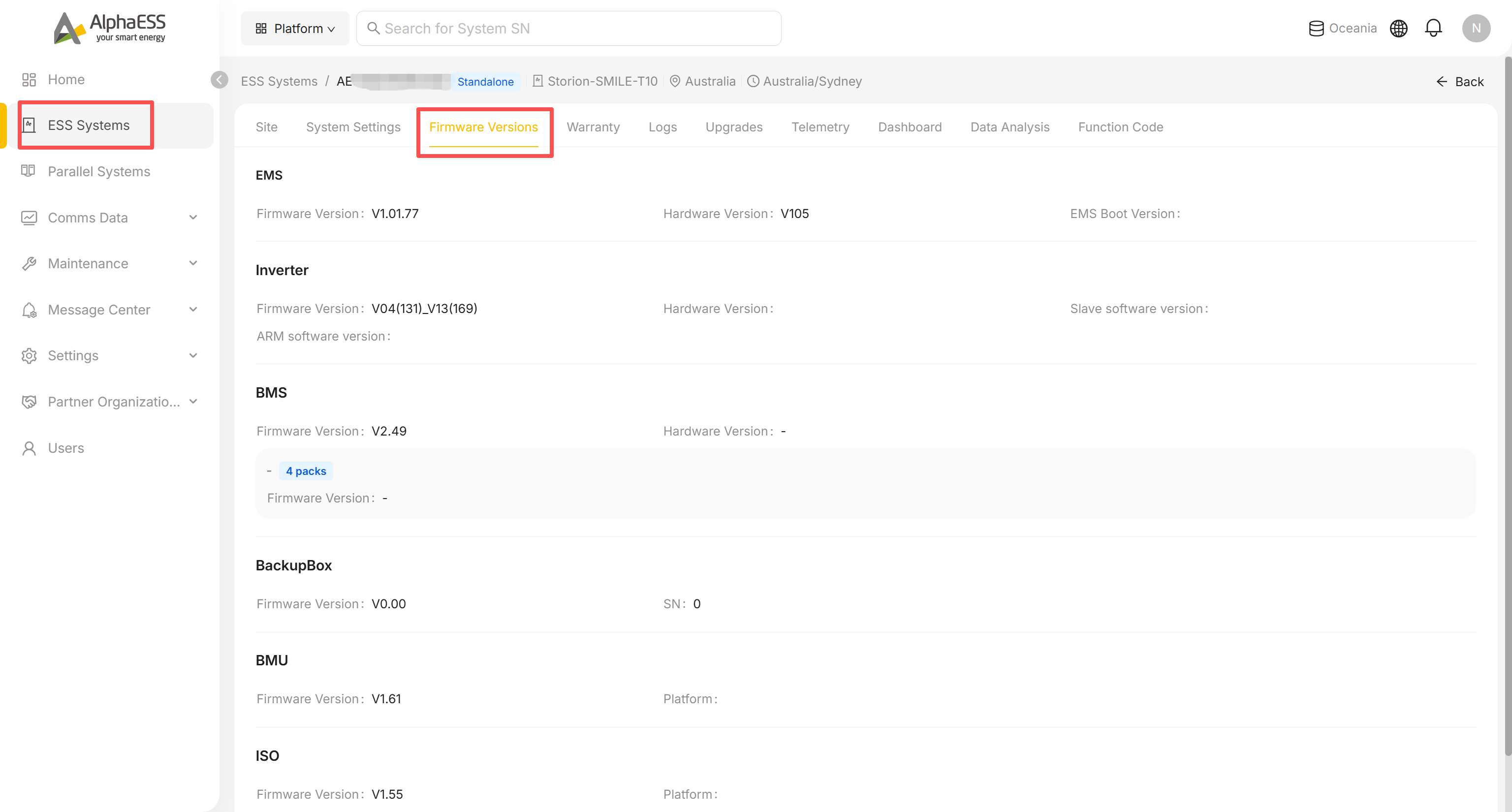
Firmware Versions
Shows the current firmware/hardware version of each component, depending on the device:
- EMS, Inverter (including ARM / Slave software versions), BMS (expand to see each battery pack individually), BackupBox, BMU, ISO and others
Warranty
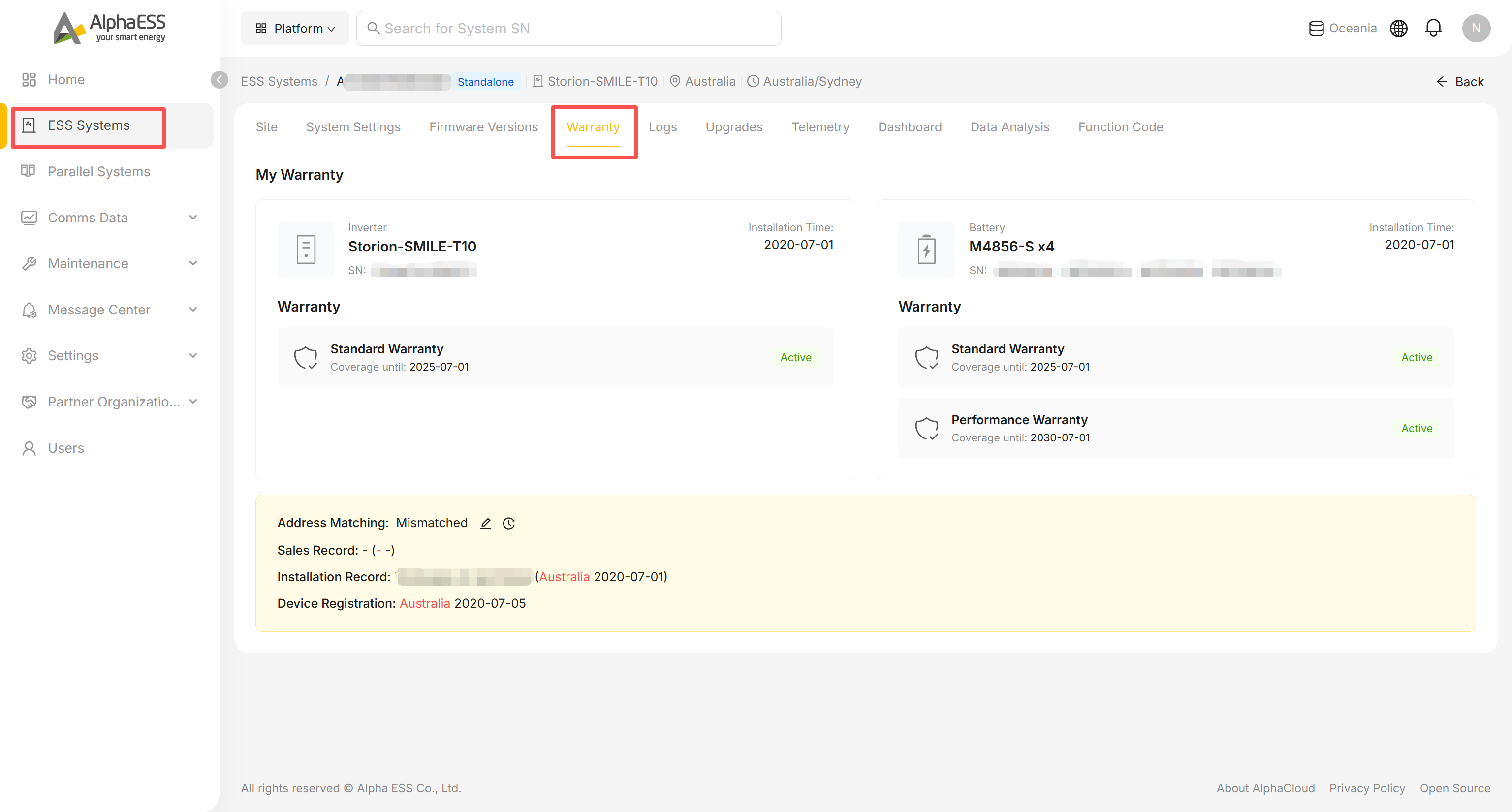
Shows this device's warranty status — either a plain confirmation (e.g. "Your device is covered by the standard warranty") or the extended warranty details if one has been registered.
Logs
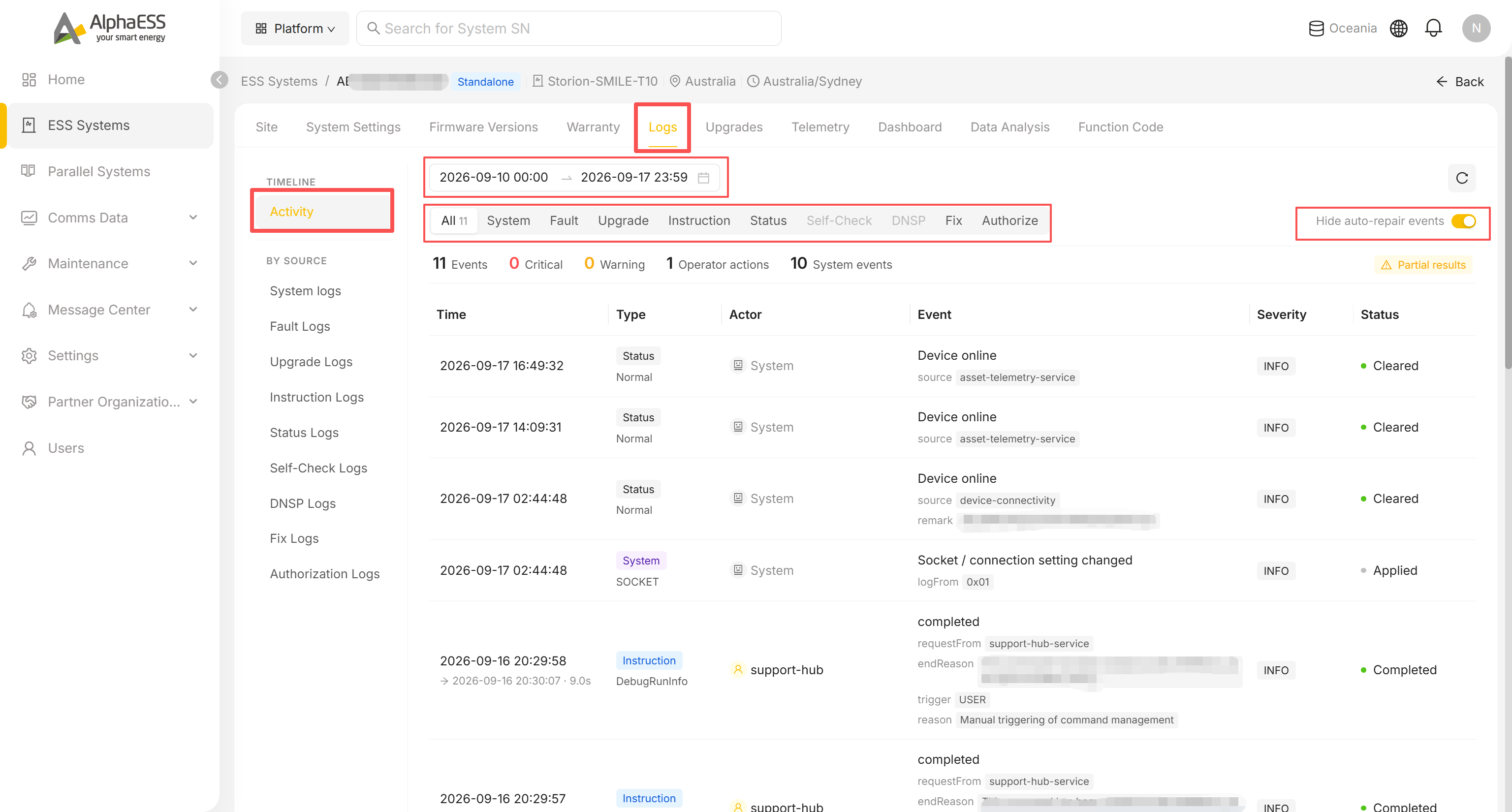
The complete event stream for this device:
- Activity (Timeline): all events on a timeline, with a date range picker, plus:
- Type filters at the top: All, System, Fault, Upgrade, Instruction, Status, Self-Check, Fix, Authorize
- Counts for: Events, Critical, Warning, Operator actions, System events
- By Source (left panel): jump straight to System logs, Fault Logs, Upgrade Logs, Instruction Logs, Status Logs, Self-Check Logs, Fix Logs, Authorization Logs
- The Hide auto-repair events switch (top right) hides auto-repair noise from the Activity view
Upgrades
Click Scanning now to check for available firmware updates; if any are found, confirm and run each one in turn. If nothing has been scanned yet, the page shows "You have not yet scanned for upgrades."
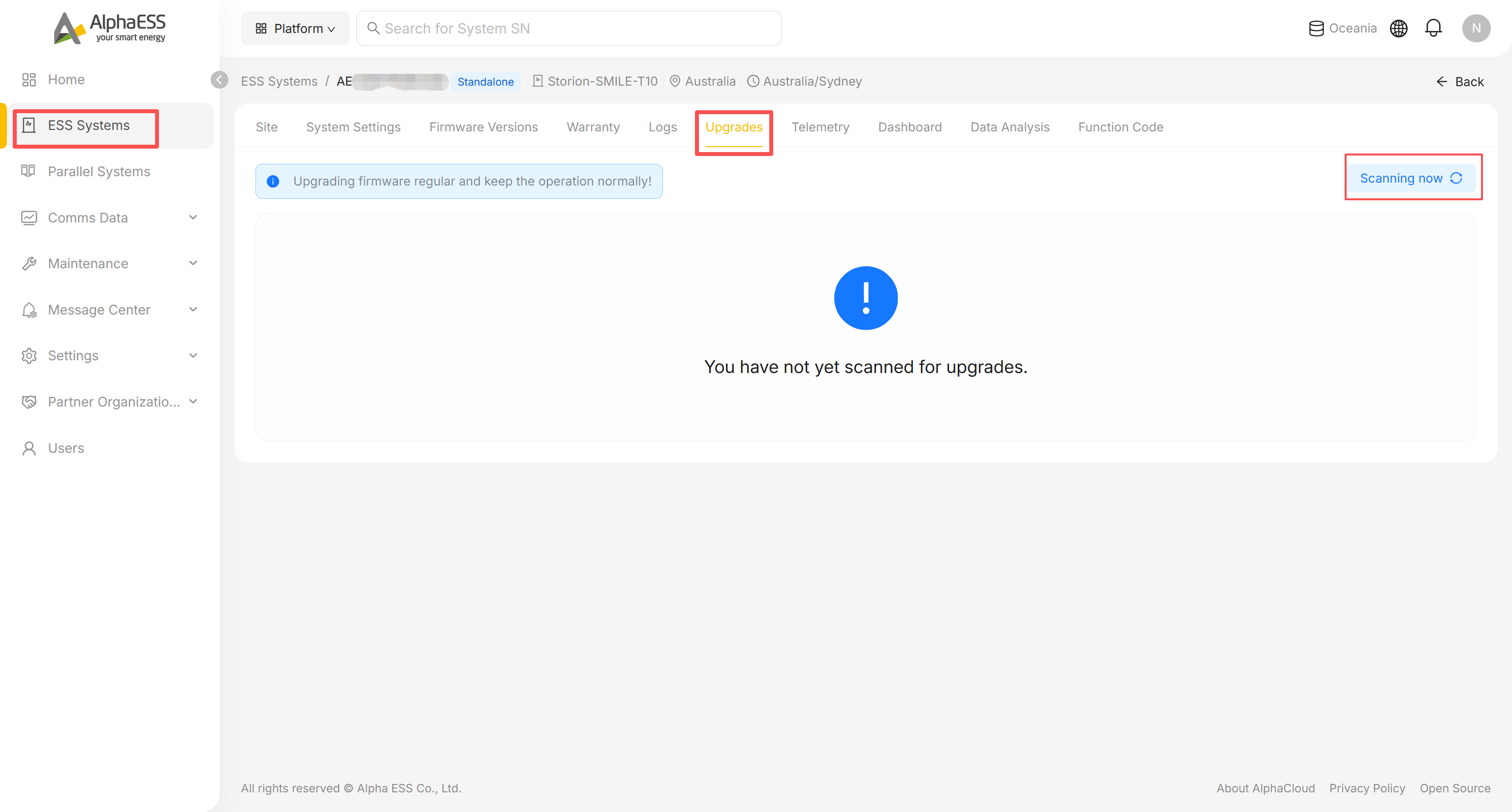
💡 Tip: upgrade history can be found under Logs → Upgrade Logs; bulk upgrades across many devices (OTA Jobs) are available to distributor accounts under OTA Management.
Telemetry
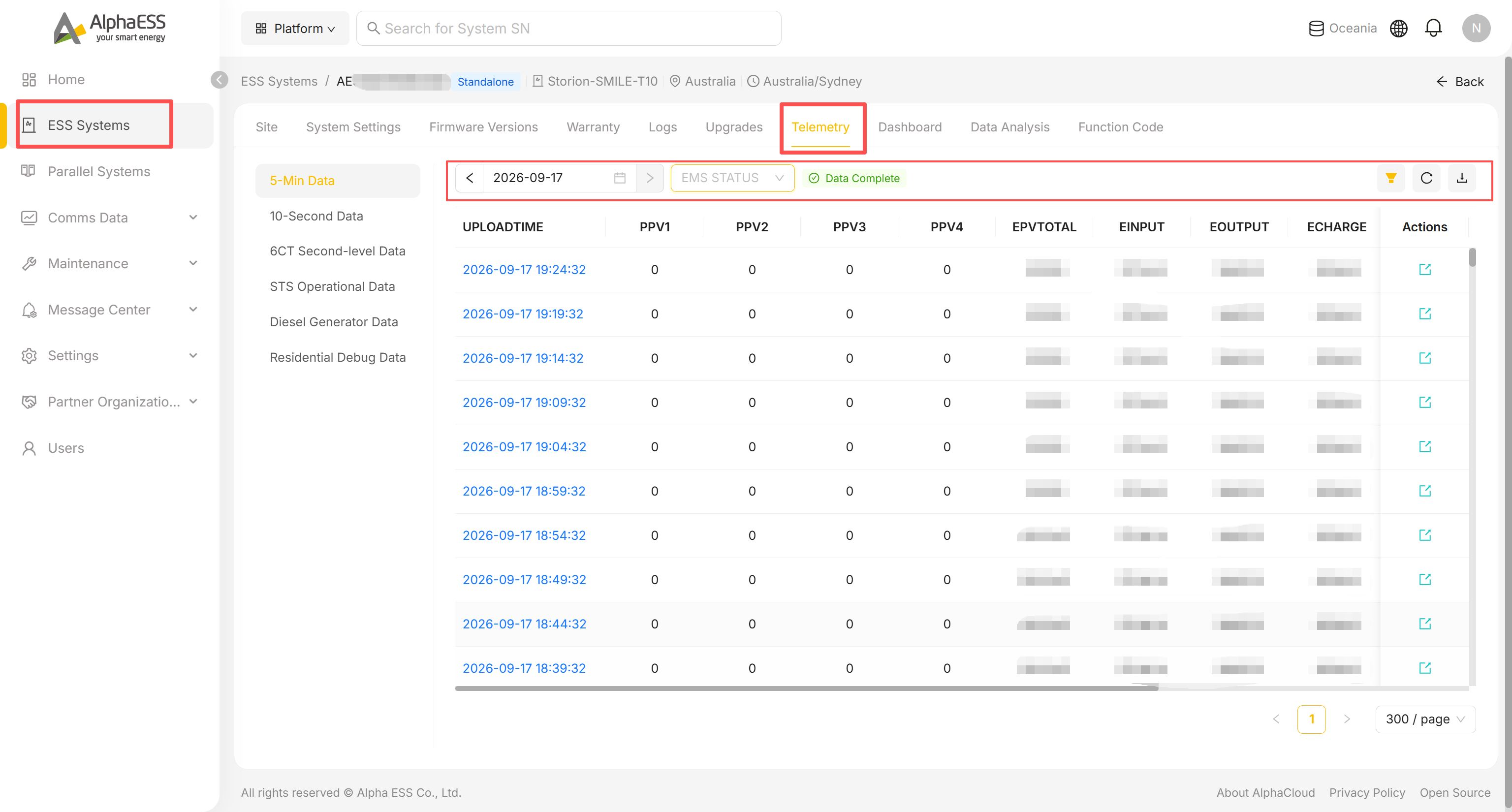
Raw telemetry by upload granularity, selected from the left panel:
- 5-Min Data, 10-Second Data, 6CT Second-level Data, STS Operational Data, Diesel Generator Data, Residential Debug Data
- Use the ◀ / ▶ date navigator (or the calendar icon) to pick a day.
- Narrow the rows with the status dropdown (e.g. EMS STATUS).
- Use the filter, refresh and download icons (top right) to filter columns, reload, or export the table.
Data Analysis
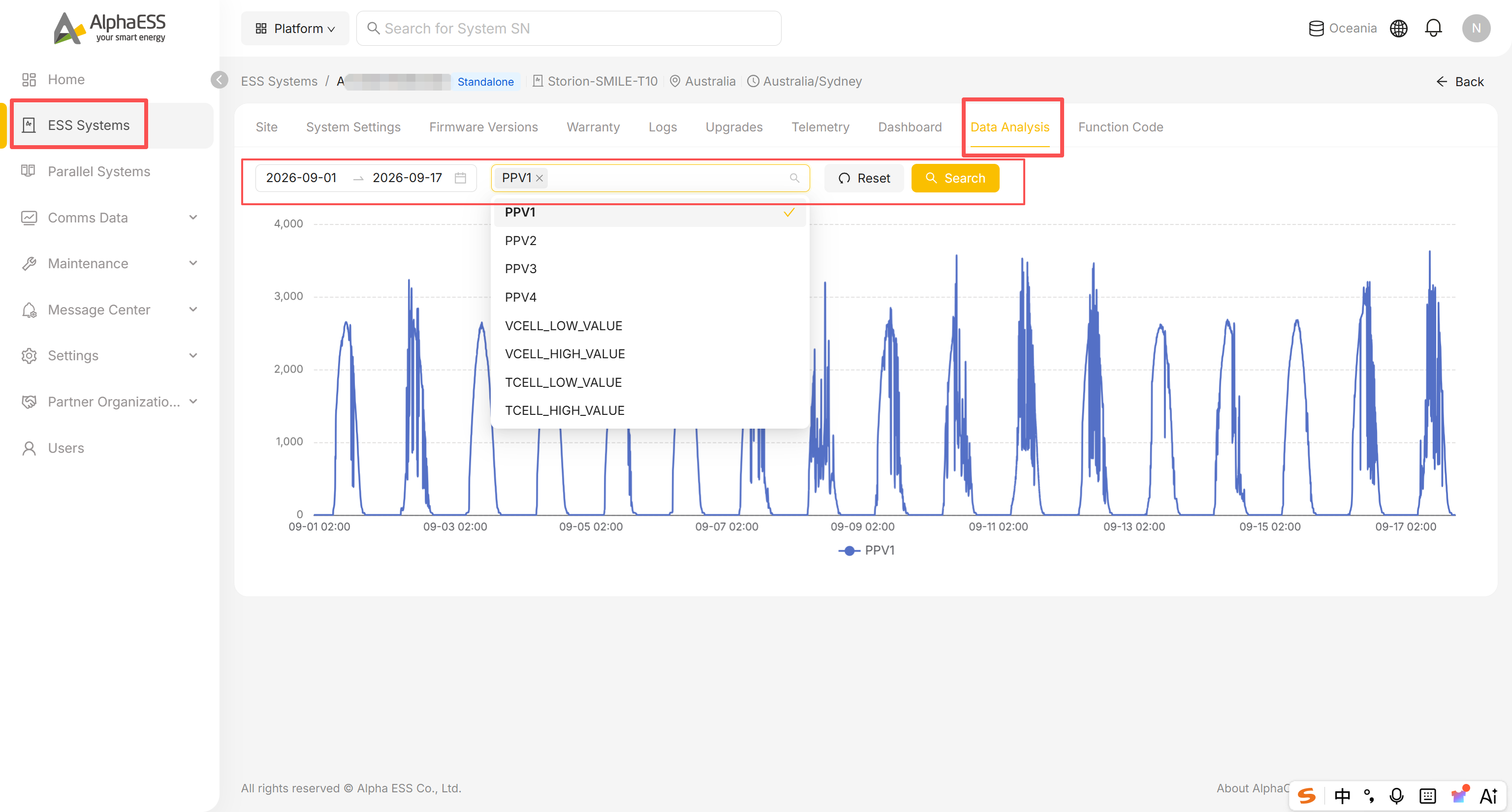
- Set a date range.
- Open the metrics dropdown and select one or more raw telemetry fields to compare (the options are technical field names such as PPV1–PPV4, VCELL_LOW_VALUE / VCELL_HIGH_VALUE, TCELL_LOW_VALUE / TCELL_HIGH_VALUE, not human-readable labels).
- Click Search to plot the selected fields on the same chart — useful for correlating readings when reproducing an intermittent issue.
Function Code
Advanced diagnostic codes reported by the device. Not every model supports this; when it doesn't, the page shows "This device has not reported function codes / does not support function code upload."
Maintenance → Data Migration
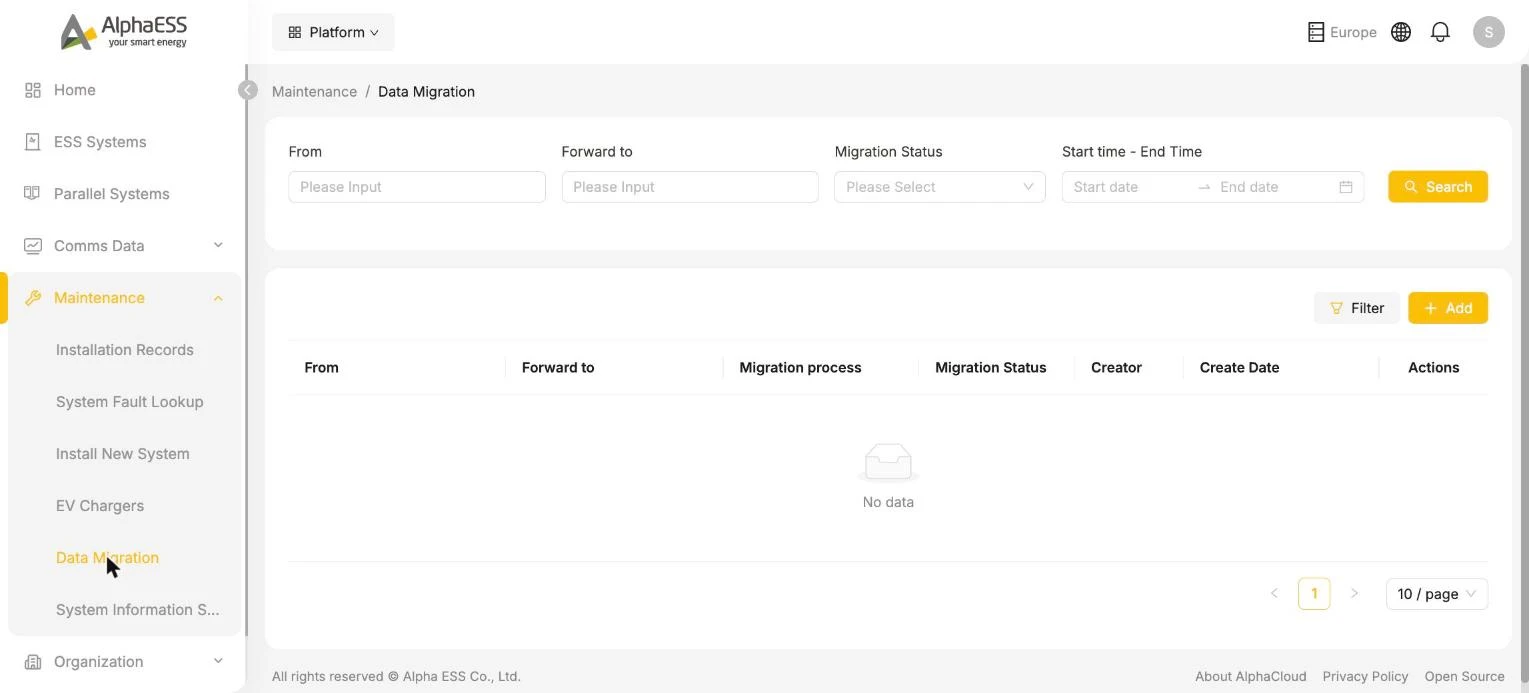
In the Side Bar, select Maintenance, then Data Migration — for unit replacement, this migrates historical data from the old SN to the new SN.
Use + Add, enter the From (old) SN and the Forward to (new) SN, confirm the notice shown in the dialog, and submit. The list tracks each task's From / Forward to, installation organisations, Migration process and Migration Status.
⚠️ Note: once submitted, a migration task should not be interrupted arbitrarily — the dialog states this is irreversible. Before replacing a unit, confirm that the new SN has completed installation registration (2.1).