

Organisation and Members Overview
This page explains how to view organisation information, check your role, and view and search organisation members.
Viewing Organisation Information
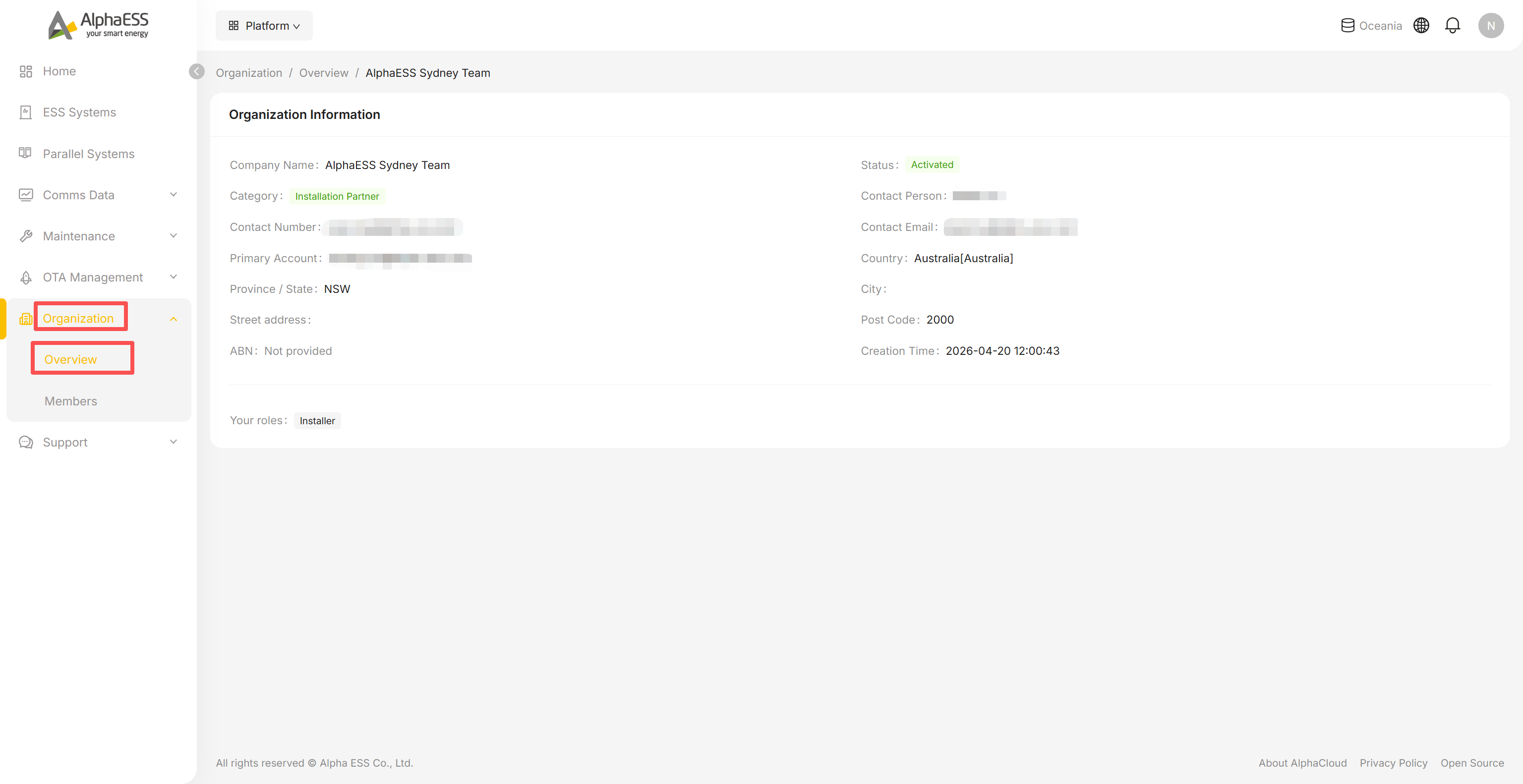
- In the Side Bar, select Organization.
- Select Overview.
The Organization Information section shows the organisation's basic details:
- Company Name, Status, Category, Primary Account, contact information, address information, Creation Time
Checking Your Role
Below the Organization Information section, the Your roles field shows your role within the current organisation. In this example, the account's role is Installer.
Viewing and Searching Organisation Members
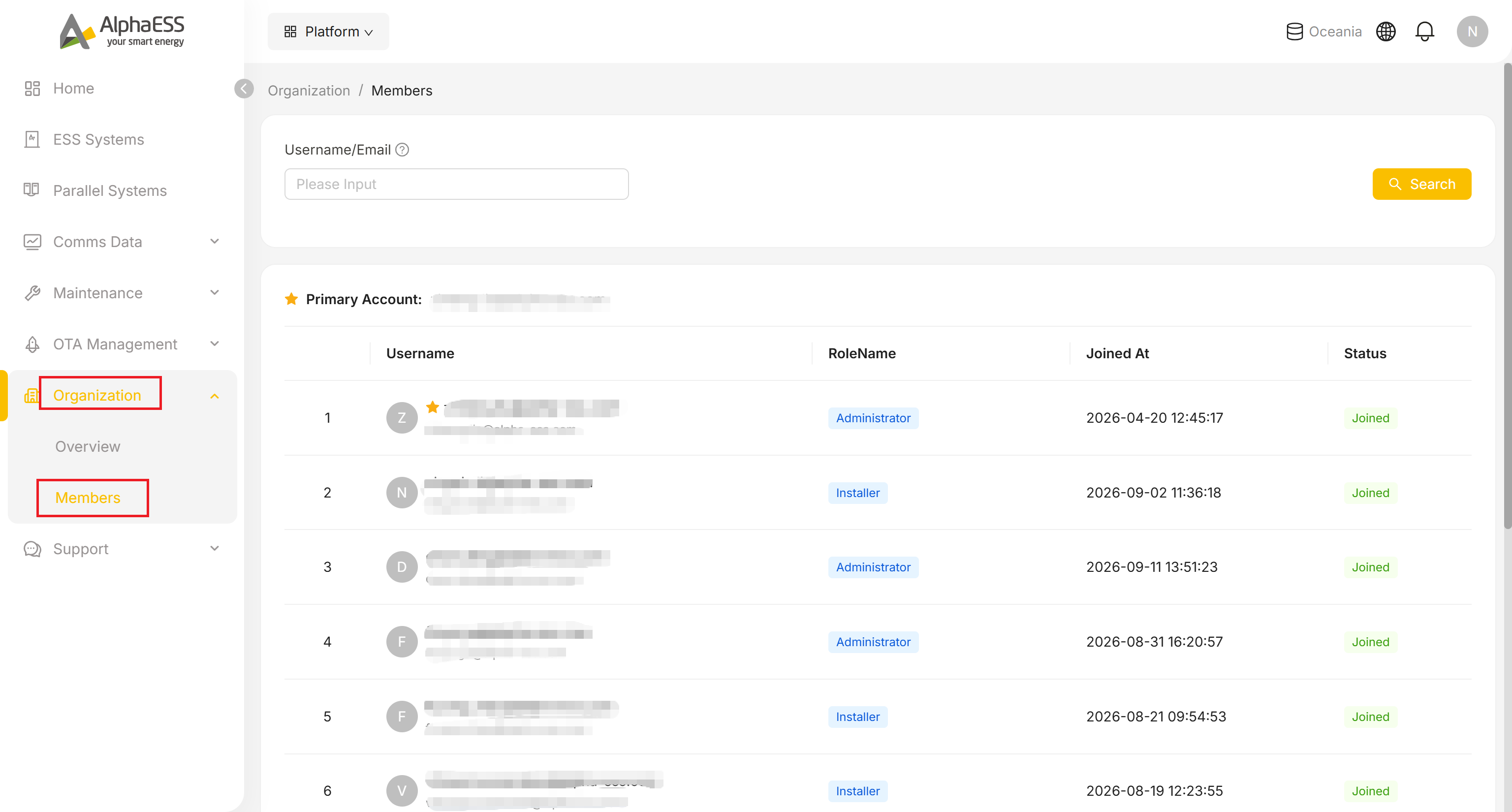
- In the Side Bar, select Organization.
- Select Members.
The Members page shows:
- A Username/Email search field and Search button
- The organisation's Primary Account (starred at the top of the list)
- A table of organisation members with the columns Username, RoleName (e.g. Administrator, Installer), Joined At and Status (e.g. Joined)
On this page you can:
- Browse the organisation's members, with pagination at the bottom (page size selector and a Go to page jump)
- View each member's role, join date, and status
- Search for a member using Username/Email
💡 Role-based visibility: what you can do on this page depends on your own role. An Installer account (as above) can only browse and search; adding a member, changing a member's role or removing a member are Administrator-only actions and are not covered here, since they aren't visible from an Installer account.