

Quick Start
INFO
The video was recorded using AlphaESS V7 and later versions.
If you are looking for an older version, please refer to: AlphaESS App Tutorial:Everything You Need To Know
Please go to the App Store or Google Play to download the AlphaESS App and log in to your account to get started.
DANGER
This document is written for AlphaESS app v7 and later versions. If your version differs from what is described here, please wait for AlphaESS to roll out the upgrade — for details, see The new AlphaESS app.
Before you start using AlphaESS, explore more.
- Creating an AlphaESS account
- Viewing your home and devices
- Network and connection requirements
- Initial status check
Creating an AlphaESS account
Before using AlphaESS, you need to create an account.
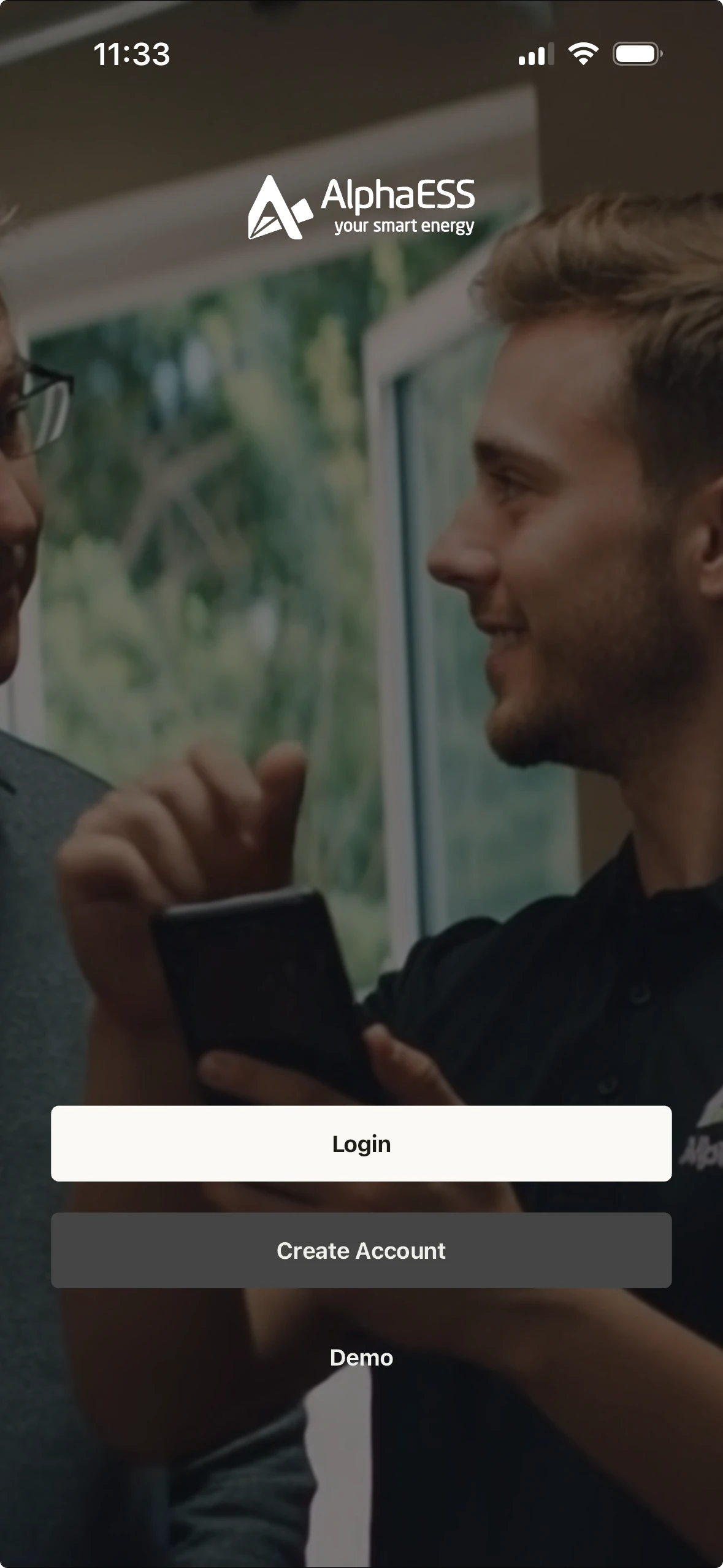
- Open the AlphaESS App and tap Sign Up
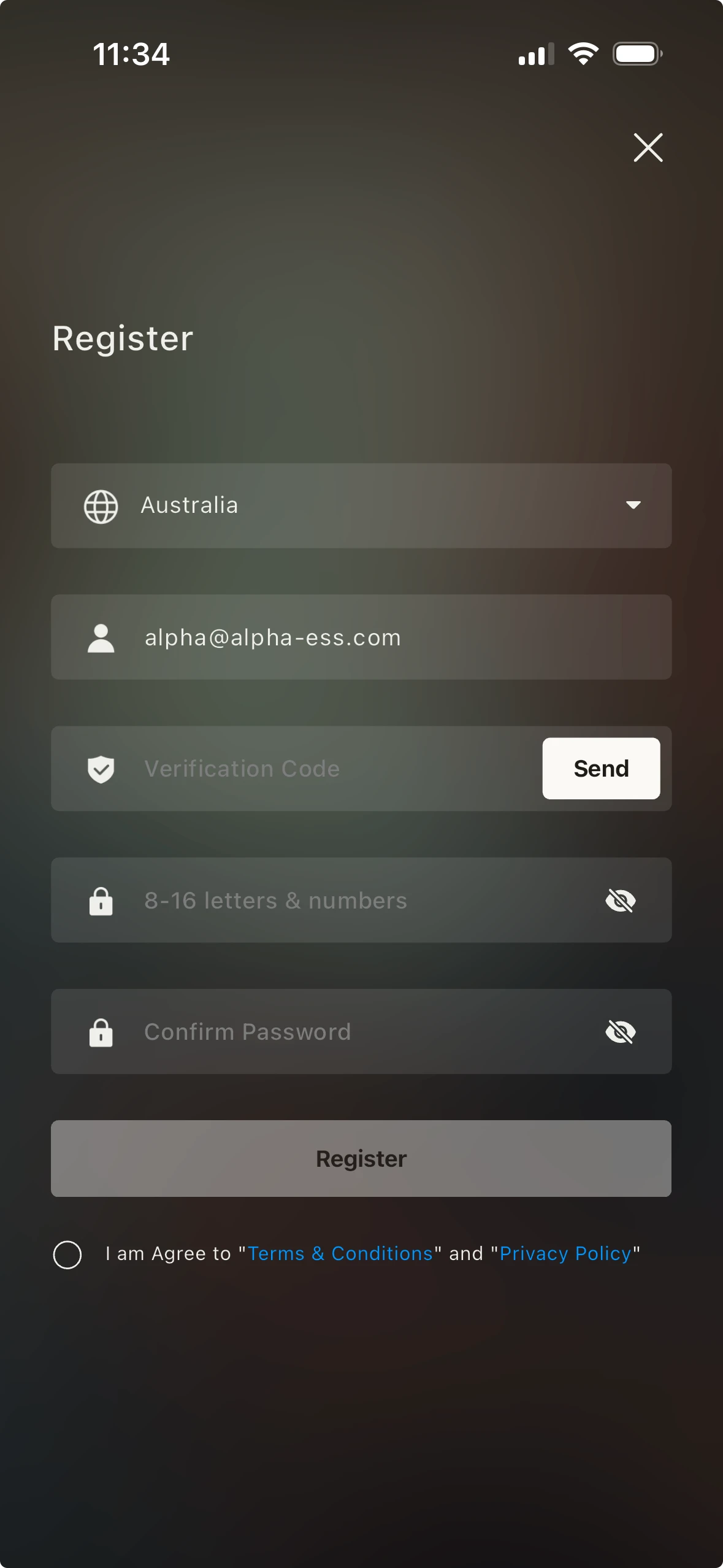
- Enter your email address and complete verification
- Set a login password
- Log in to the App and get started
INFO
A single account can manage multiple homes or sites. If you have several locations and multiple AlphaESS devices, there is no need to register more than one account.
Viewing your home and devices
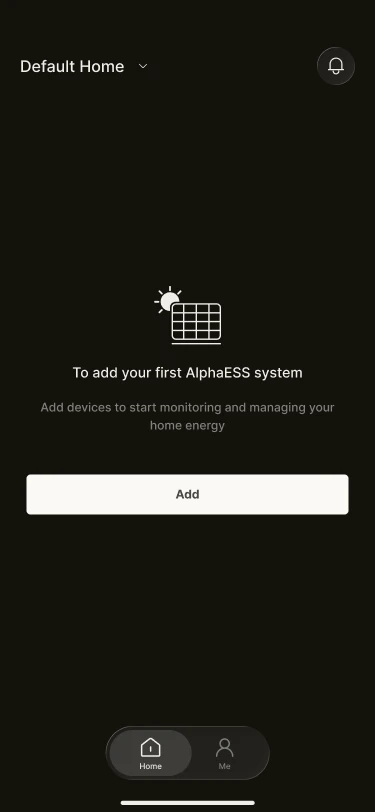
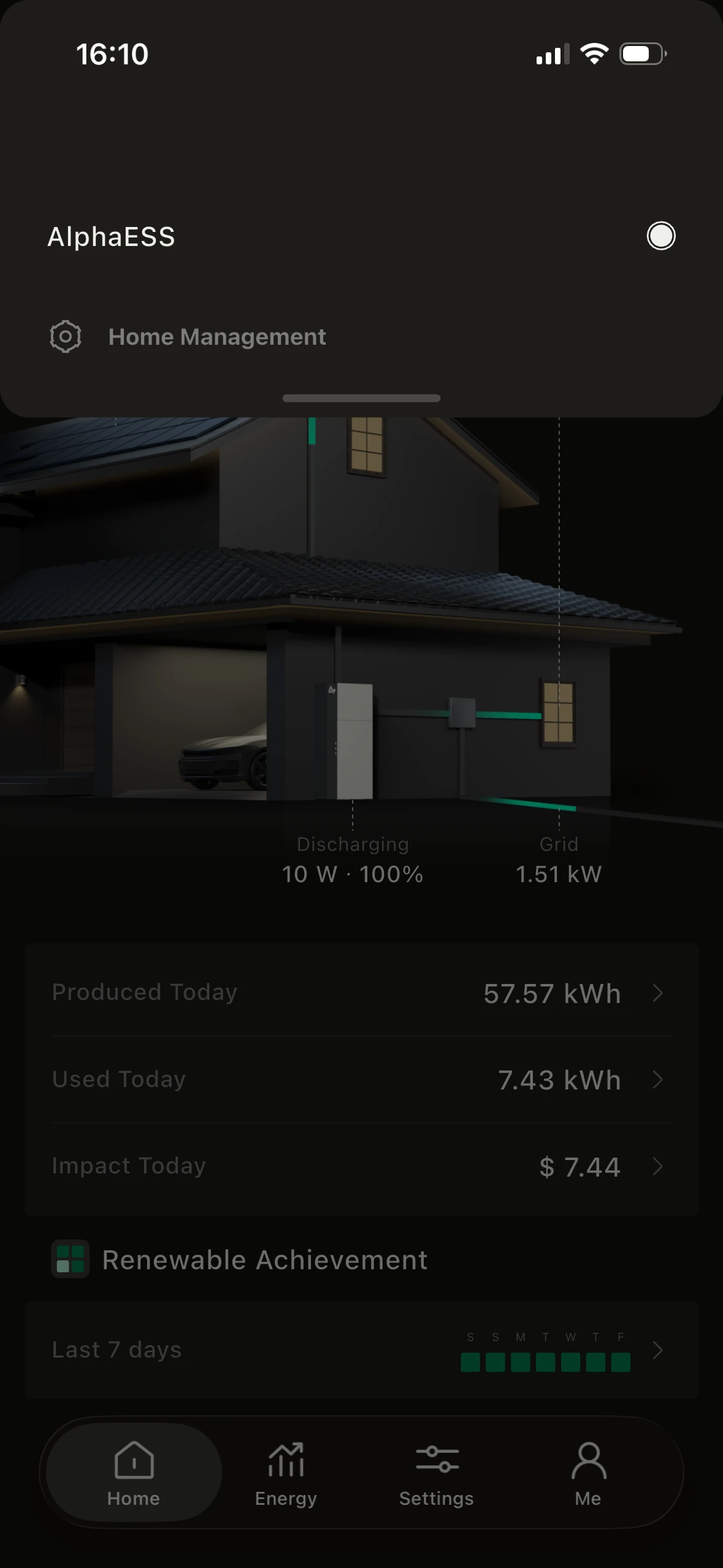
Once you have logged in successfully, you can view your home and devices.
- In most cases, the device has already been installed and bound by your installer.
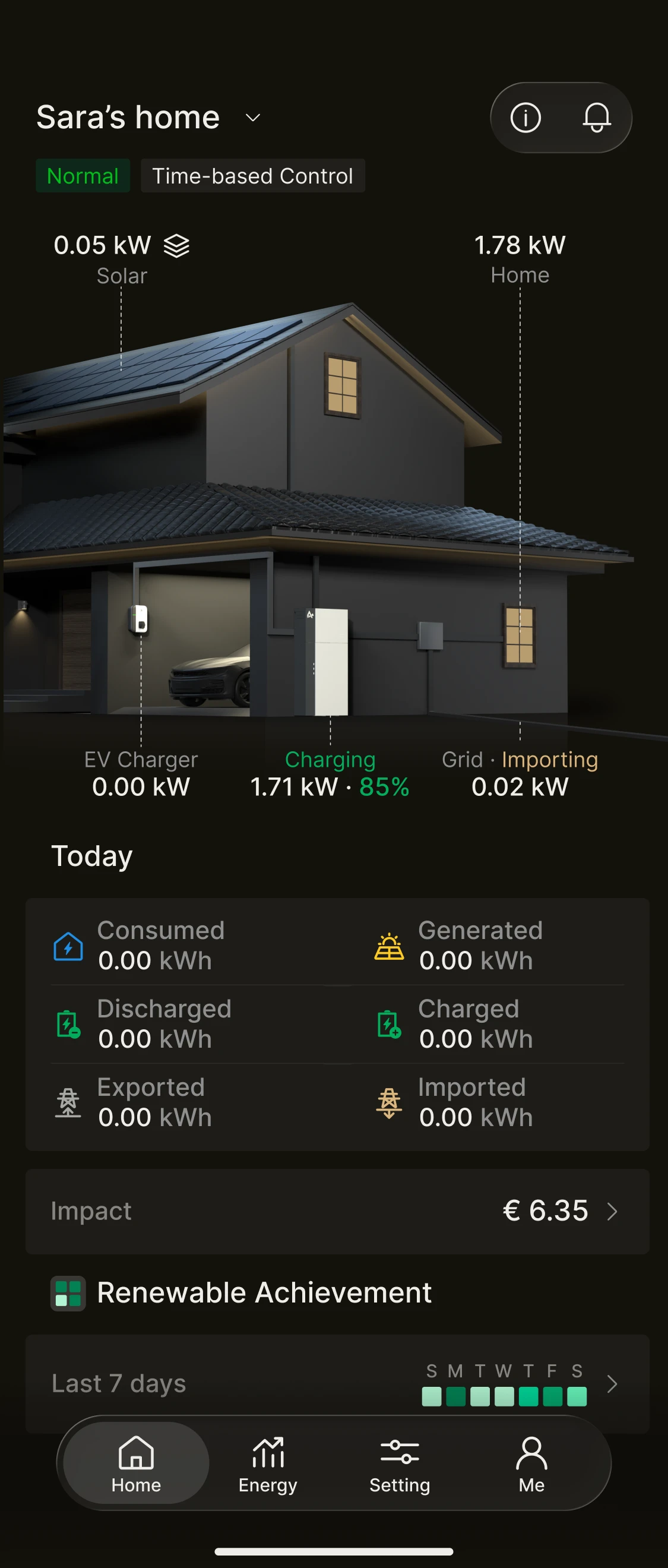
- View the energy storage system already running in your home on the home page.
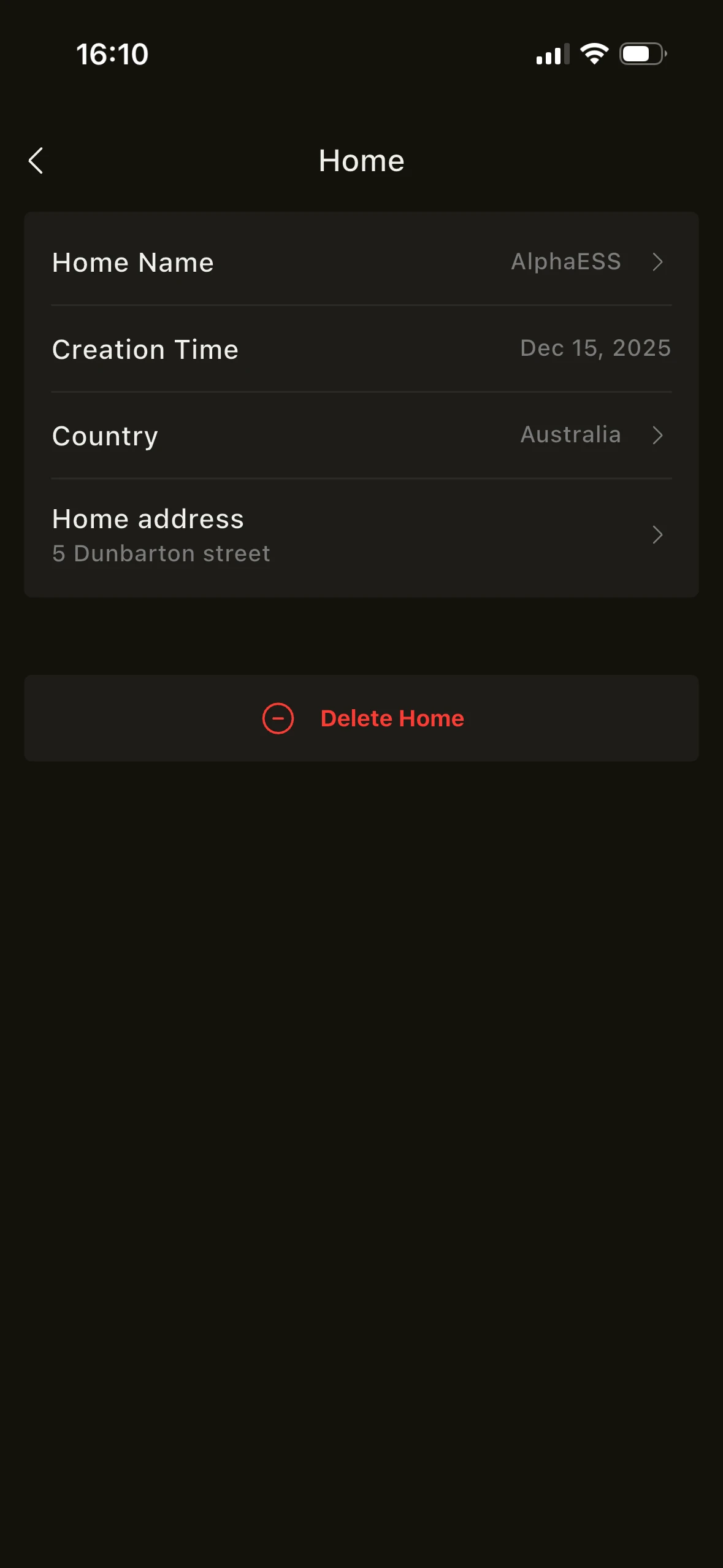
- Tap "Home Management" to adjust your home details.
INFO
Common issues
- The device has already been bound to another account. Please contact the current holder of the device or your installer for assistance.
- The serial number is invalid. Please check the serial number on the system enclosure and make sure it has been entered correctly.
Network and connection requirements
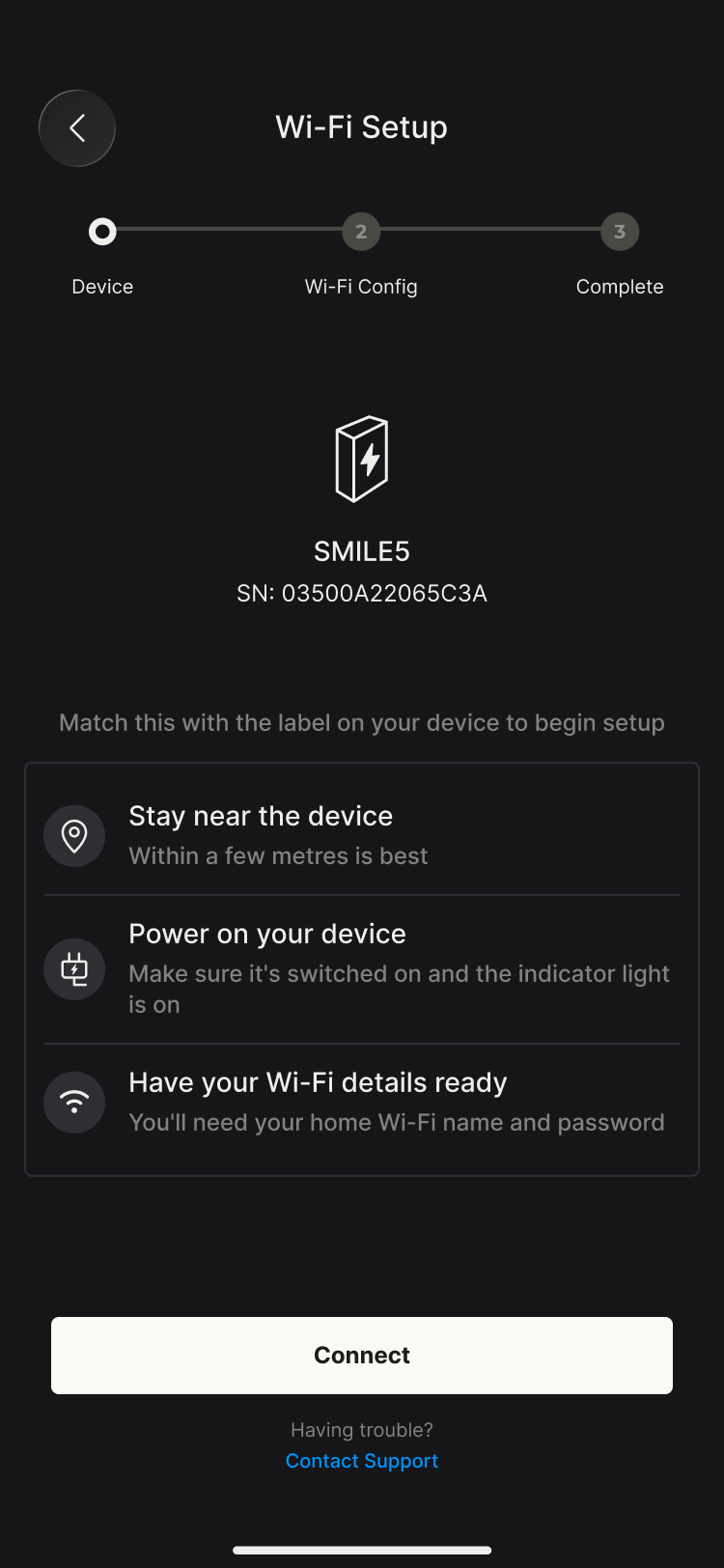
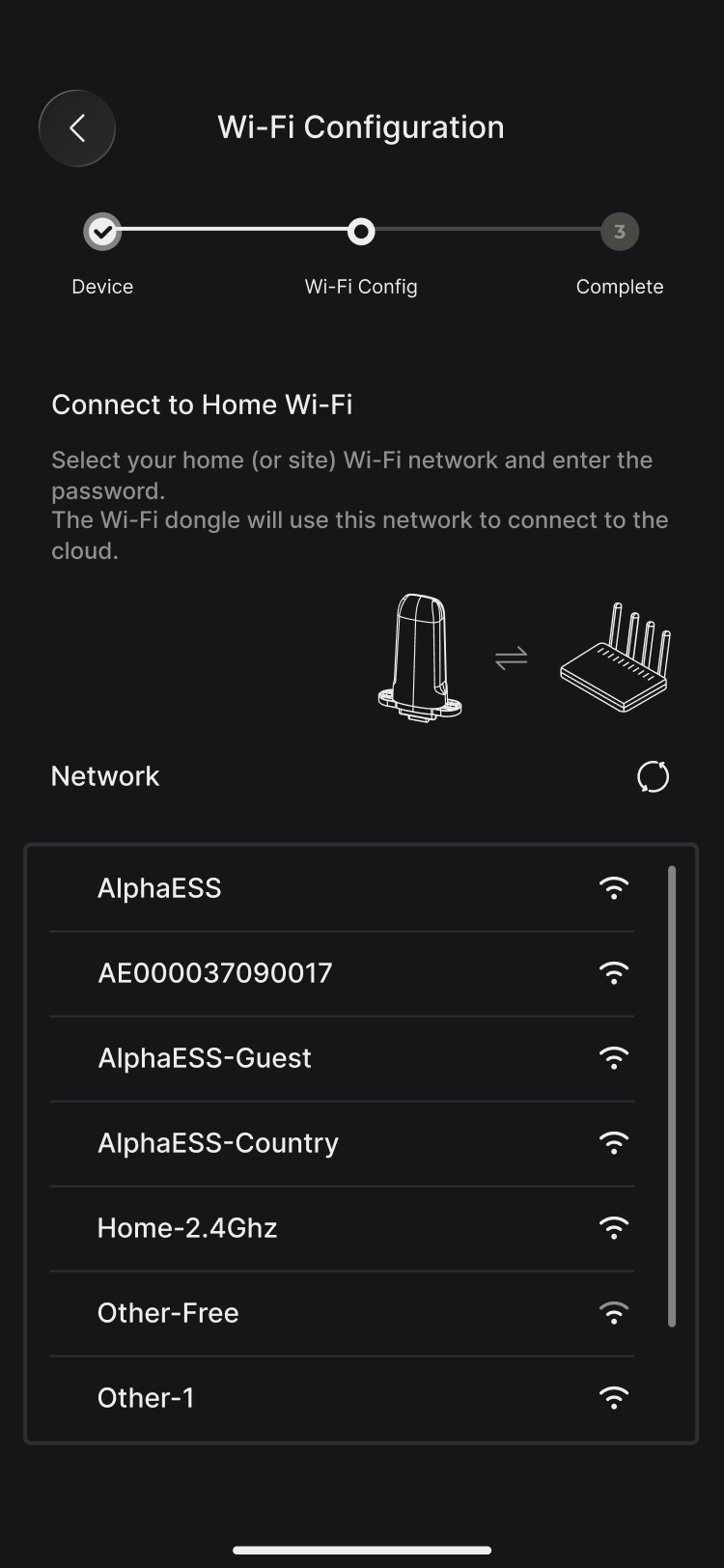
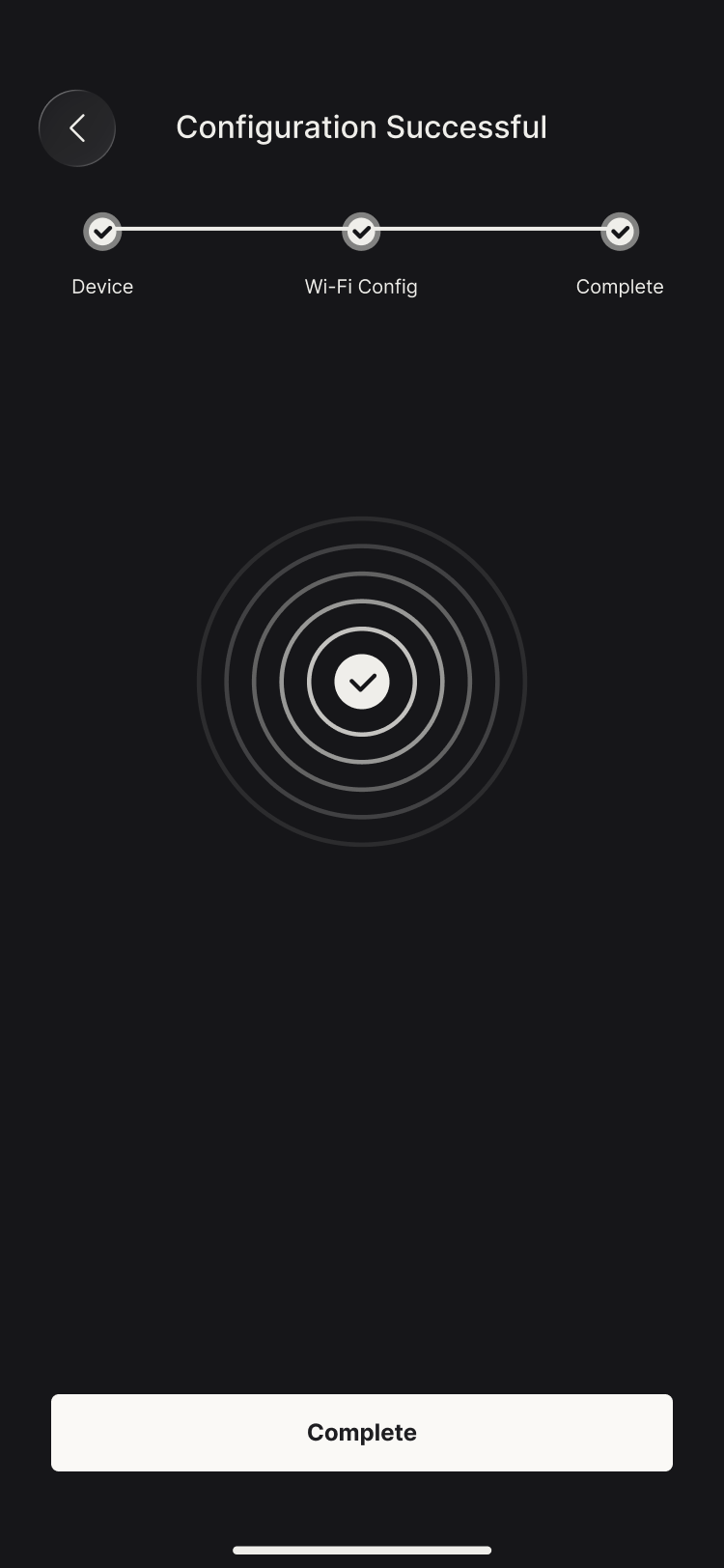
To ensure data syncs reliably, the device needs an internet connection.
- Wired networks (LAN) and Wi-Fi are both supported
- A stable home network is recommended
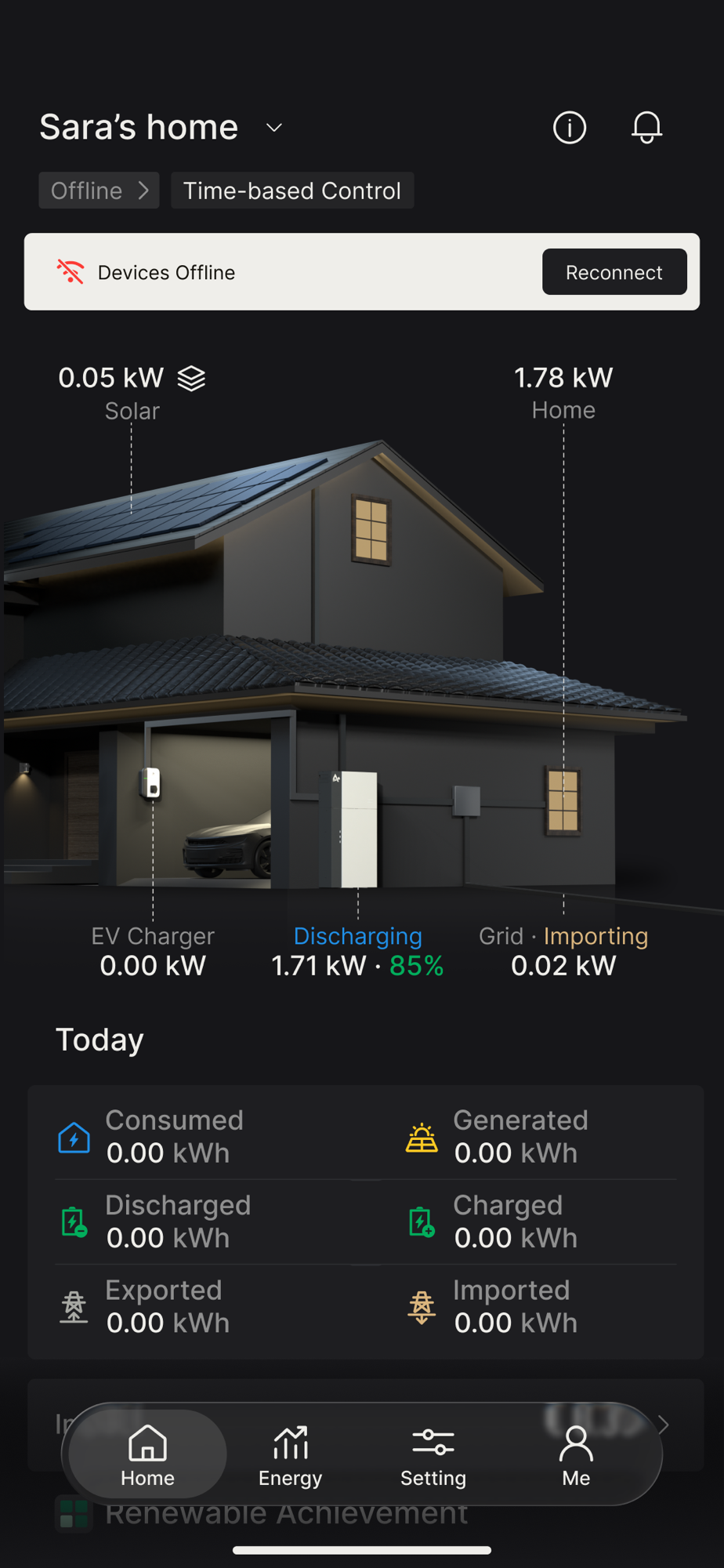
When there is a network problem, you may notice the following:
- The device is shown as offline
- Data updates are delayed or cannot be refreshed
- Third-party scheduling services are affected (see VPP or other scheduling)
Initial status check
Once the device has been bound, we recommend running a quick check:
- Whether the home status is shown as Online
- Whether real-time power data is visible on the home page
INFO
If the status looks wrong, we recommend contacting your installer first to have it checked.