

Network
When do I need to set up the network?
Your energy storage system is normally connected during installation. In the following two situations, however, you may need to configure it manually:
- The device shows "Offline": if the connection drops because of signal interference or a power cut, the status on the home page shows Offline (or Partially Online when only some of several devices have dropped out), and an offline banner appears on the home page. Tap Reconnect on the right-hand side of the banner to set the network up again.
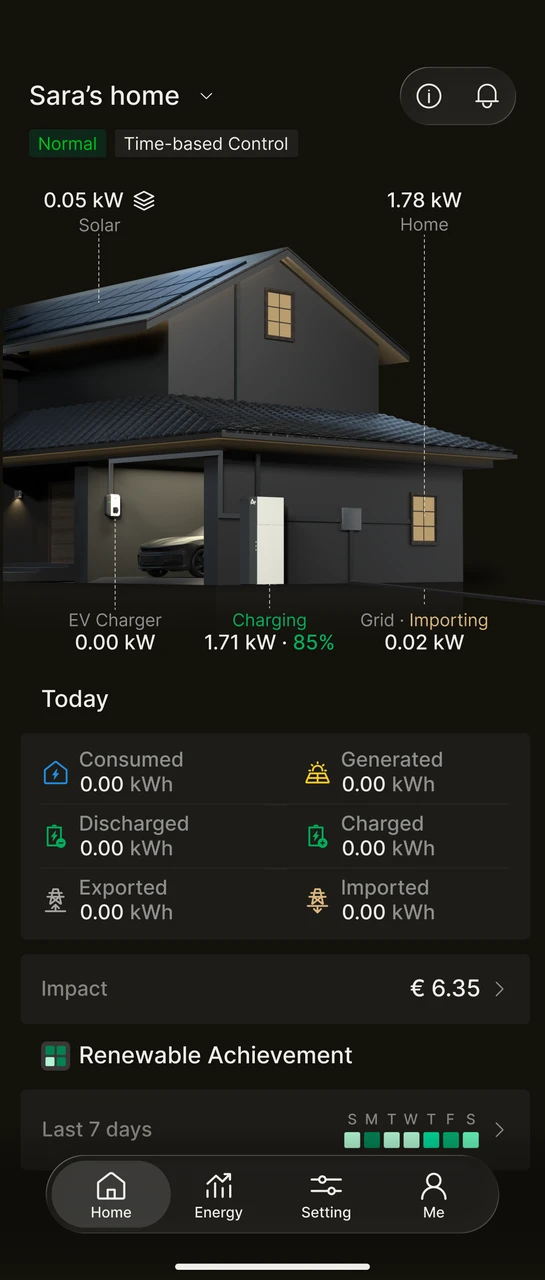
Network normal
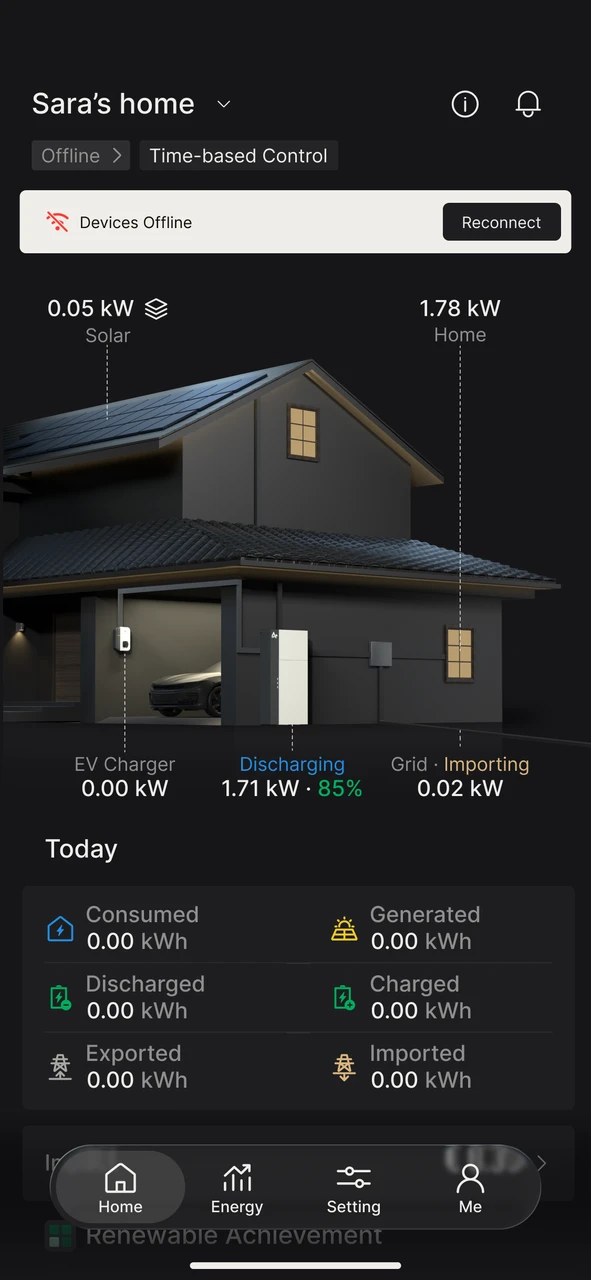
Device offline
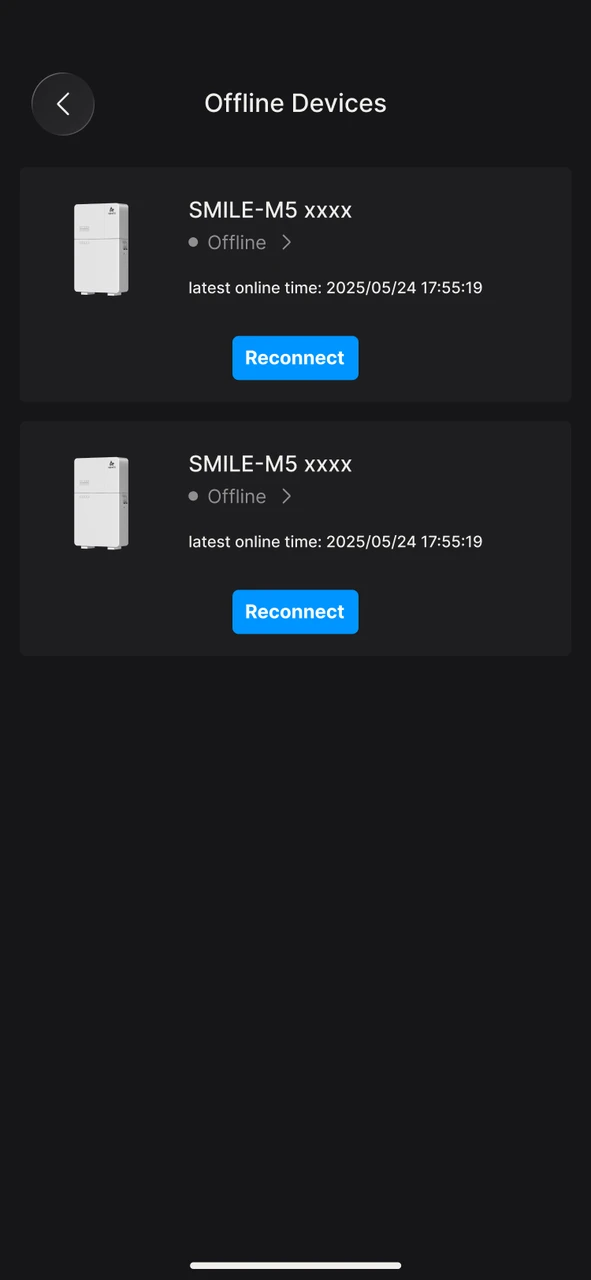
INFO
When only one device is offline, the banner shows Device Offline, and tapping Reconnect takes you straight into the setup wizard.
When several devices are offline, the banner shows Multiple Devices Offline. Tapping Reconnect first opens the Offline Devices list; tap Reconnect on the device you want, then tap Configure in the Reconfigure Network dialogue to enter the wizard.
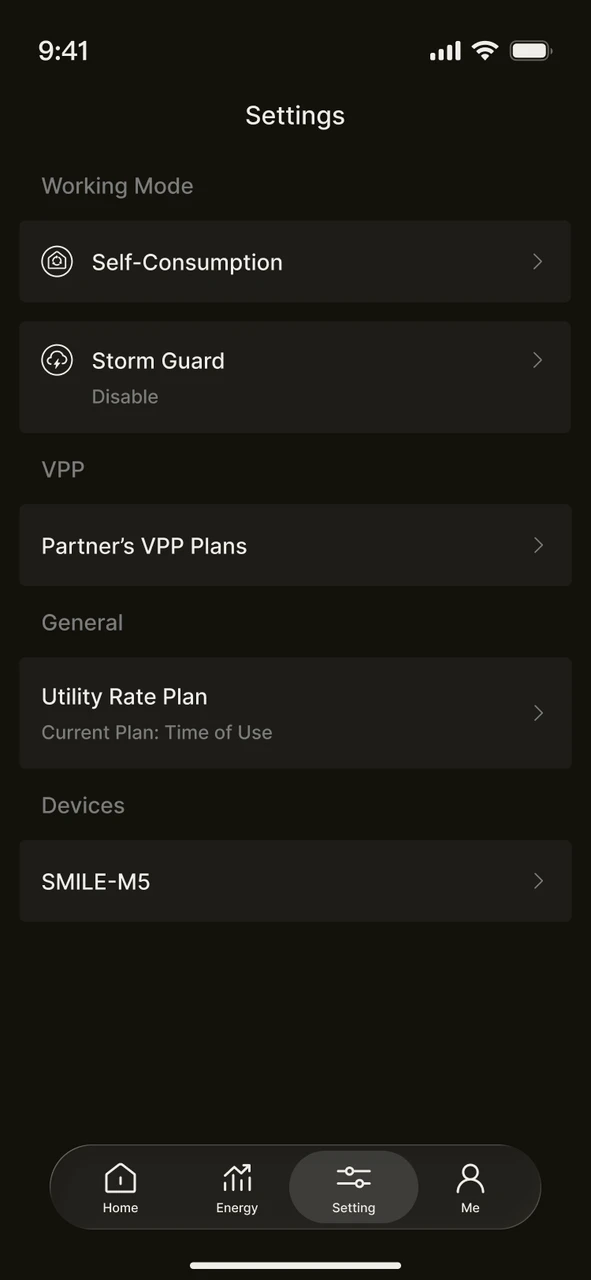
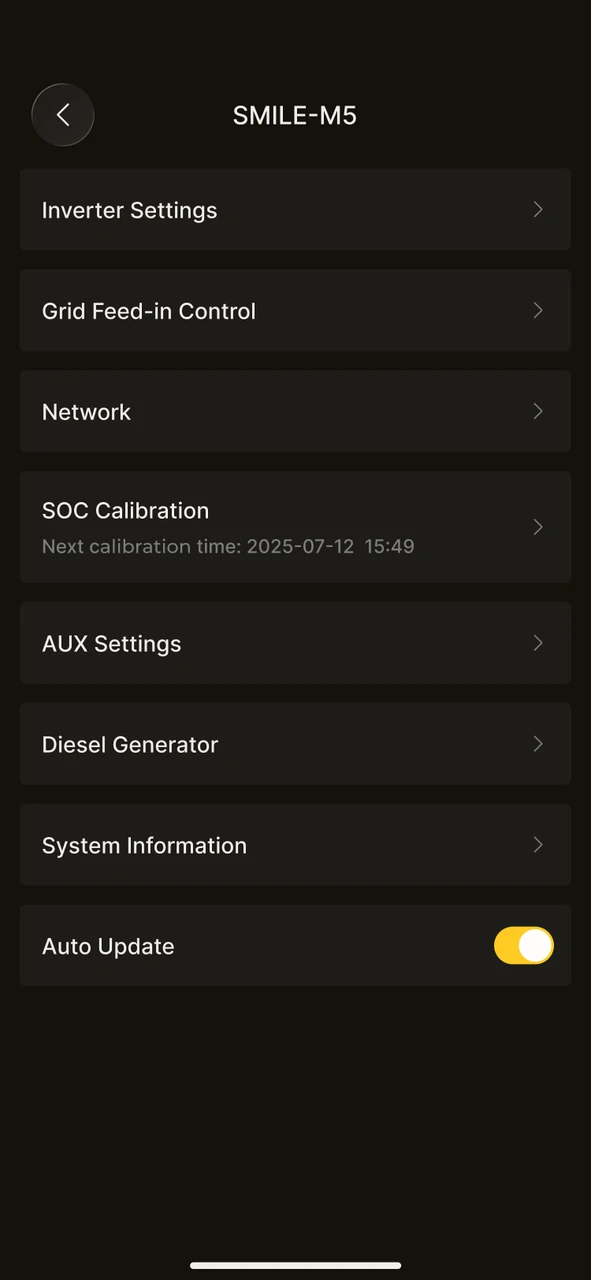
- Your home network has changed: if you have replaced your router or changed your WiFi name or password, you can set the network up again under Settings → Device → Network → Wi-Fi Settings.
Before you start
Before configuring WiFi, please make sure the following are ready:
- The communication module is installed and its power indicator is lit
- You know the name and password of your home WiFi network
- Bluetooth and WiFi are switched on on your phone, and location permission has been granted (required by Android when scanning for WiFi)
- Your phone is within 5 metres of the device
- Your phone has a working internet connection (the App needs to communicate with the cloud platform during setup)
INFO
Note: most communication modules only support WiFi networks on the 2.4 GHz band, not the 5 GHz band. Please make sure the 2.4 GHz network on your router is enabled.
INFO
Before entering the wizard, the App checks Bluetooth, location permission and the WiFi switch. If any of these is not ready, you will be prompted to enable it before you can continue to the setup page.
Setup steps
The wizard has three steps: Device → Wi-Fi Settings → Done.
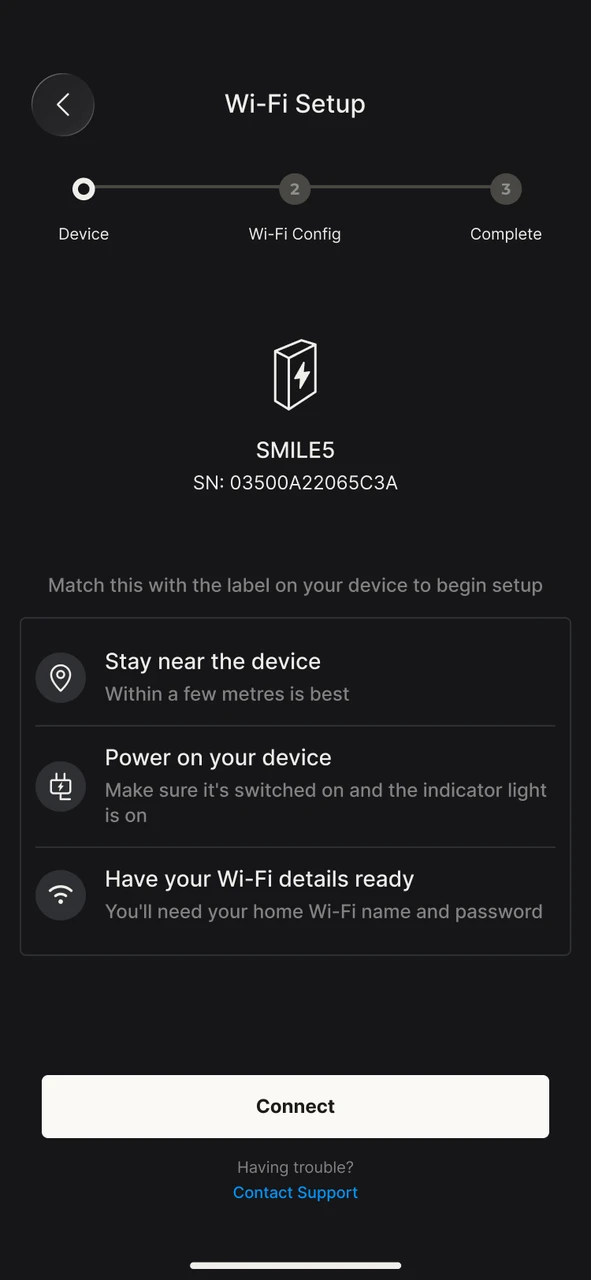
Step 1: Connect to the device
- The page shows the device model and serial number — check that these match the label on the device.
- Work through the three preparation items listed on the page:
- Stay close to the device: within a few metres is best
- Power on the device: make sure the device is switched on and its indicators are lit
- Have your Wi-Fi details to hand: you will need your home Wi-Fi name and password
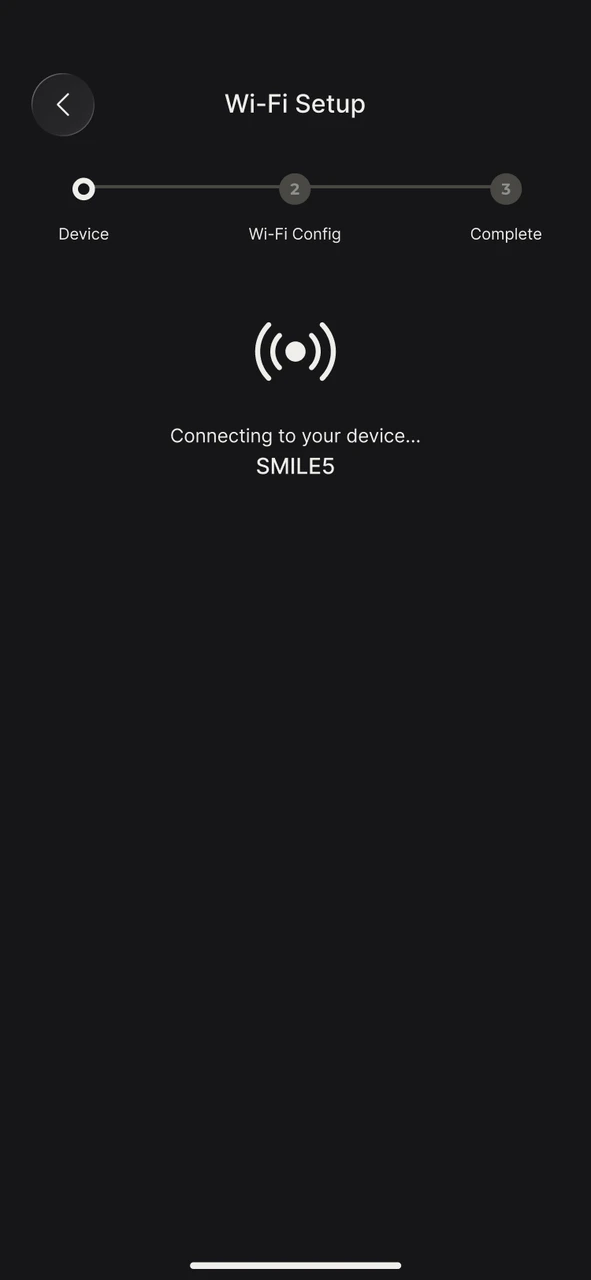
- Tap Connect. The App connects to the device automatically — you do not need to select a hotspot or enter a password yourself.
INFO
How the App connects to the device: the App first tries to connect to the communication module over Bluetooth; if no Bluetooth signal is found, it automatically switches to the device hotspot instead. When the device hotspot is used, Android displays a dialogue asking whether to connect to that network — please tap Connect ("Cancel" ends the setup, and you will need to tap Connect again). Your phone temporarily switches to the device hotspot and has no internet access for a while; it returns to normal automatically once setup is complete.
Step 2: Connect to your home WiFi
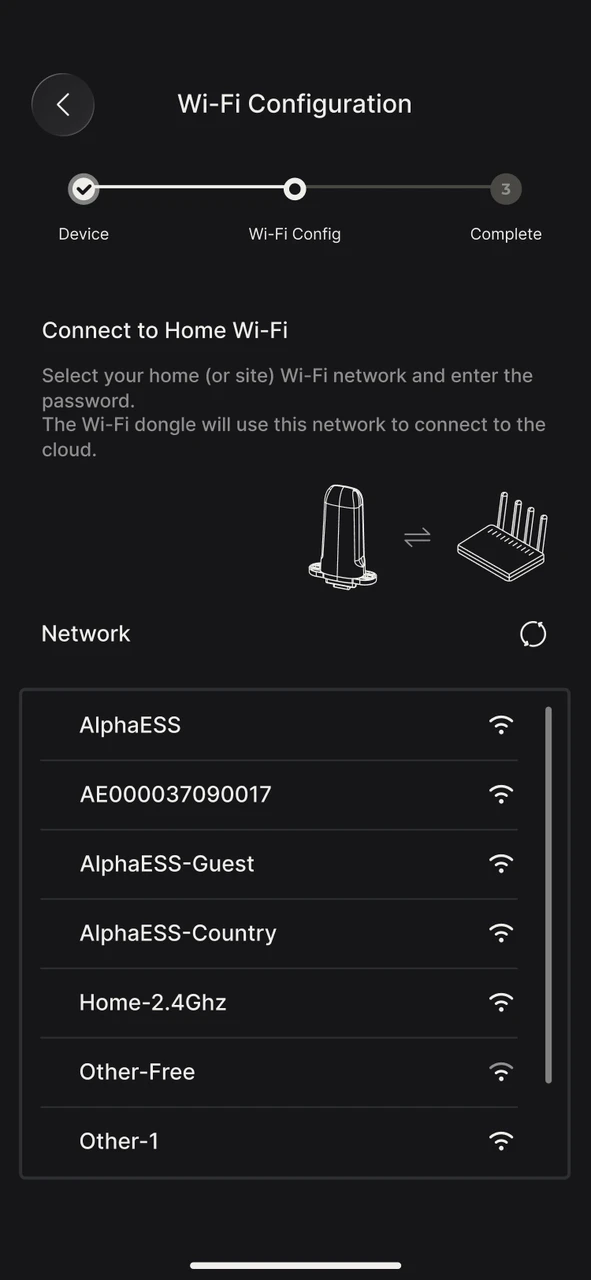
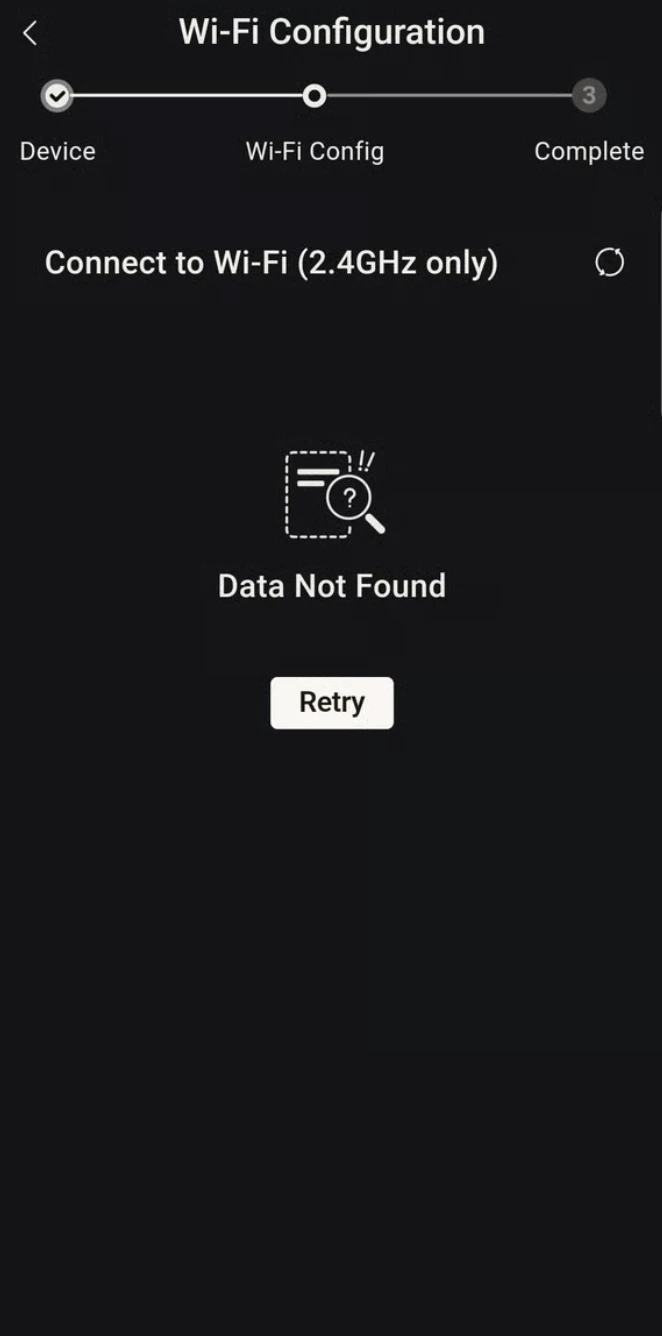
- The page lists the nearby WiFi networks found by the device. If No Data Found is displayed, tap Retry to search again.
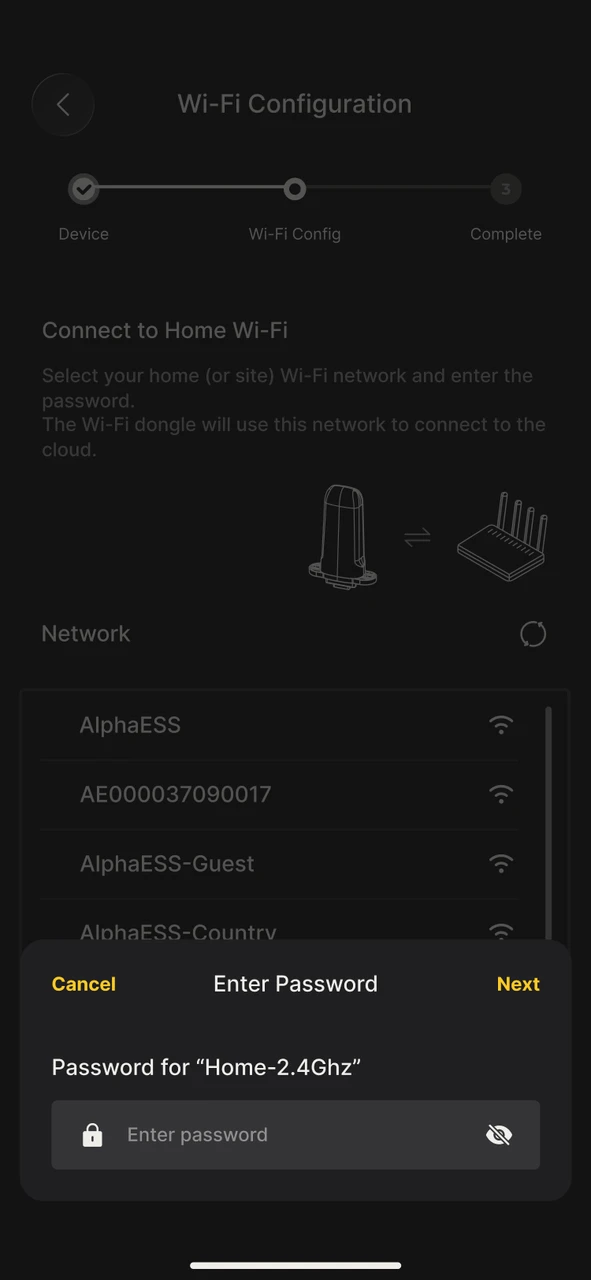
- Select your home WiFi, enter the WiFi password in the dialogue that appears, and tap ✓ in the top right-hand corner to confirm.
- Wait for the settings to be applied — this takes up to about 60 seconds.
Step 3: Done
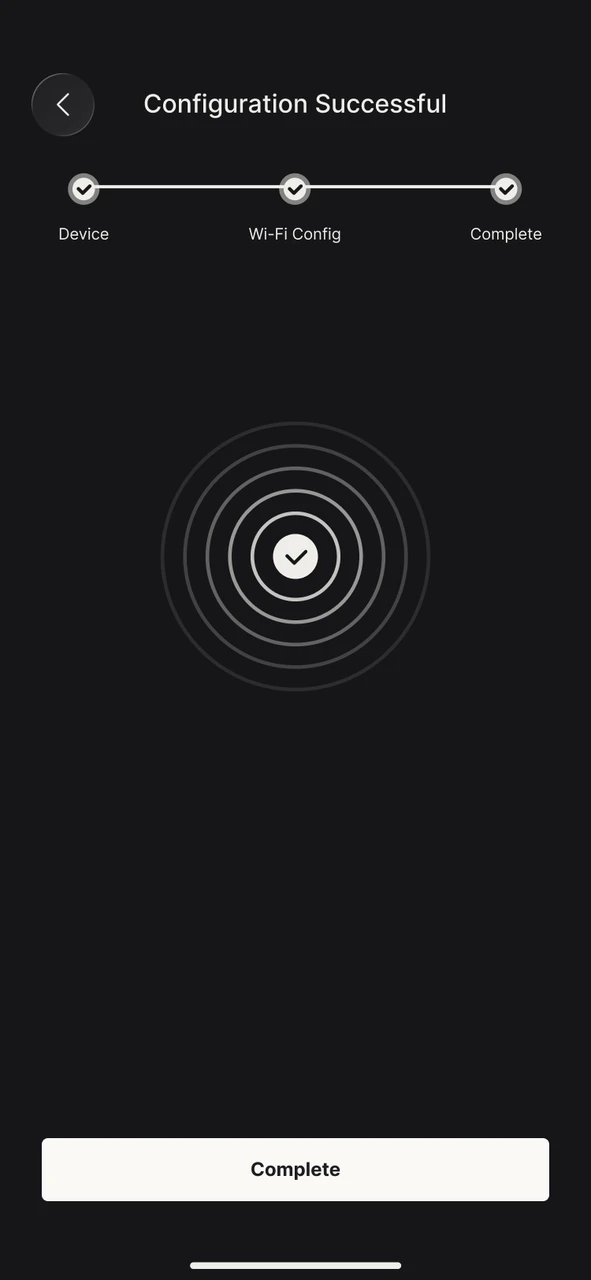
- Tap Done at the bottom to leave the wizard. If setup was carried out via the device hotspot, the App also disconnects from the hotspot and your phone returns to its original network automatically.
- Go back to the home page and check the device status — Normal means setup was successful.
Once setup is complete, you can view real-time energy data on the App home page.
Viewing network information
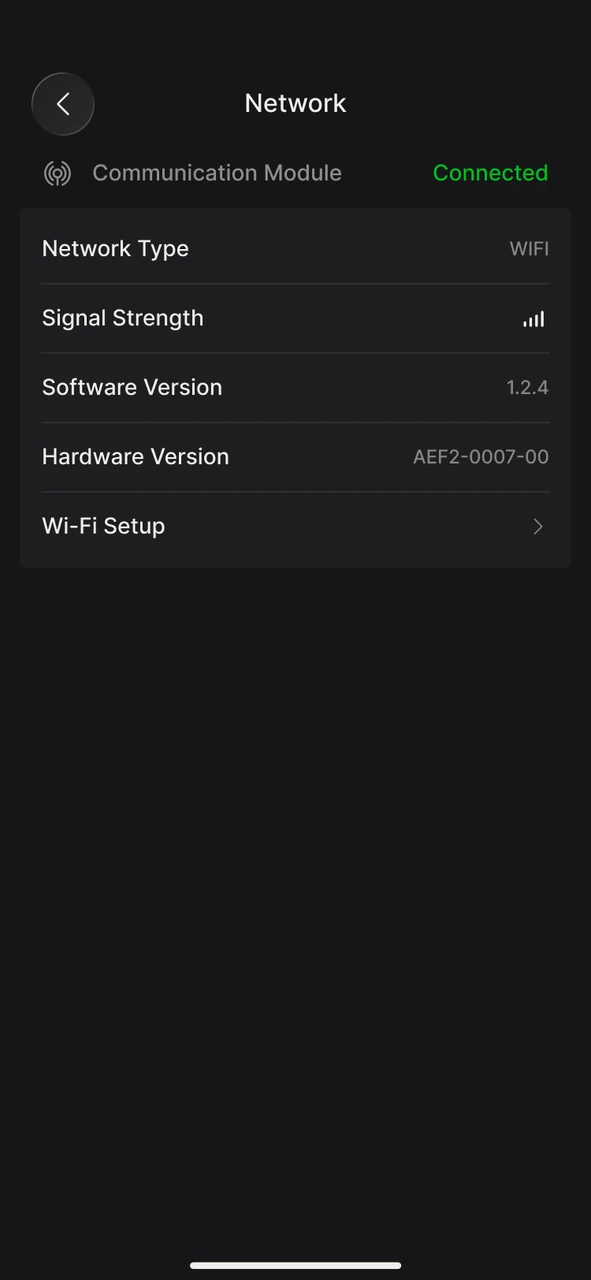
On the Settings → Device → Network page you can check the current connection:
| Item | Description |
|---|---|
| Communication Module | Shows Connected or Disconnected |
| Network Type | WLAN (wireless), LAN (wired) or WLAN & LAN |
| Software Version / Hardware Version | Version details of the communication module; you may be asked for these when contacting after-sales support |
INFO
If Network Type shows LAN and the device is online, the device is connected by an Ethernet cable and no WiFi setup is needed.
Frequently asked questions
The page says "Unable to connect to XXX"
This means the App tried to connect automatically but did not succeed. The usual causes are that the device is not powered on or that the communication module needs restarting. The page gives you the steps to follow:
- Unplug the Wi-Fi module from the device
- Wait 5 seconds
- Plug it back in firmly
Then tap Retry.
The hotspot password of the communication module has been changed, so it cannot connect automatically
If the hotspot password of the communication module has been changed, every password the App tries automatically will fail.
Solution:
- At the bottom of the Unable to connect to XXX page, tap Enter hotspot password under Changed the device's Wi-Fi password?.
- Enter the password currently in use and tap ✓ in the top right-hand corner to confirm.
If you no longer remember the password:
- Tap Forgot password? in the password field.
- The App scans for nearby Bluetooth devices; tap the communication module to connect once it is found.
- Reset the hotspot password over Bluetooth, then return to the wizard to carry on with setup.
INFO
Note: resetting the password requires Bluetooth to stay switched on on your phone, with the phone within 5 metres of the communication module. The Forgot password? option only appears if the communication module supports resetting; if your device does not support it, please contact AlphaESS after-sales service for support.
"Connection failed" is displayed
- Connection failed after entering the home WiFi password: the App automatically reopens the password field for that network — check the password and enter it again. To use a different network, simply go back to the list and select another one.
- Connection failed after entering the hotspot password: the password may be incorrect, or the device may not be powered on. Check the status of the device and try again.
I cannot find my home WiFi
Please make sure the 2.4 GHz band is enabled on your router. If your router uses a combined band ("band steering", where 2.4 GHz and 5 GHz share one name), check that 2.4 GHz has not been switched off. If you still cannot find it, please contact AlphaESS after-sales service for support.
How to set the network up again after replacing the router or changing the WiFi password
Go to Settings → Device → Network → Wi-Fi Settings and follow the steps above. Your existing device data and history are unaffected.
There is no home network available on site yet
You can register an account and bind the device first (binding does not require the device to be online), then leave the setup wizard. The offline banner on the home page is normal in this case. Once the network is ready, you can start setup again from the banner on the home page or from the device network page.
Setup still fails after several attempts
Please check the following in turn:
- The power indicator on the communication module is lit as normal
- Bluetooth and WiFi are switched on on your phone, and the phone is within 5 metres of the device
- Your home WiFi is working and the 2.4 GHz band is enabled
- Restart the router and try again
INFO
If the problem persists, tap Contact Support under Having problems? on the setup page, or contact AlphaESS after-sales service directly for support.