

Account and Basic Information
Login Page

Open the following login address in your browser: https://cni.alphaess.com/login
Enter your username and password on the login page and click the Login button. The system will take you straight to the home page.
If the login fails, the page will display "Incorrect username or password". Please check that your details are correct and try again.
If you do not yet have an account, click the Register button to go to the registration page and create one.
If you have forgotten your password, click the password recovery button on the login page and follow the on-screen instructions to reset it.
Choosing a data centre: On the login page, pay attention to the "Switch Data Centre" setting. If you are located in Europe, select "Overseas Node"; if you are located outside Europe, select "Smart Node". Choosing the correct data centre helps ensure stable system access and a better user experience.
Registration
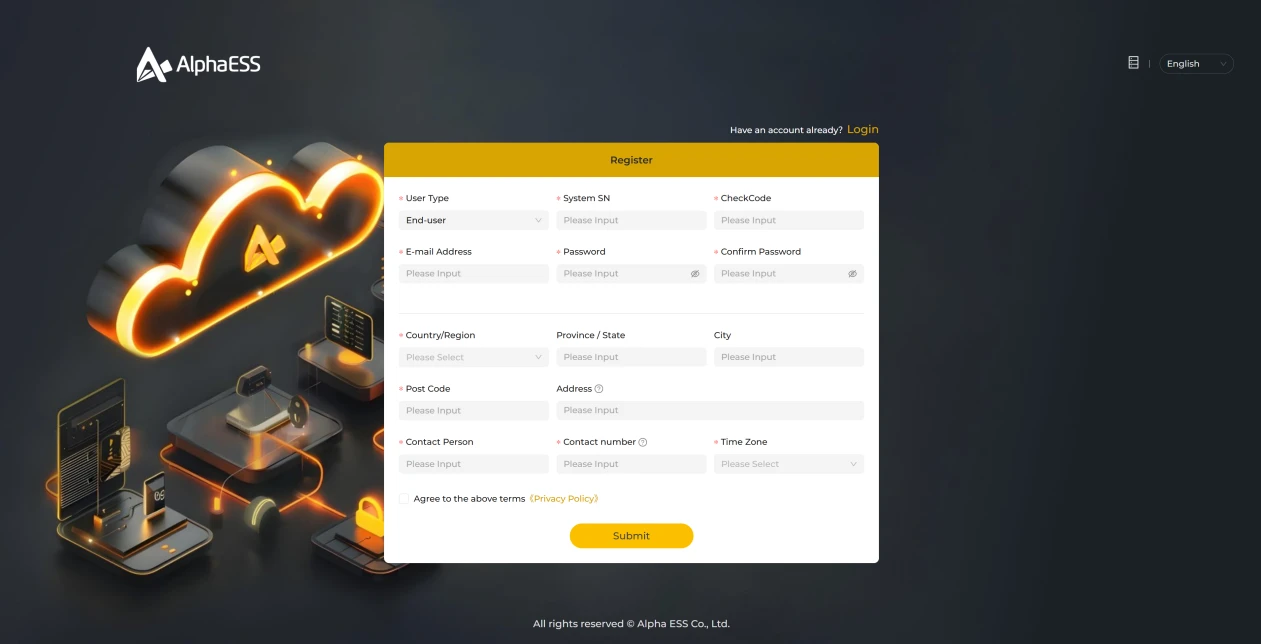
Fields marked with "*" are mandatory; please complete them as prompted. Enter accurate registration details, and make sure the time zone matches the region you are currently in so that the system time and related functions work correctly. If the page language does not suit you, you can switch languages in the top right-hand corner of the page. Chinese, English and German are currently supported.
Choosing a data centre: During registration, pay attention to the "Switch Data Centre" setting. If you are located in Europe, select "Overseas Node"; if you are located outside Europe, select "Smart Node". Choosing the correct data centre helps ensure stable system access and a better user experience.
Password Recovery
Enter your email address on the page and click Get Verification Code (see Figure 1.2.1 below). The system will send an email containing a password recovery verification code to that address (see Figure 1.2.2 below).
Open your mailbox, enter the verification code from the email and click Next to go to the password change page (see Figure 1.2.3 below).
Enter your new password in the corresponding fields, confirm it, and click Submit to complete the password recovery process.
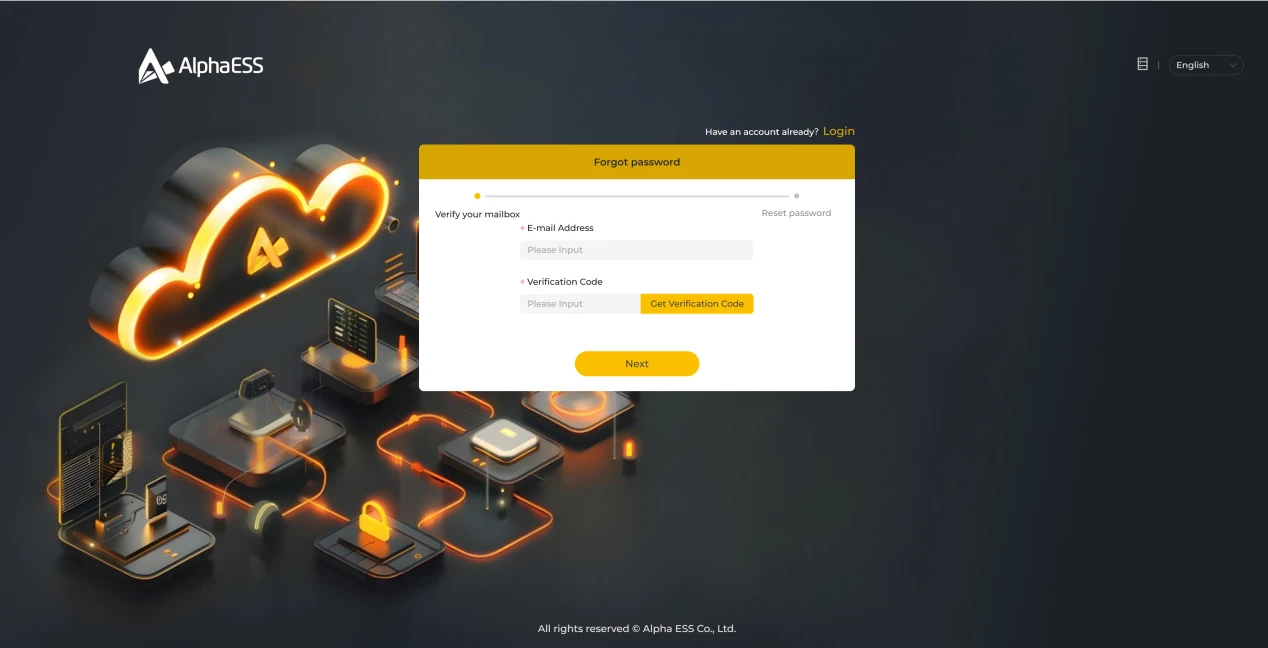
Figure 1.2.1
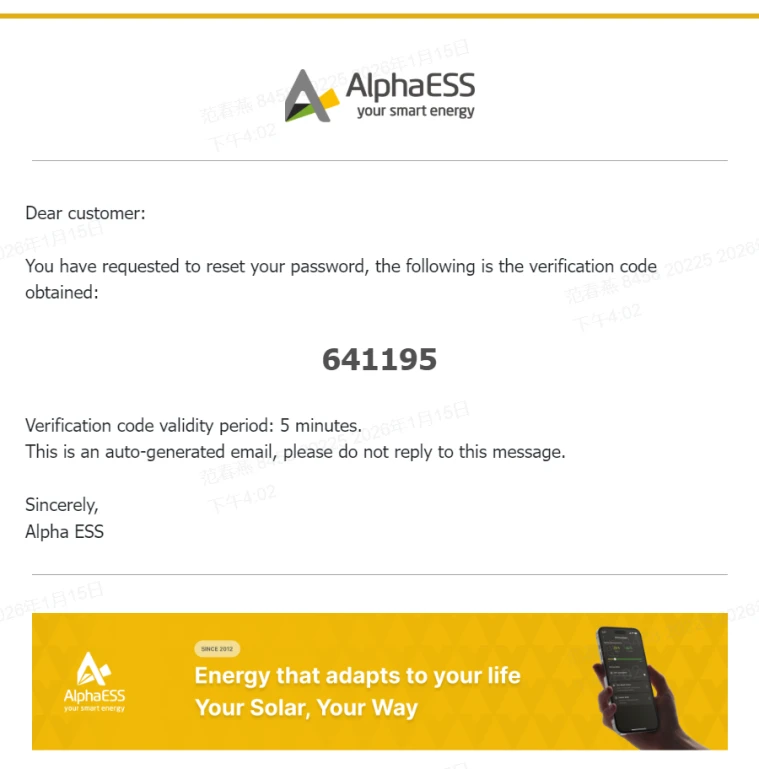
Figure 1.2.2
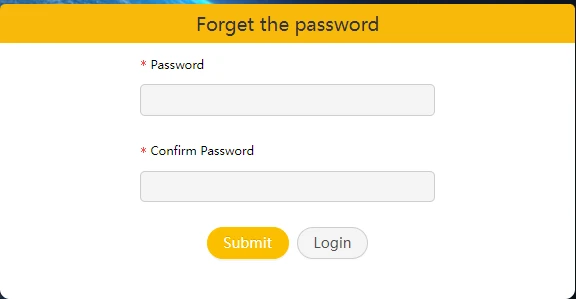
Figure 1.2.3