

License Management and Inviting Installers
This chapter is aimed at the Distributor / Retailer role. This page explains how distributors manage Licenses, and how to invite new installers onto the platform via Issue License.
About roles: one organisation can hold both
The organisation Category is assigned by AlphaESS, and a single organisation can be both a Distributor and an Installation Partner — in which case it can carry out installation and maintenance work just like an installer (Chapters 1–4 all apply), whilst also having the distributor capabilities described in this chapter. You can check your organisation's category under Organization → Overview.
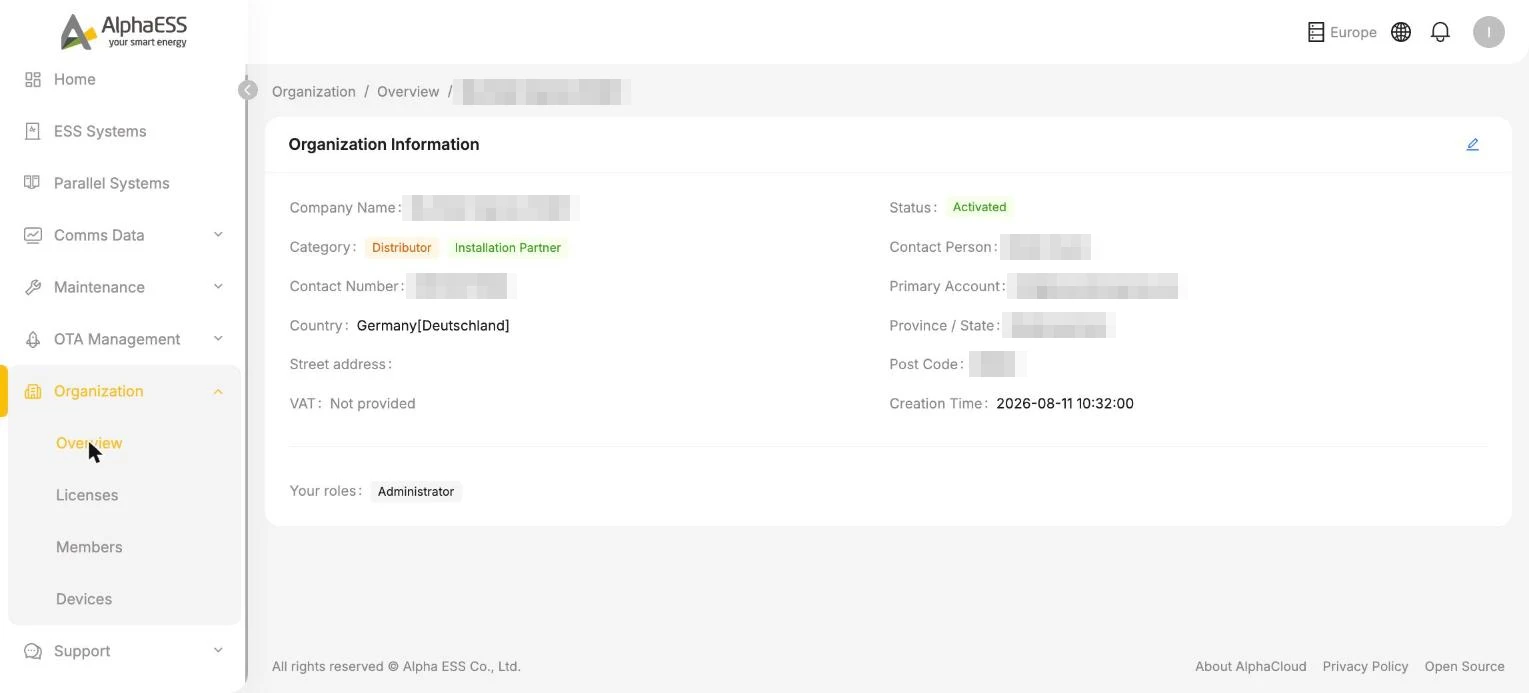
💡 In the distributor role, the Side Bar shows several menus that a pure installer does not have (OTA Management, Instruction Management, etc.) — see 5.2 Device Visibility and Batch Operations.
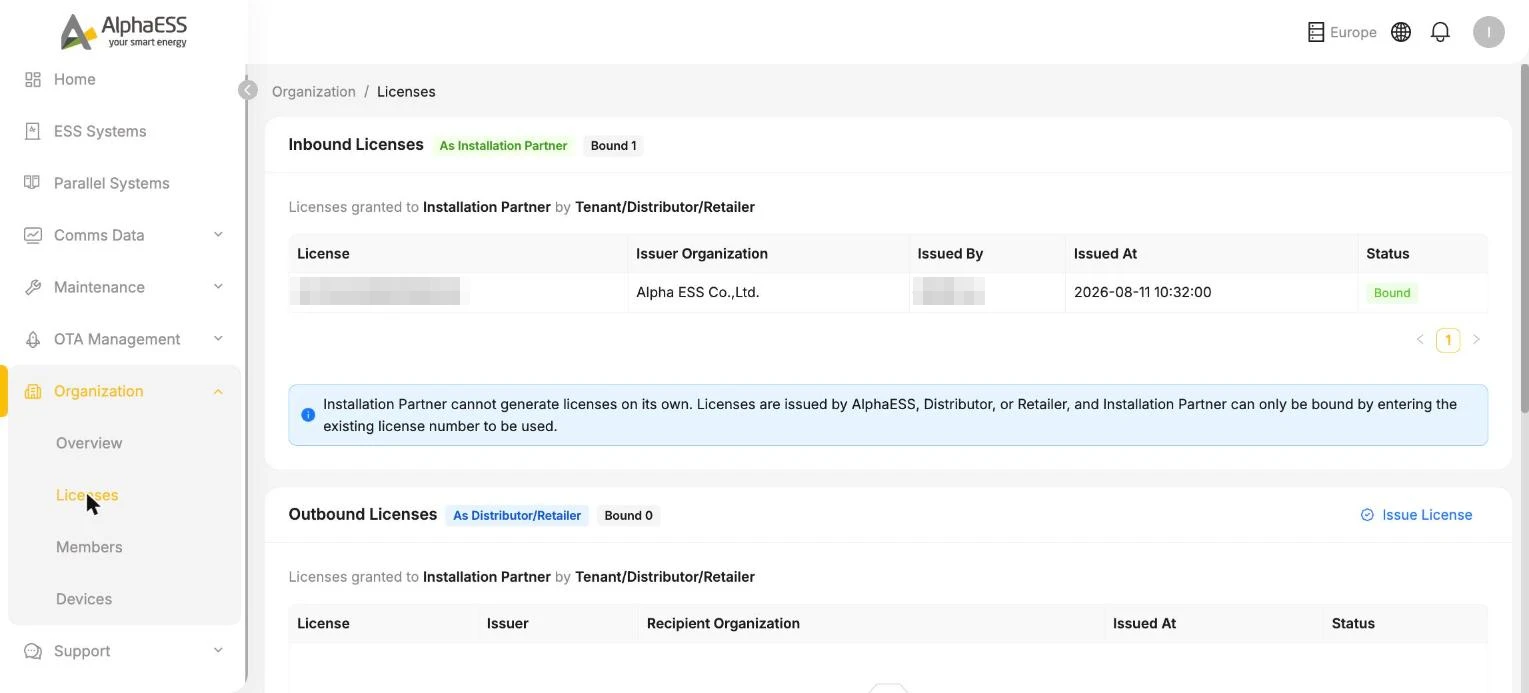
The two sections on the Licenses page (Organization → Licenses)
| Section | Acting as | Meaning |
|---|---|---|
| Inbound Licenses (As Installation Partner) | As an installer | Licences issued to you by an upstream party (AlphaESS / another distributor) for your own installations |
| Outbound Licenses (As Distributor/Retailer) | As a distributor | Licences you have issued to downstream installers, where you can view the recipient organisation and status of each |
Inviting an installer to join (Issue License)
Go to Organization → Licenses and, in the Outbound Licenses section, click ⊙ Issue License in the top right.
Fill in:
Field Description Recipient Email * Email address of the other party (the installer's responsible contact) Recipient Organization * Name of the other party's organisation Click Issue & Send Invitation to send.
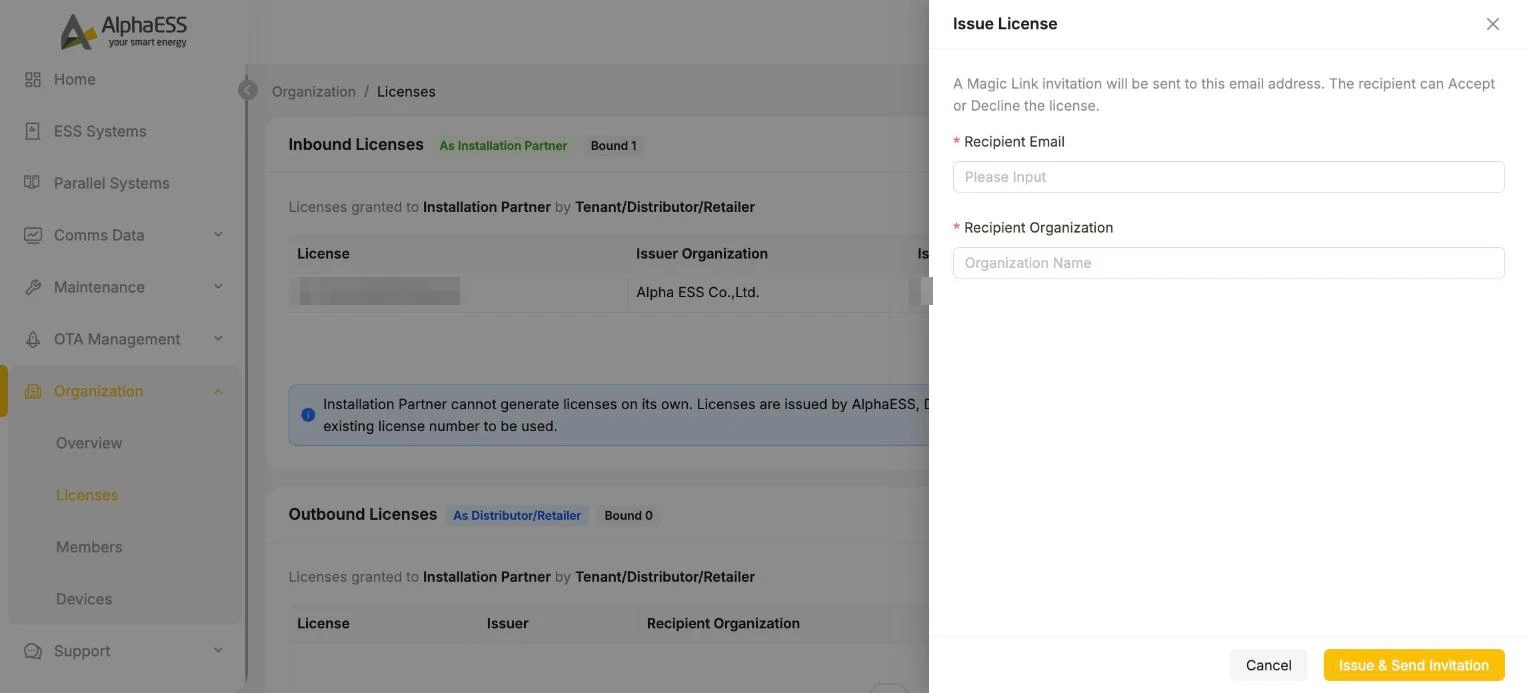
💡 Magic Link invitation: the system sends an invitation email containing a Magic Link to that address, and the recipient can Accept / Decline. Once accepted, onboarding is complete — the invitee becomes an Administrator of that installer organisation by default and can then add staff accounts themselves (this corresponds to the "invited by a distributor" route in 1.1 Account Activation and Login; for member management, see 1.3).
Track the invitation in the Outbound Licenses list to see whether the other party has accepted the binding:
- License, Issuer, Recipient Organization, Issued At, Status
Once a downstream installer has used that Licence for an installation, their installation volume and devices become visible to you (see 5.2).