

Device Visibility and Bulk Operations
This page explains which devices a distributor can see, how to bring additional devices into their view (special management), and the bulk operation tools exclusive to distributors.
Device Visibility: Three Sources
The devices visible to a distributor on pages such as ESS Systems come from three levels, all of which can be checked on the Organization → Devices page:
| Level | Section | Description |
|---|---|---|
| ① Devices you installed | Inbound Licenses Installed Devices | Devices installed as an installer using the Licences you received (same as Chapter 2) |
| ② Devices installed downstream | Outbound Licenses Installed Devices | All devices installed by downstream organisations using the Licences you issued, broken down by recipient organisation (Recipient Organization / Category / Devices Count / License) |
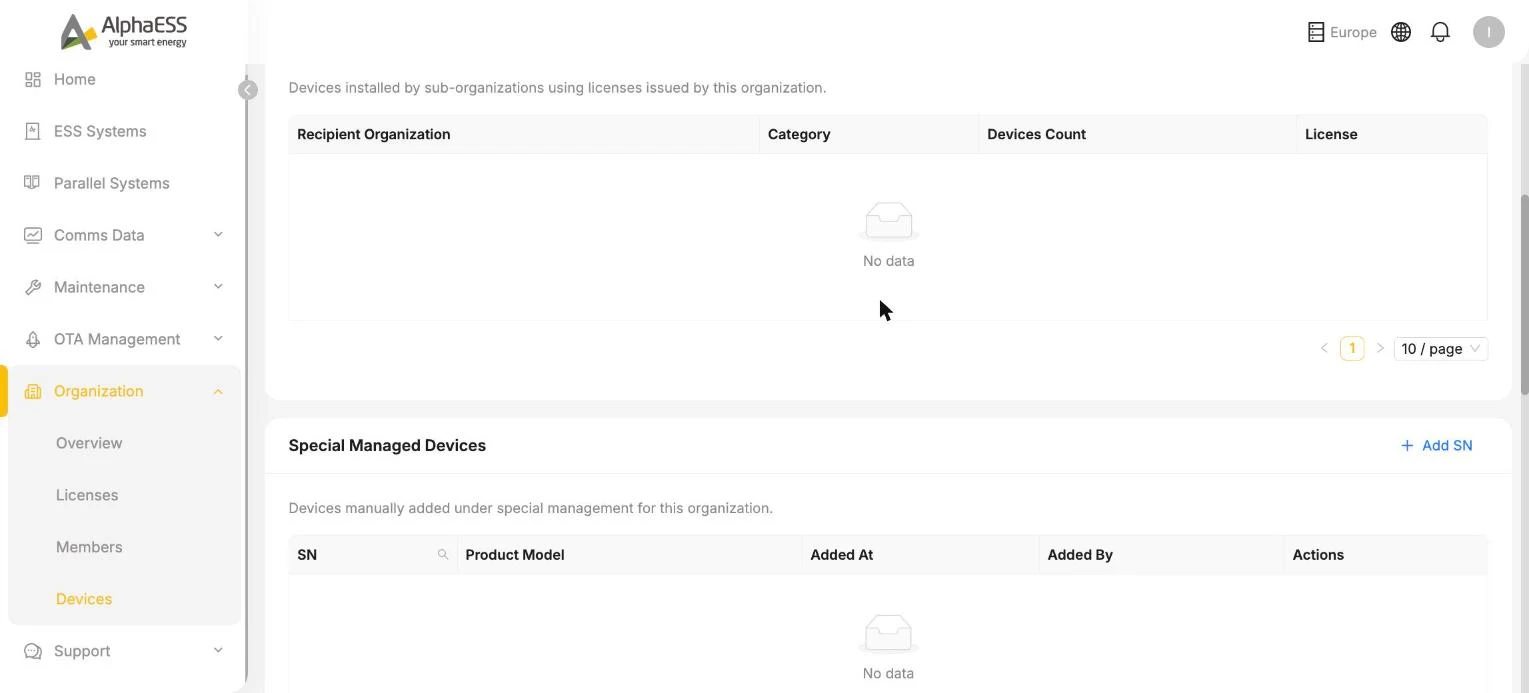
| ③ Specially managed | Special Managed Devices / License-Associated Devices | Manually added devices and Licences (see below) |
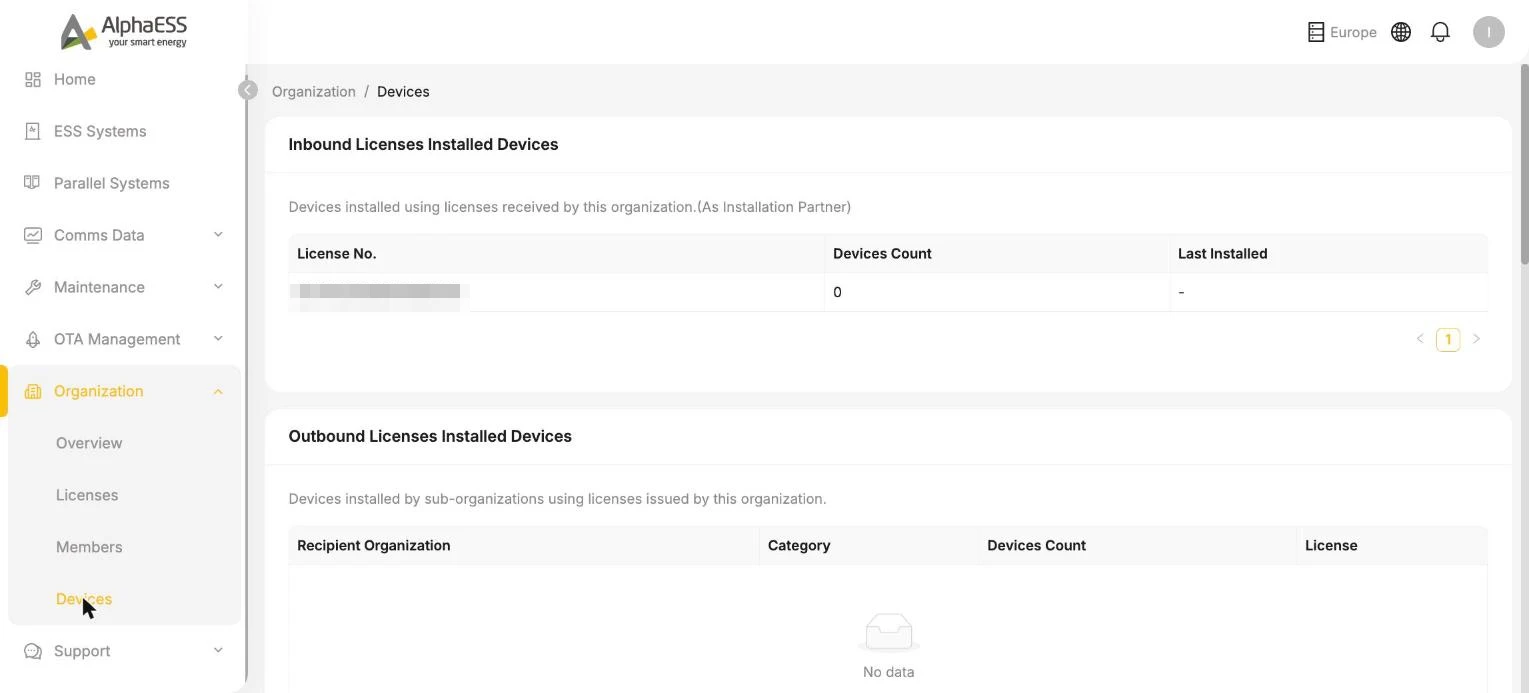
Special Viewing (Organization → Devices)
When you need to view or manage devices that do not belong to the installation chains above, there are two ways to add them:
Add by SN (Special Managed Devices → + Add SN)
- In the Special Managed Devices section, click + Add SN.
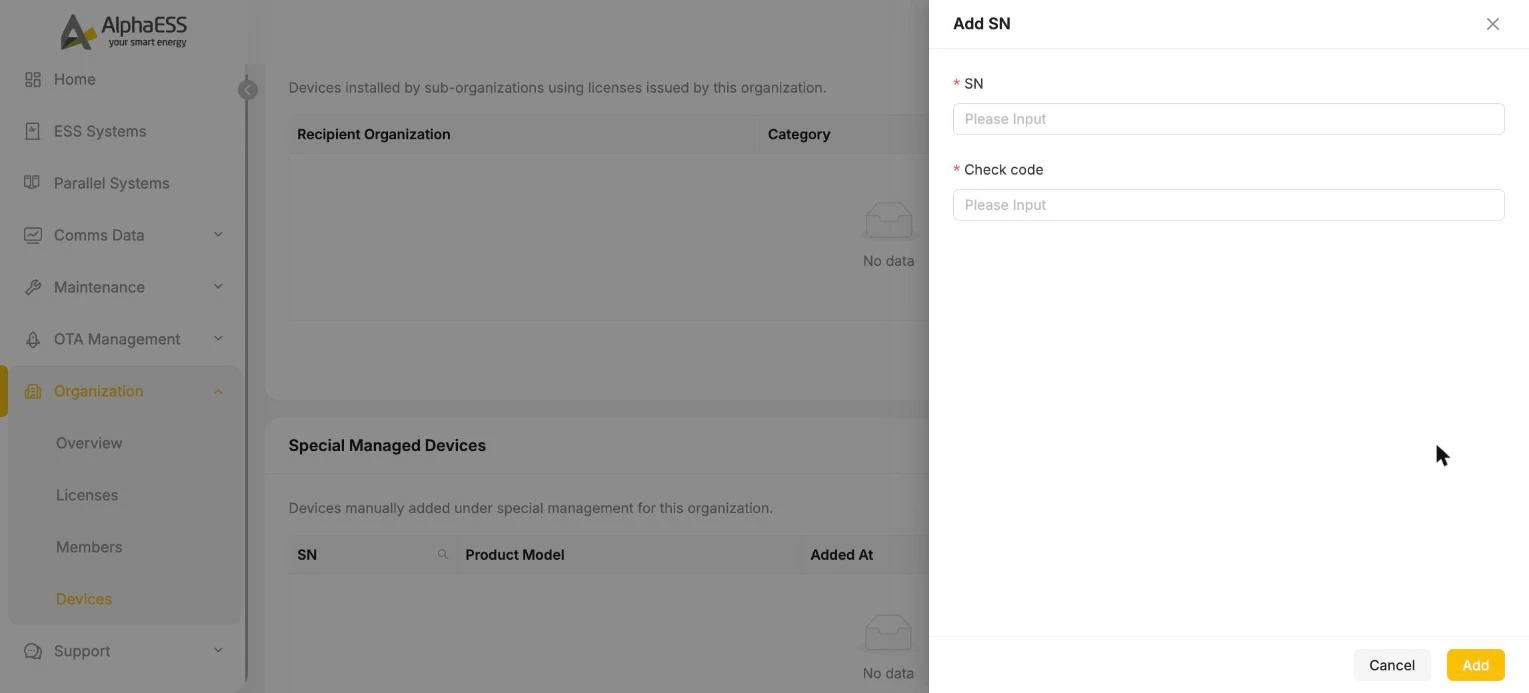
- Enter the device's SN and Check code, then click Add.
- Once added successfully, the device can be viewed and managed by the current distributor organisation (the list records Added At / Added By, and it can be removed at any time).
Add by Licence (License-Associated Devices)
Bring all devices under an entire Licence into your visible scope:
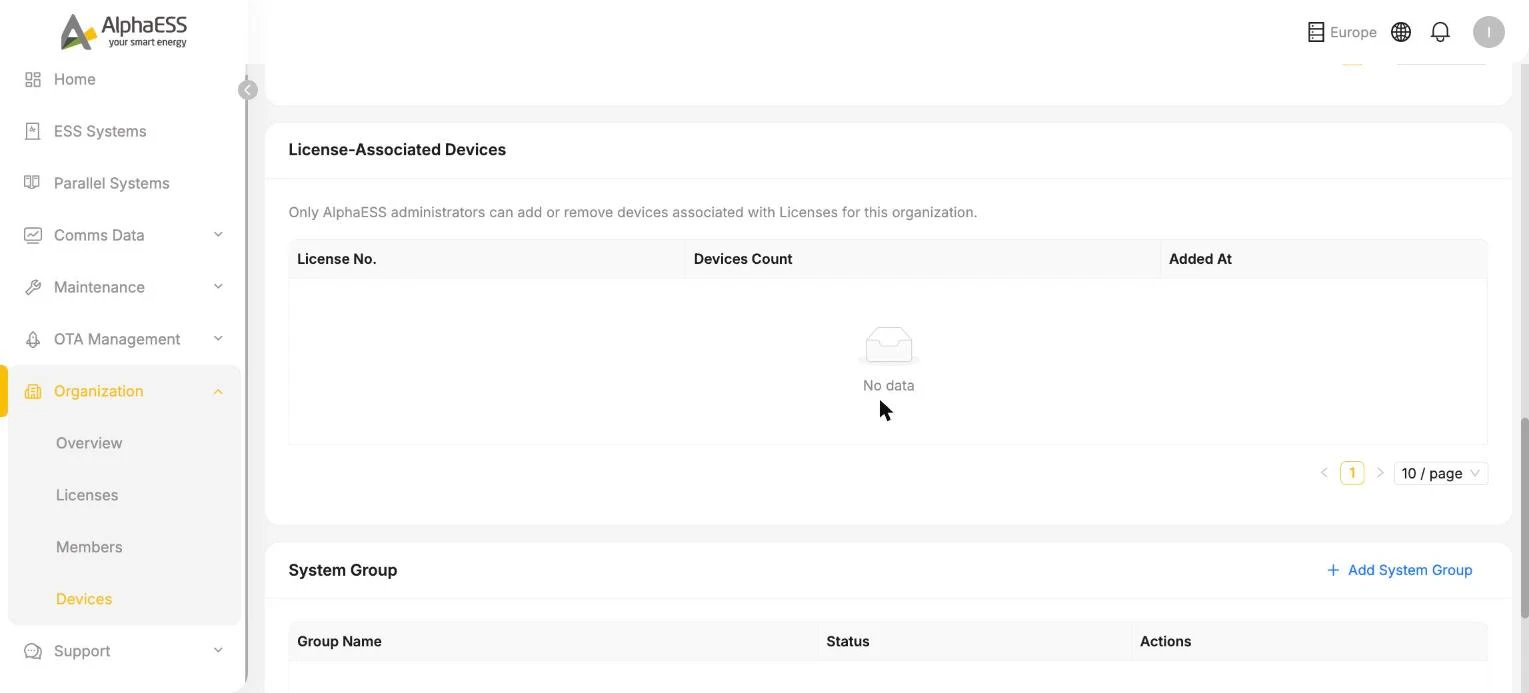
⚠️ Note: Adding a Licence not issued by you can only be done by **AlphaESS after-sales (administrators)** (the interface displays "Only AlphaESS administrators can add or remove devices associated with Licenses for this organization"). If you need this, please contact AlphaESS after-sales and provide your organisation name and the target Licence number.
System Group
The System Group section at the bottom of the Devices page allows you to organise devices into custom groups (+ Add System Group), making it easier to filter and manage them in bulk by project, region or customer.
Distributor-Exclusive Operation Tools
A distributor's Side Bar includes the following menus in addition to those available to a plain installer:
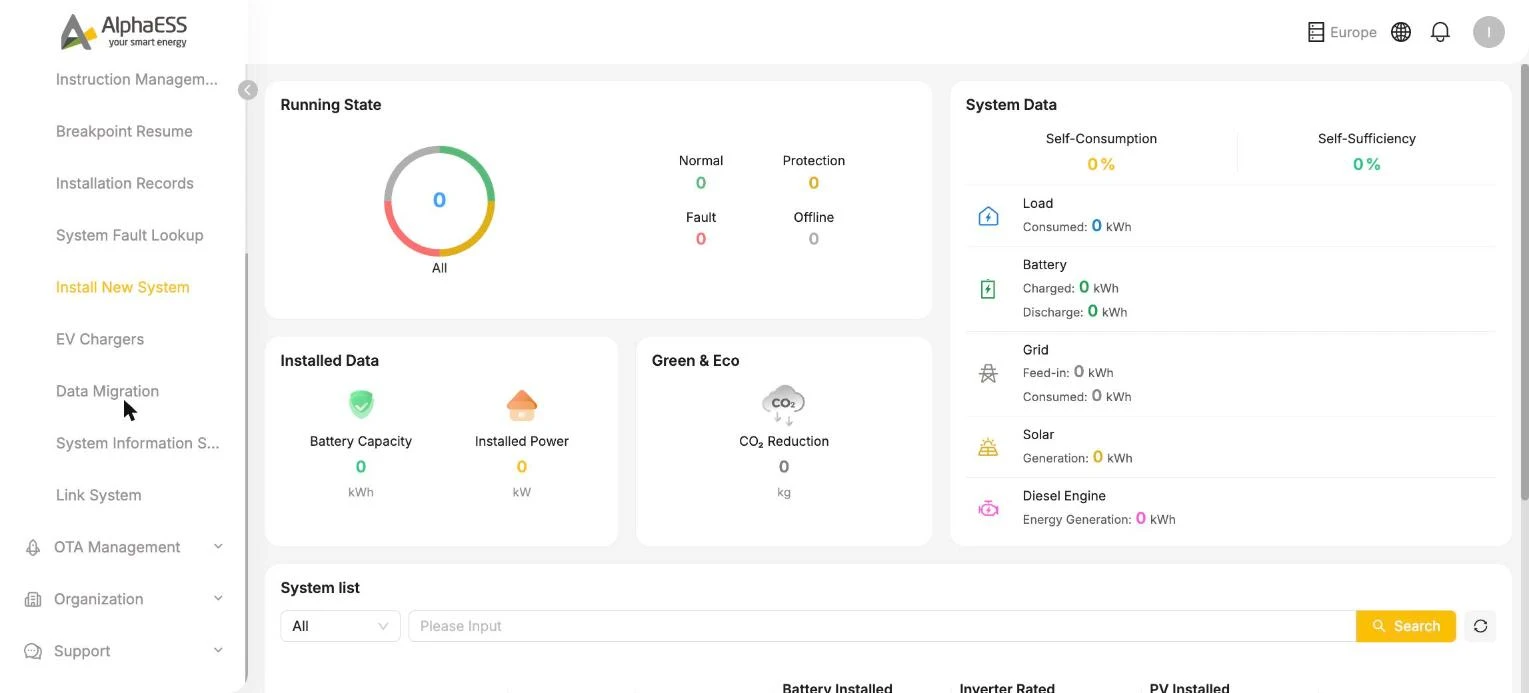
OTA Jobs (OTA Management → OTA Jobs)
Bulk firmware upgrade jobs: select devices by Firmware category / SN / Country/Region / version, then click + Add to create an upgrade job and track its execution. Individual upgrades can still be performed from the Upgrades tab on the device details page (see 3.3).
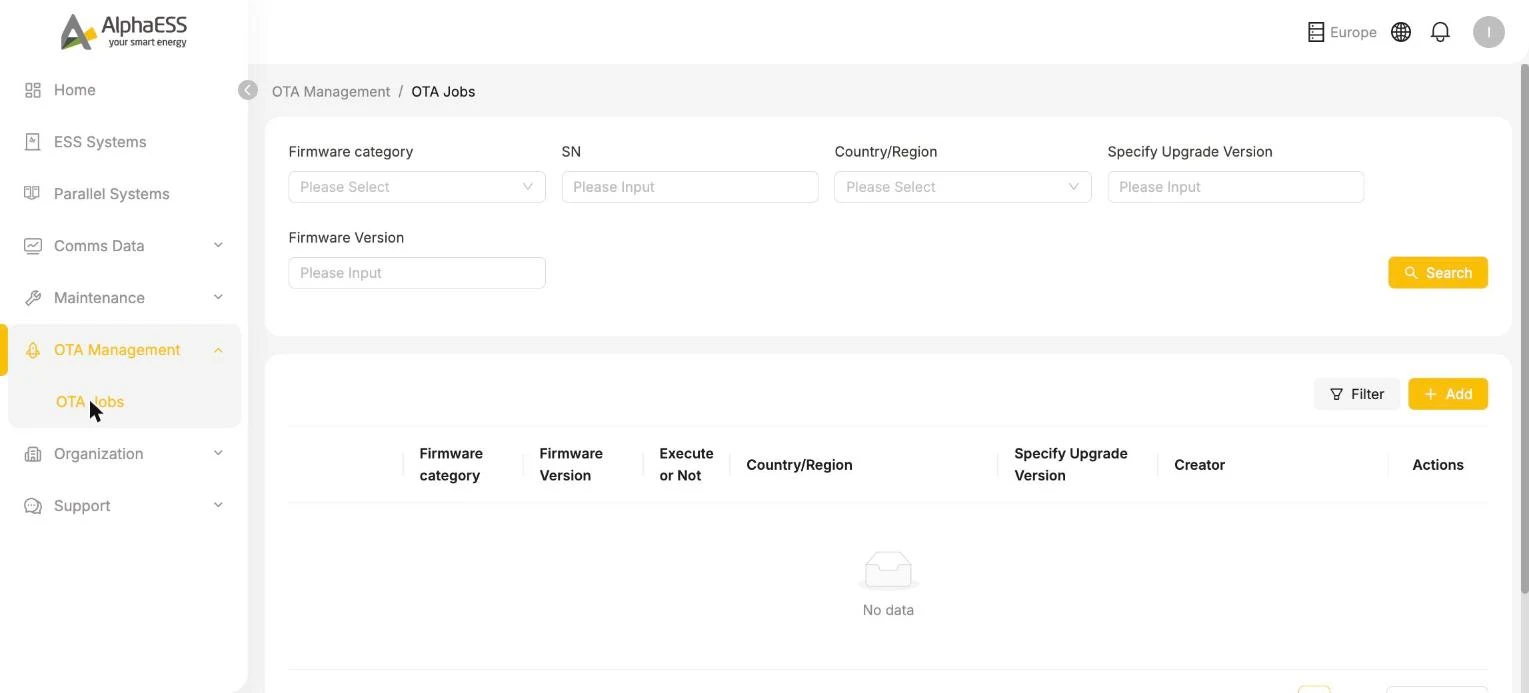
Instruction Management (Maintenance → Instruction Management)
Send commissioning commands (Command Type + Parameter) to a specified SN and track the execution status. Used for remote commissioning and after-sales handling.
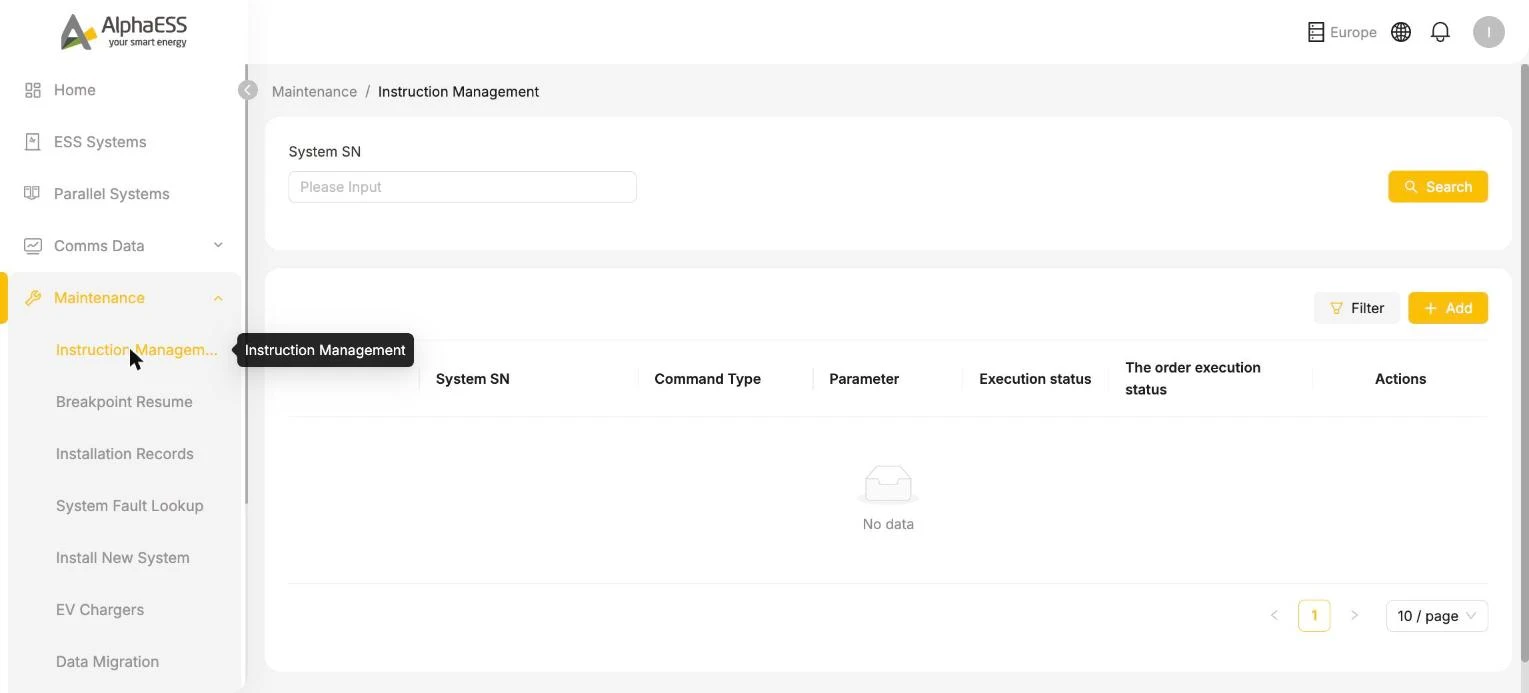
Breakpoint Resume (Maintenance → Breakpoint Resume)
Backfilling of interrupted data: gaps in data from periods when a device was offline can be scanned (Scan), generated in one click (One-click generation) and issued in bulk (Batch delivery) as backfill commands, with data validation to repair breaks in the curves.
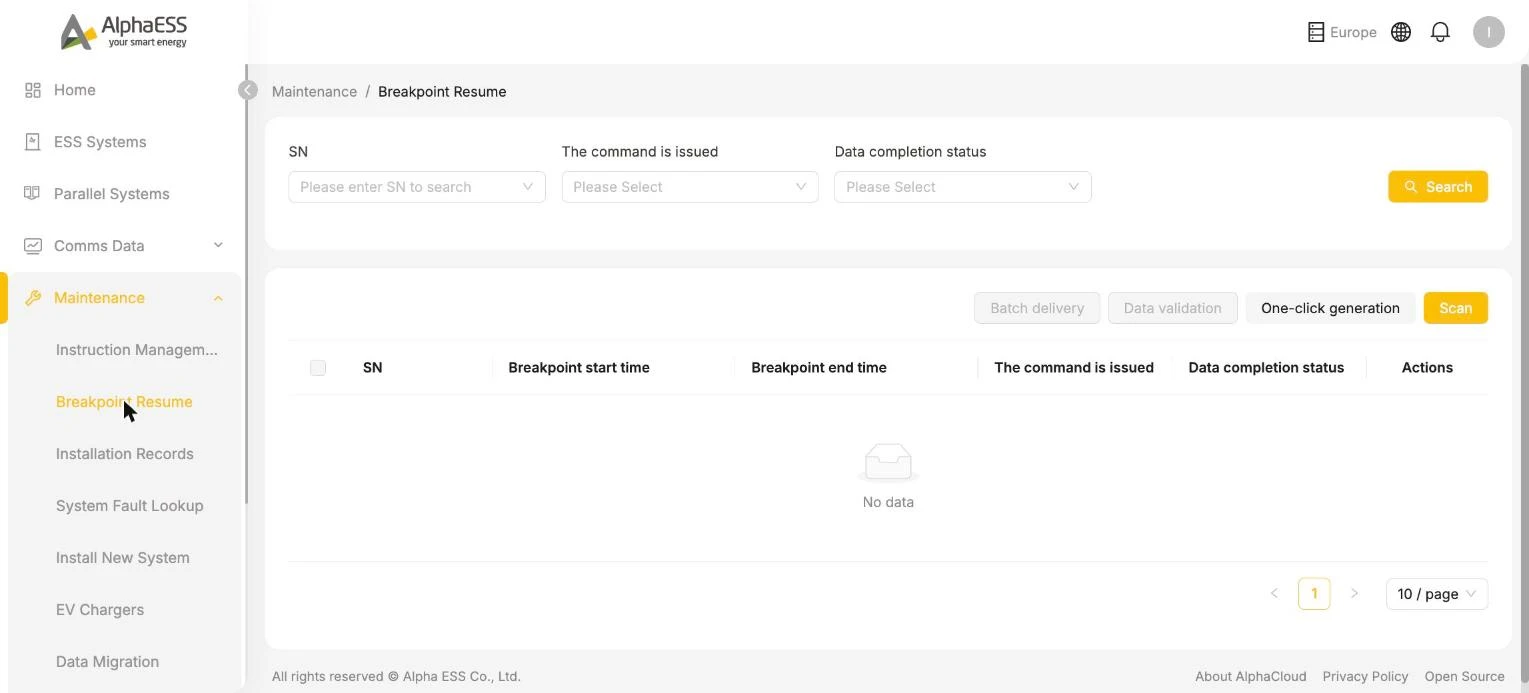
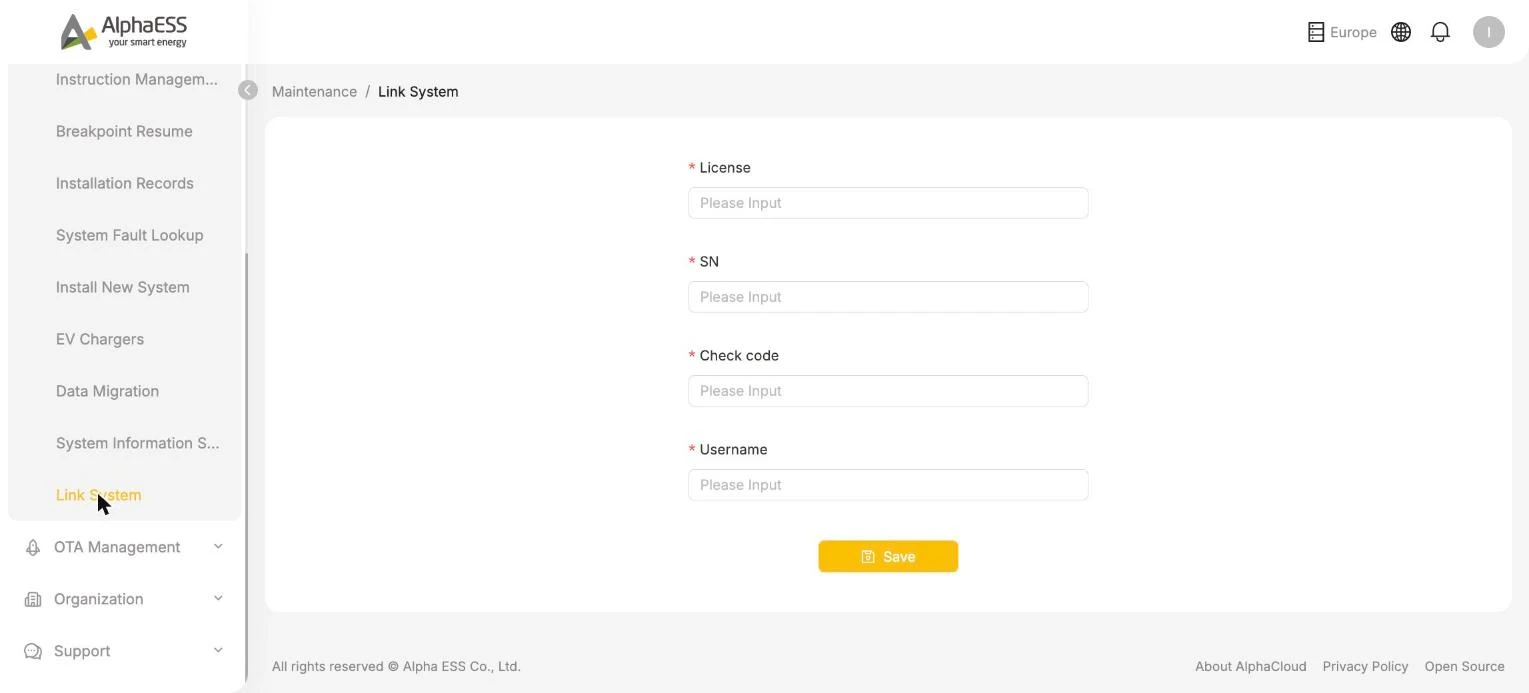
Link System (Maintenance → Link System)
Quickly attach an existing system to a Licence and account without going through the full installation wizard: enter the License / SN / Check code / Username, then Save. Suitable for retrospective registration and migration scenarios.
💡 The visibility of the menus above depends on the organisation category and permissions — the actual interface takes precedence. Some capabilities (such as Instruction Management) may also be available to certain installers.