Login (Account Login and Workspace Selection)
(1) Account Login
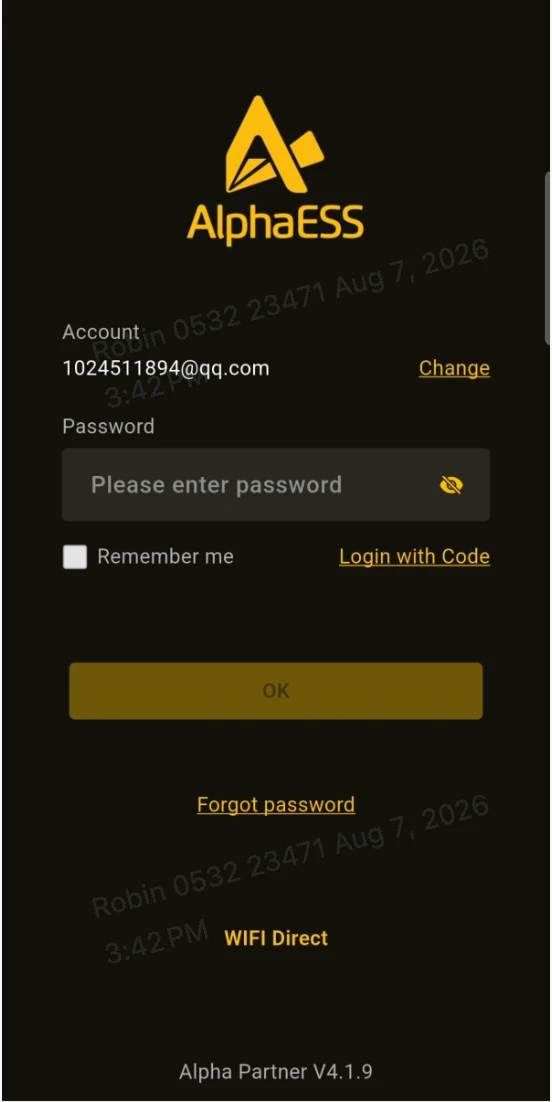
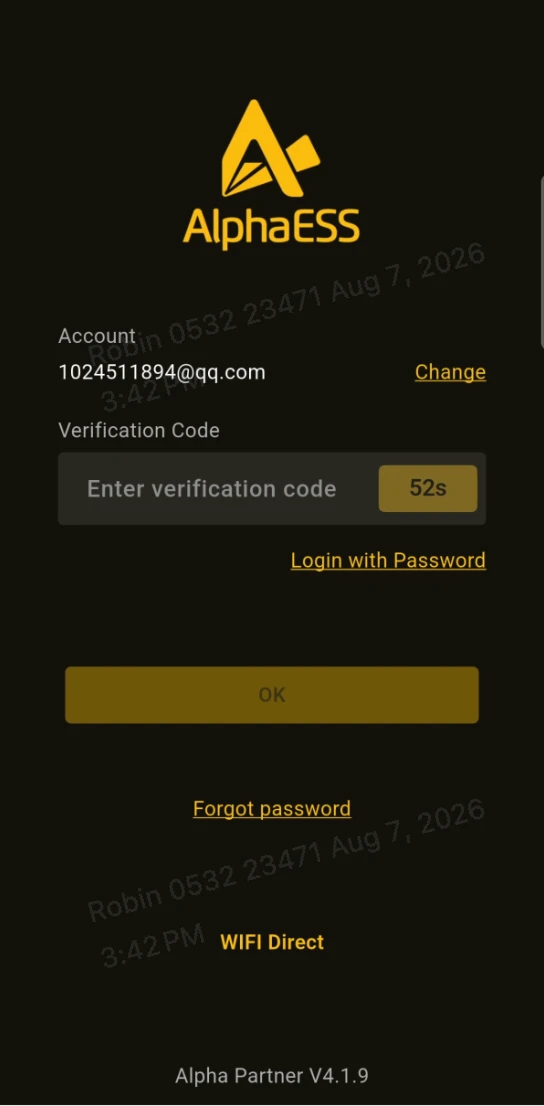
- On the login page, enter your Email and Password, then tap "Login"; alternatively, switch to "Login with Code" to log in using an email verification code.
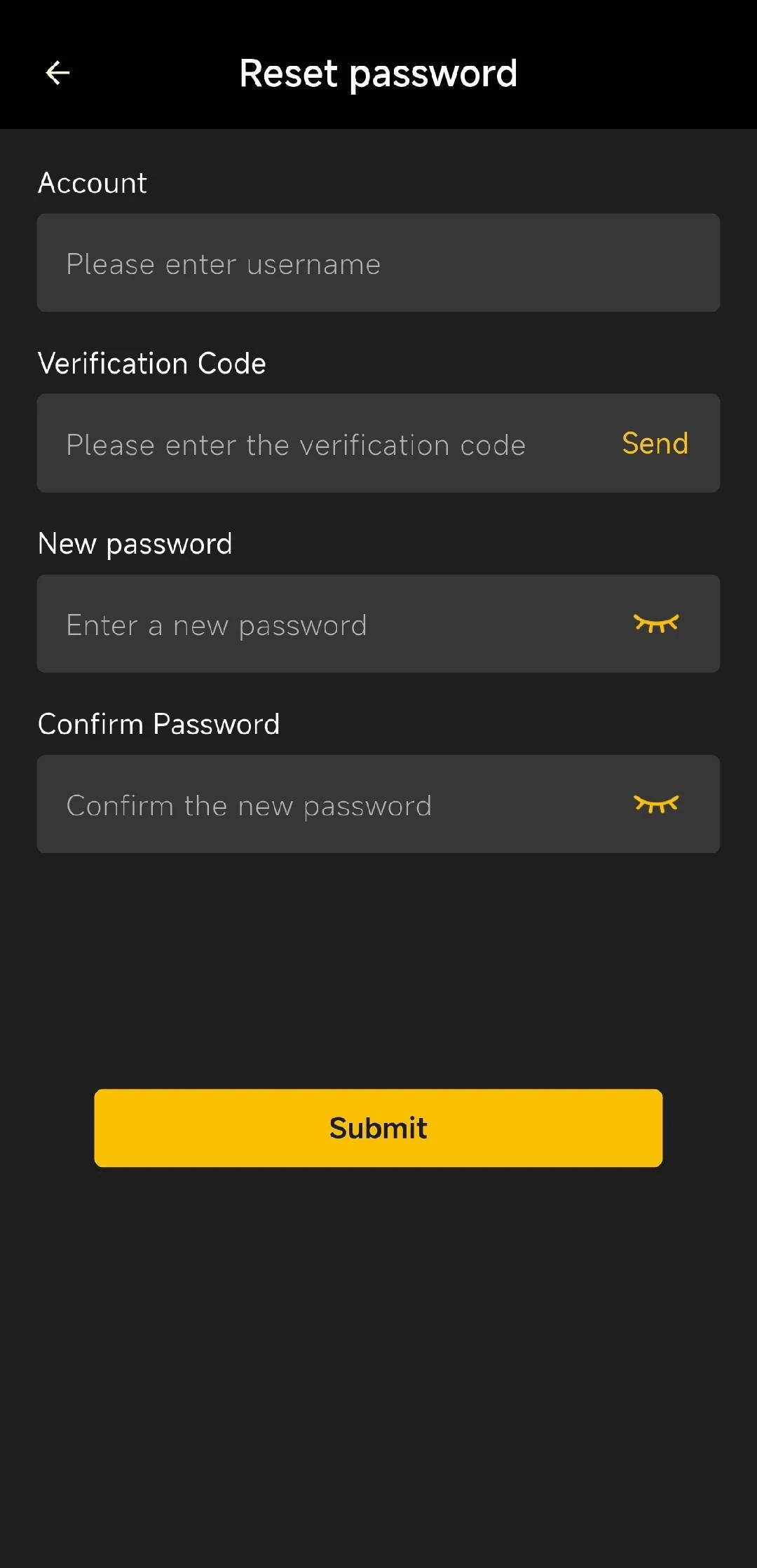
- If you have forgotten your password, tap "Forgot Password" and reset it via an email verification code.
(2) Selecting a Workspace (Company × Role)
- A single account can belong to multiple organisations, with one role within each organisation.
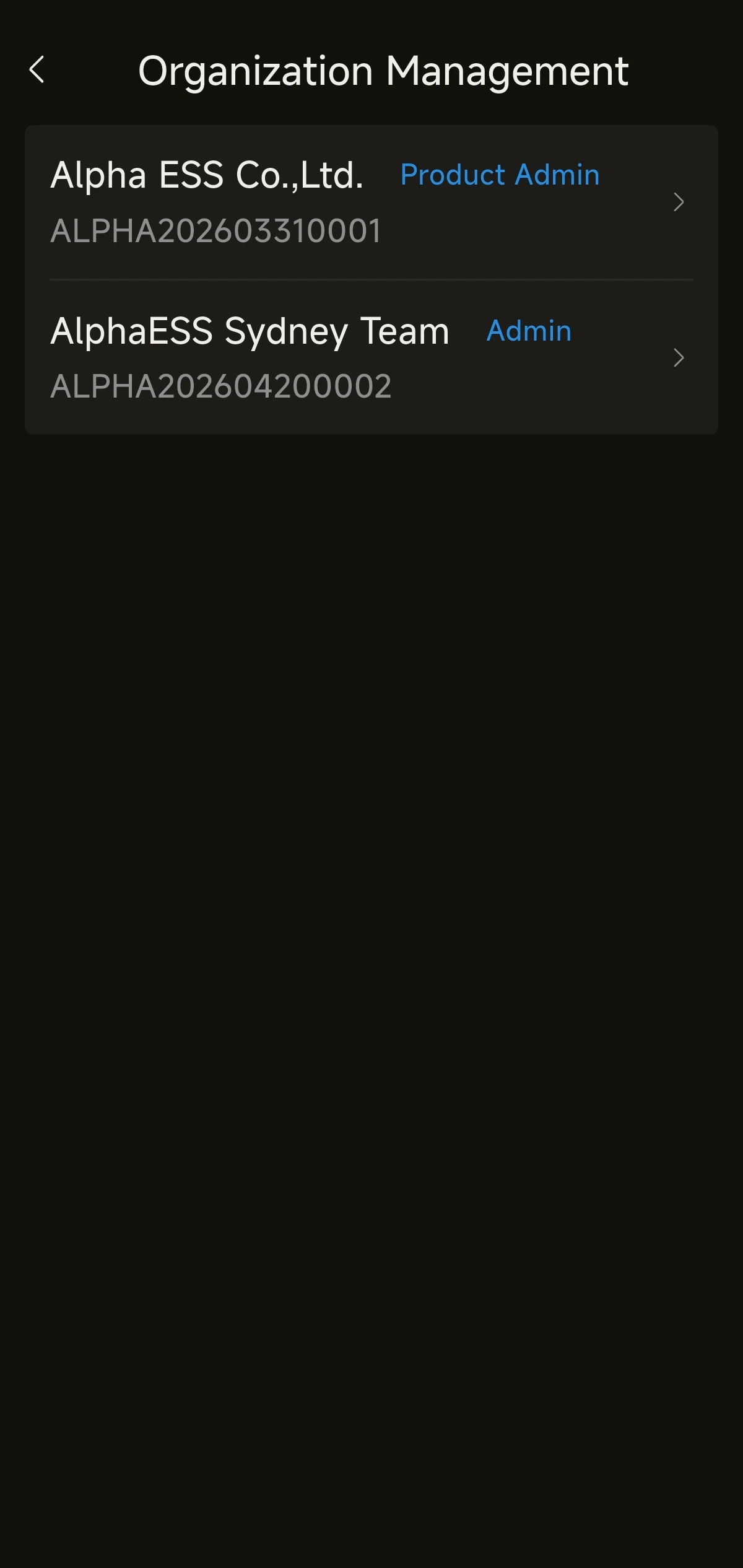
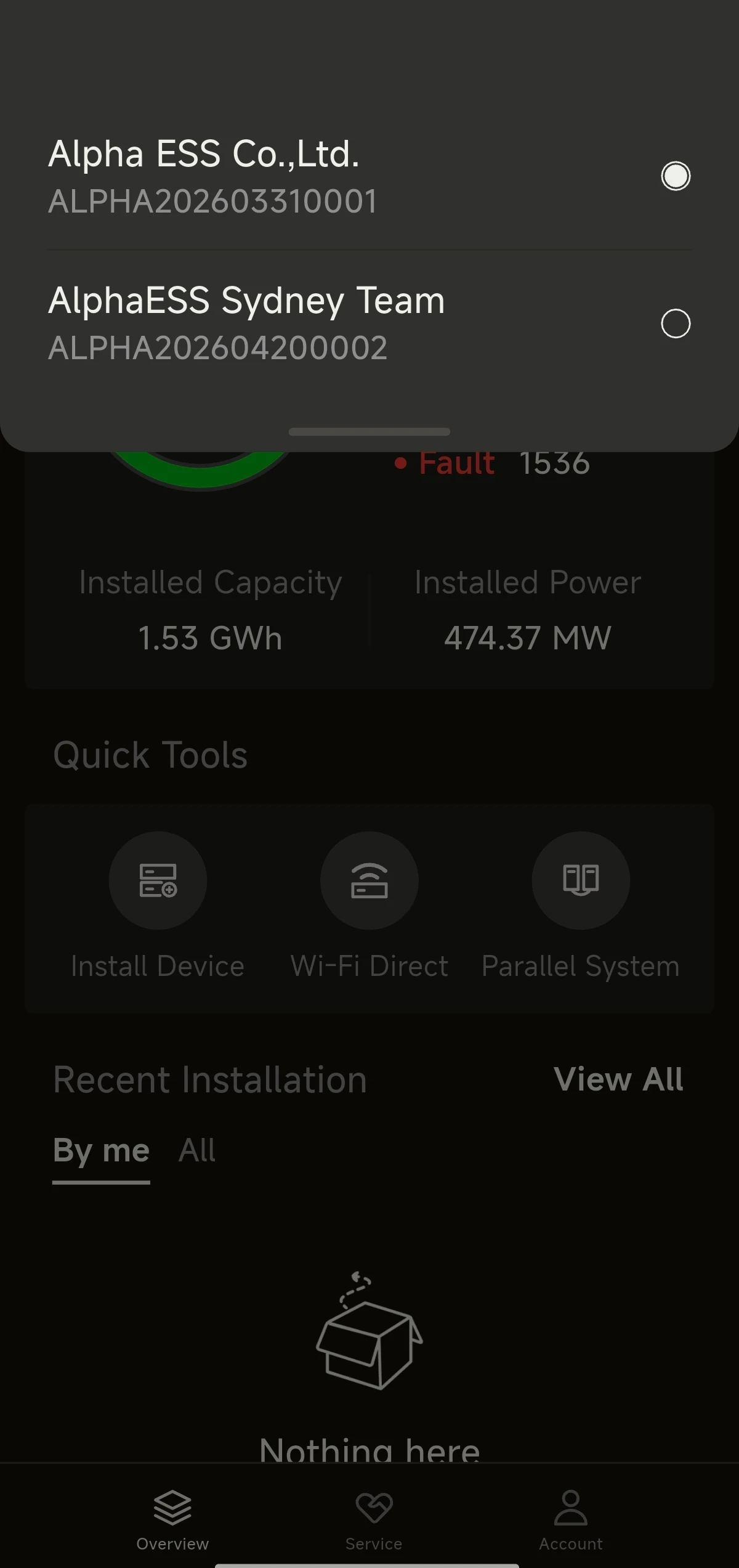
(3) Switching Workspace
- You can switch organisation / role at any time within the app. Once switched, the interface and permissions refresh according to the selected Workspace.
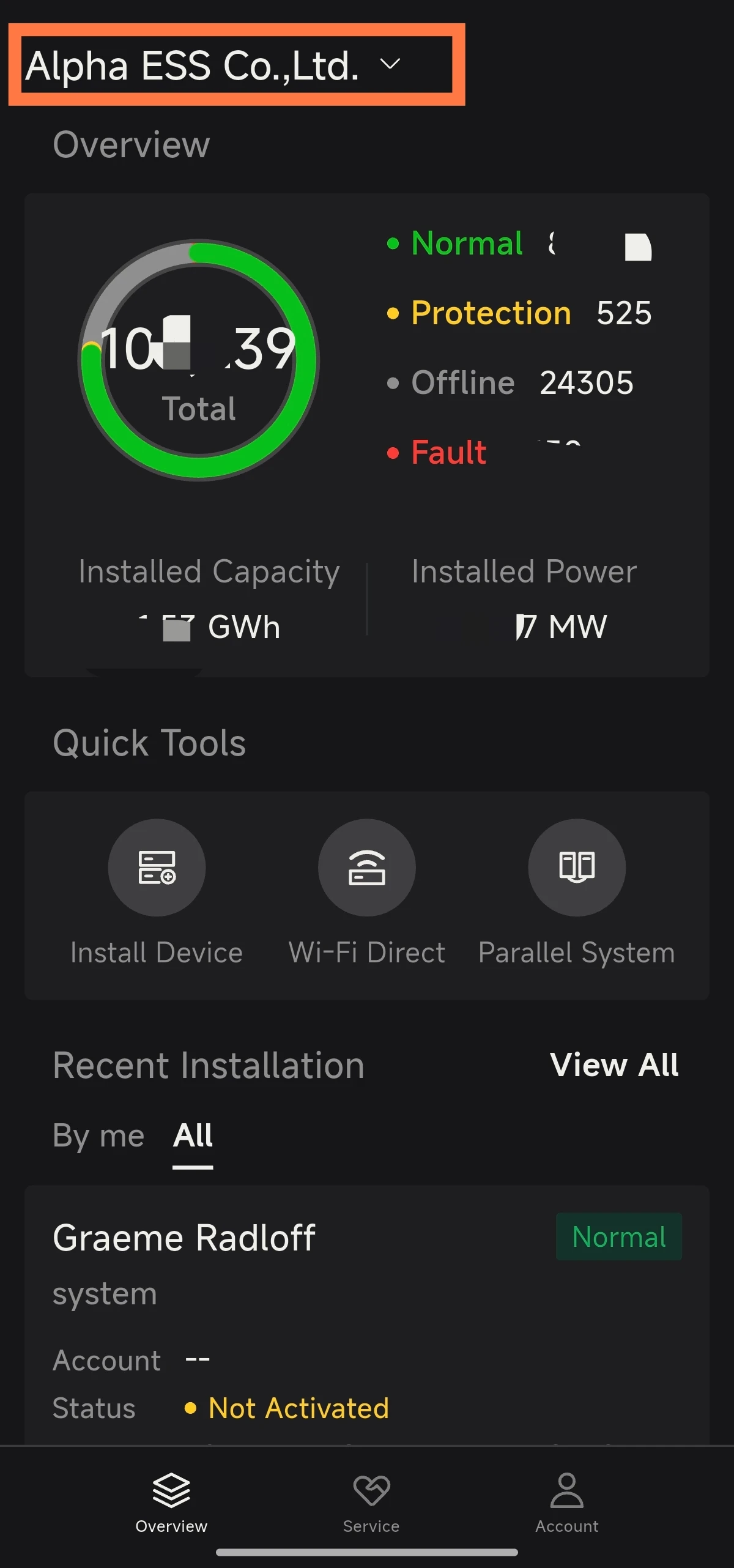
App Home Page Overview
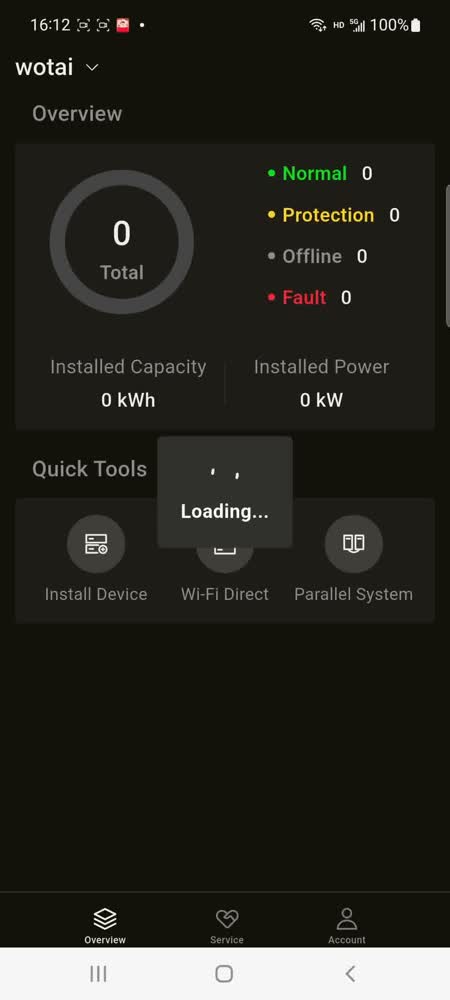
After logging in, you will arrive at the Overview home page. There are three navigation tabs at the bottom:
- Overview: view device statistics and quick tools
- Service: access the service centre to handle customer complaints and product documentation
- Account: access account settings and profile management
The Quick Tools section on the home page provides three commonly used entry points:
- Install Device: install a new device
- Wi‑Fi Direct: configure the device network via Wi‑Fi Direct
- Parallel System: manage parallel systems