

Your Devices
The Devices page lists every AlphaESS device in your home — the storage system itself and companion devices such as an EV charger. Each device has its own detail page.
The device list
Each device appears as a card. For the storage system you see its model, serial number, status, inverter rated power, number of battery packs, installed capacity and current battery level; companion devices such as an EV charger appear as their own card below it:
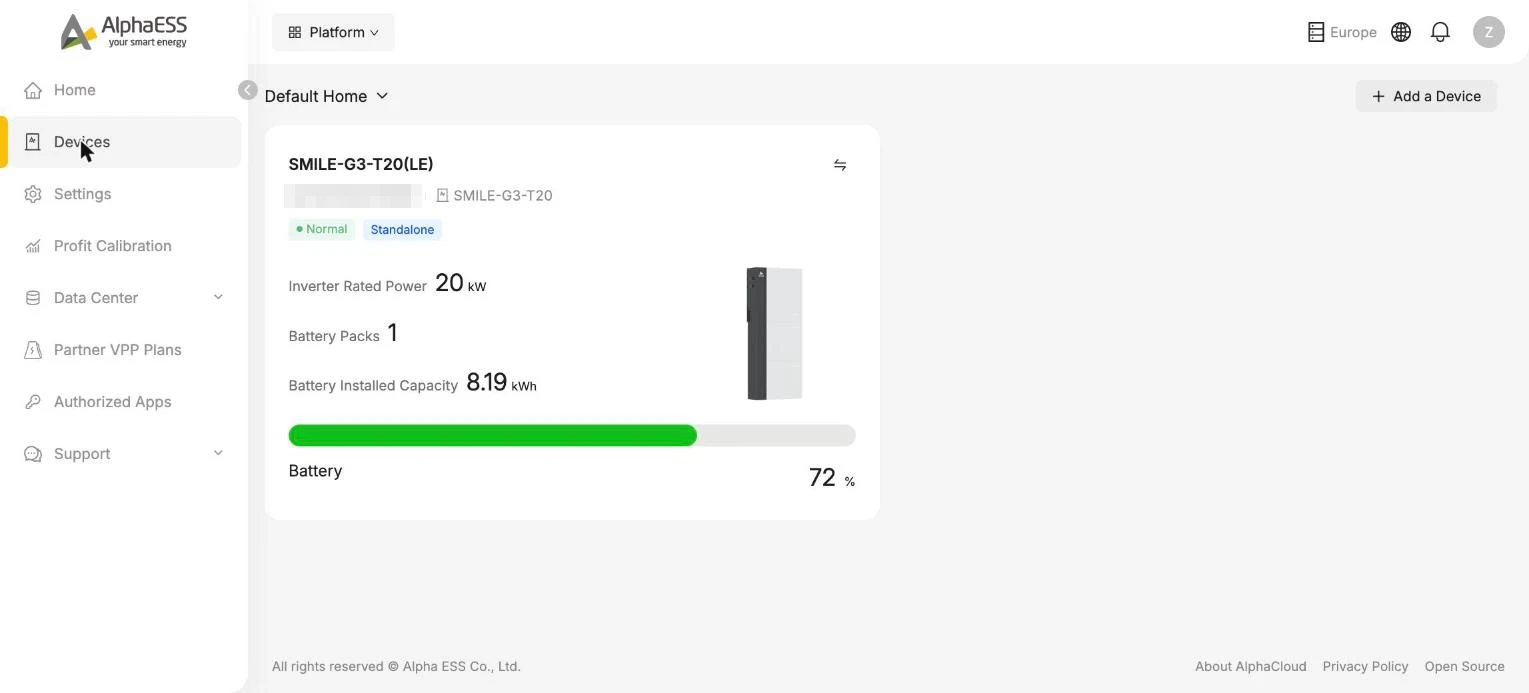
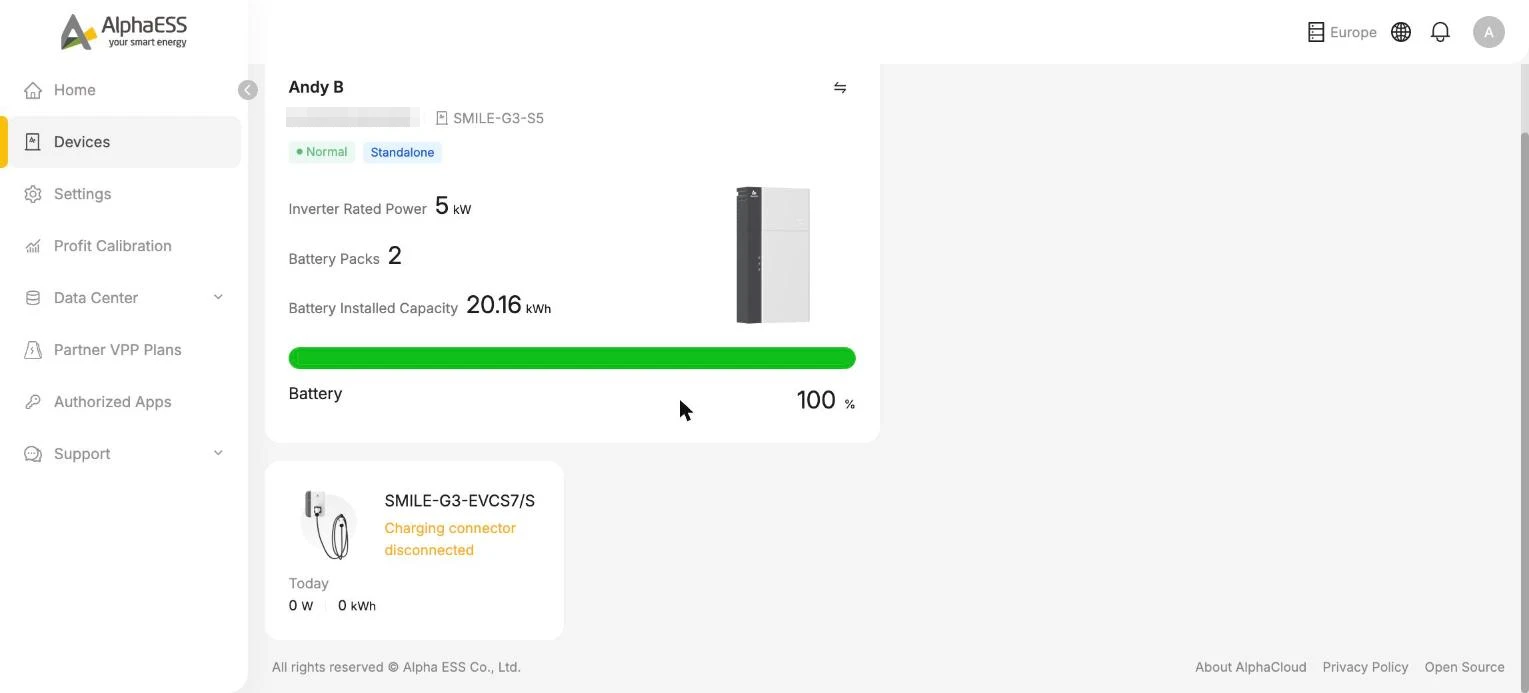
Click a card to open the device's detail page.
Adding a device
Click + Add a Device in the top-right corner to bind another AlphaESS device to your home:
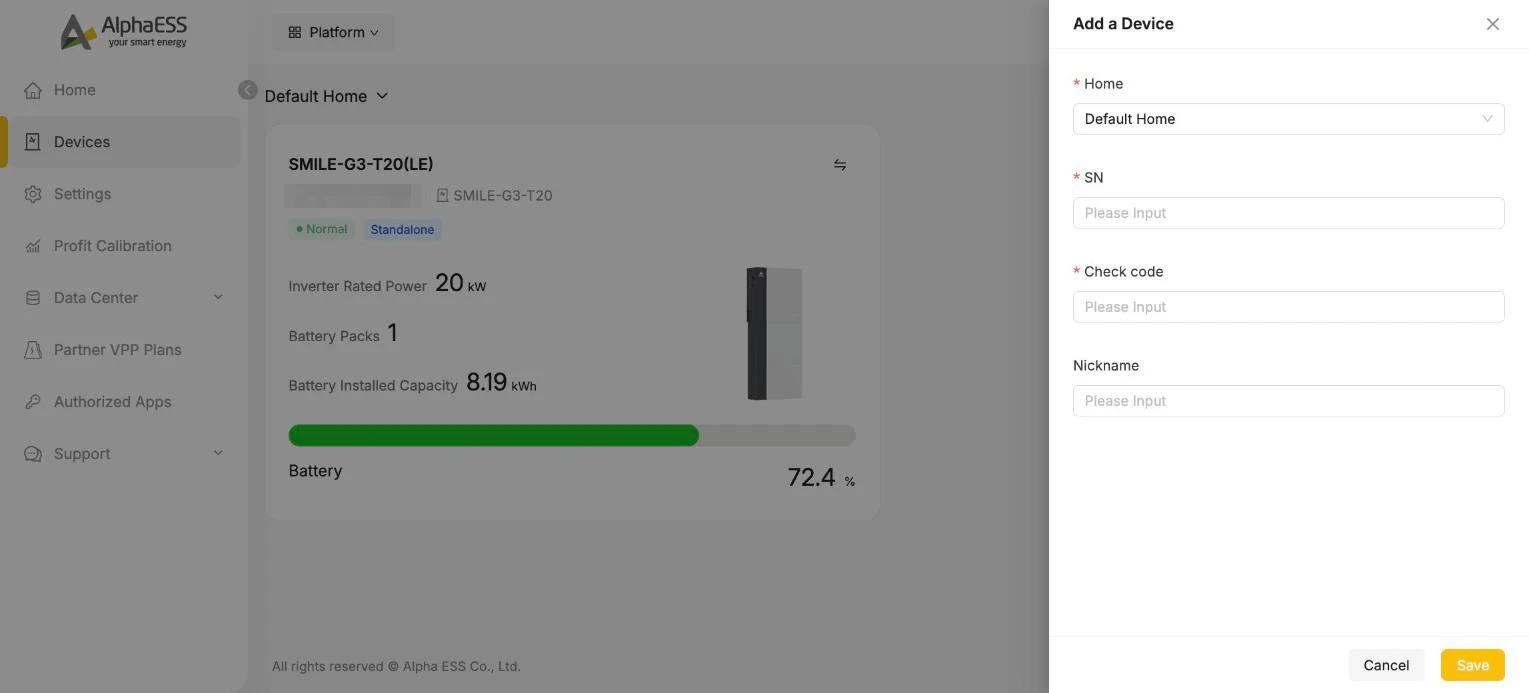
| Field | Where to find it |
|---|---|
| Home | Which of your homes the device belongs to |
| SN | The serial number on the device's rating label |
| Check code | Printed next to the SN on the same label |
| Nickname | Optional friendly name |
💡 Normally your installer registers the system for you during installation — you only need this when adding a device yourself.
Device details
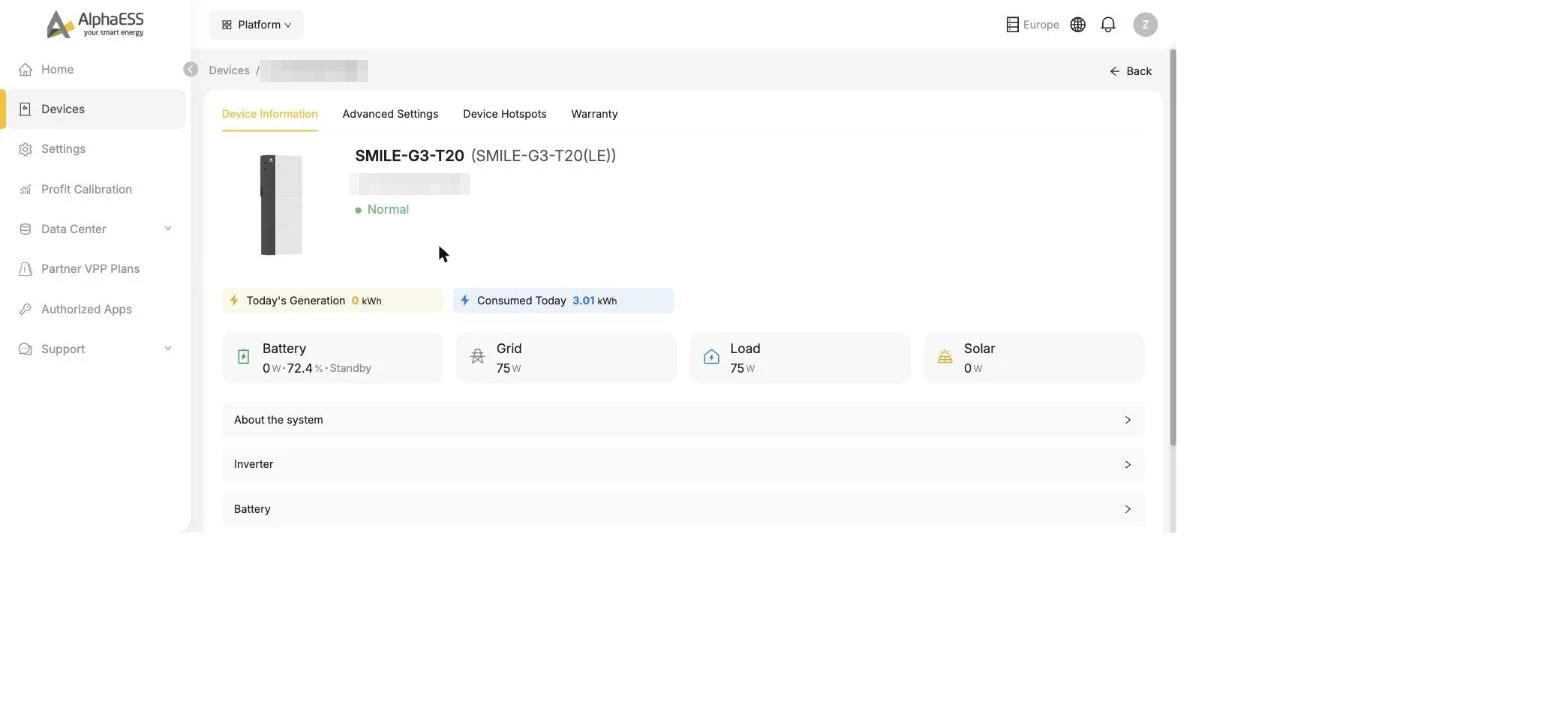
The detail page has four tabs:
Device Information
Live overview of this device: today's generation and consumption, real-time Battery / Grid / Load / Solar readings, and expandable sections with details about the system, inverter and battery.
Advanced Settings
The advanced settings of your system that are open to homeowners: the Safety grid code, dry contacts, grid export and import limits and more, depending on your model. This tab has its own chapter — see Device Advanced Settings.
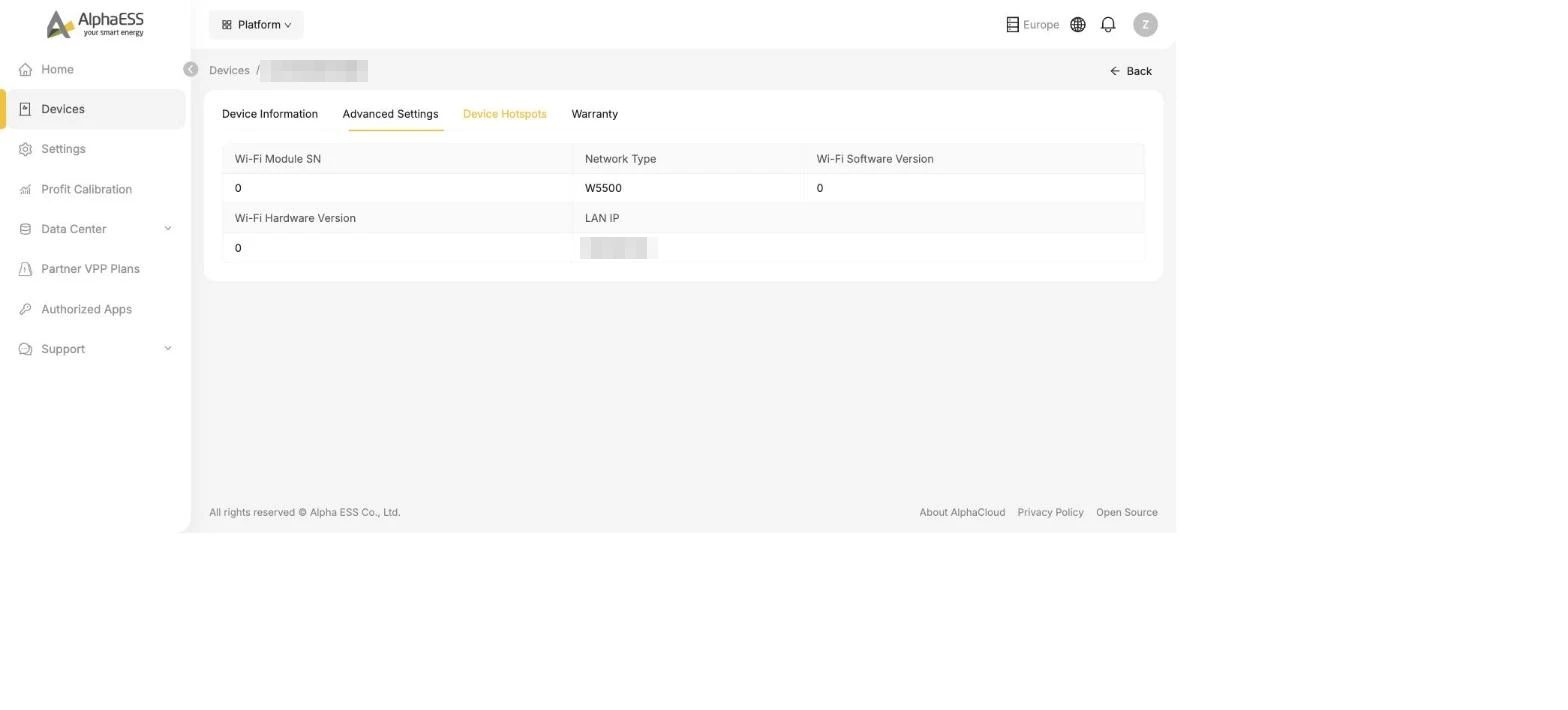
Device Hotspots
Network details of the device's communication module — network type, Wi-Fi module information and LAN IP. Useful when your installer asks how the device is connected.
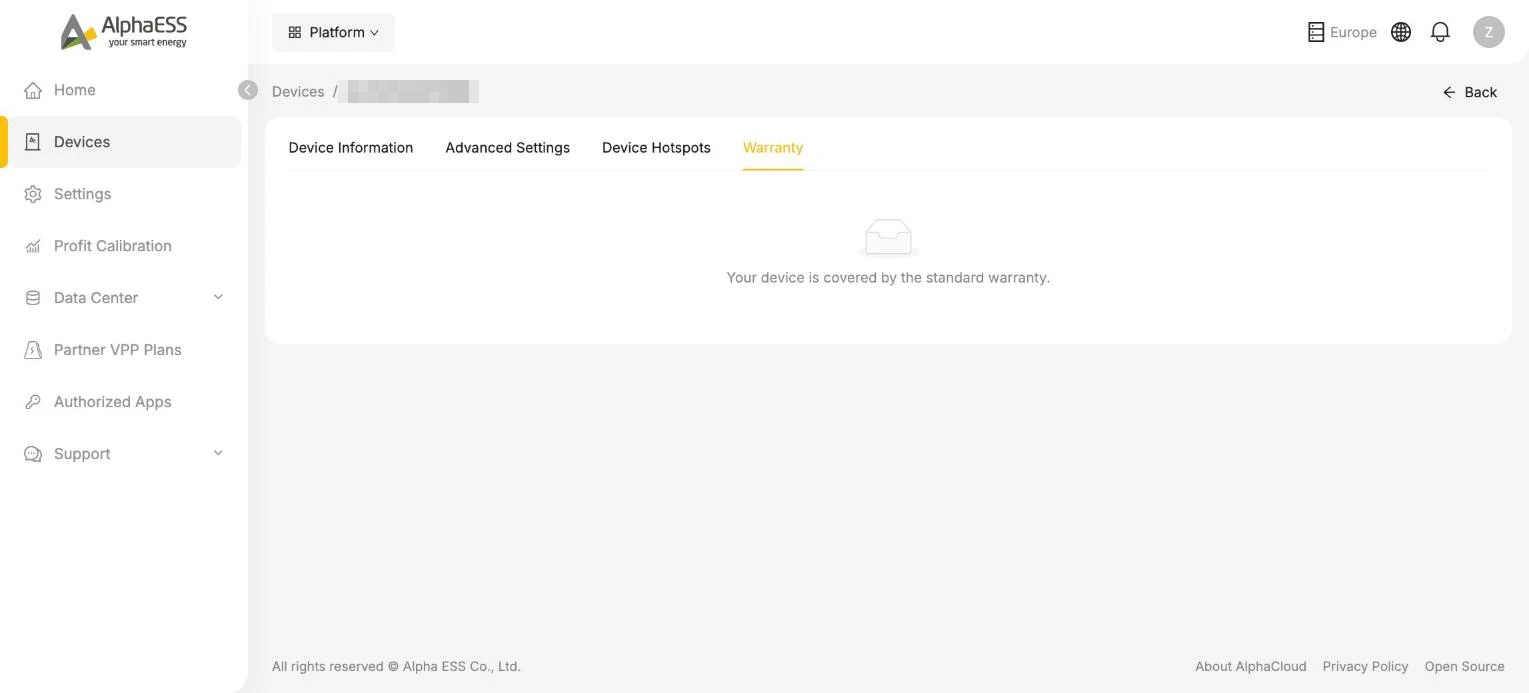
Warranty
Shows the warranty position of your device.
EV charger
If your home has an AlphaESS EV charger (e.g. SMILE-G3-EVCS7/S), it appears as its own card on the Devices page — showing the connector status and today's charging power and energy. Click the card to open the charger's page:
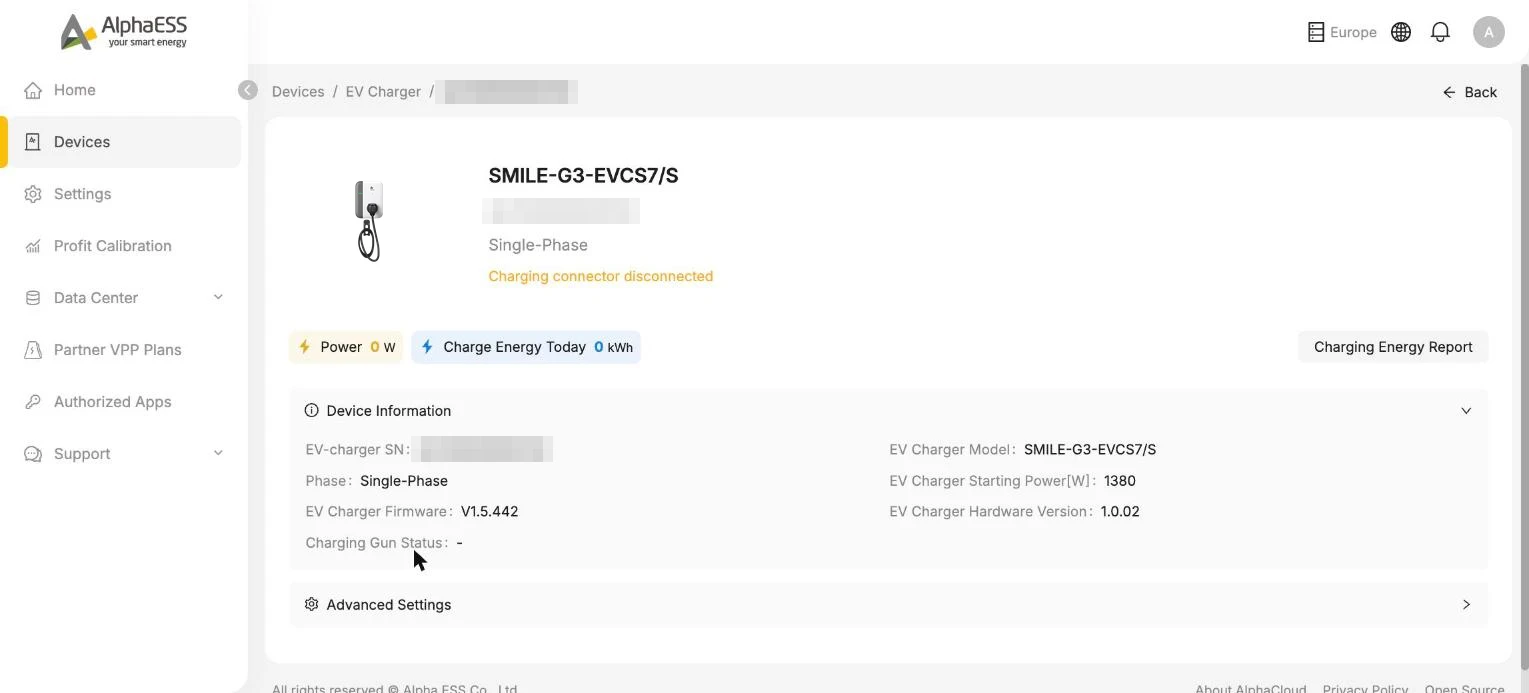
- Live status — current charging power, energy charged today, and the connector state (e.g. Charging connector disconnected when no car is plugged in)
- Device Information — charger SN, model, phase, starting power, firmware and hardware versions, and charging-gun status
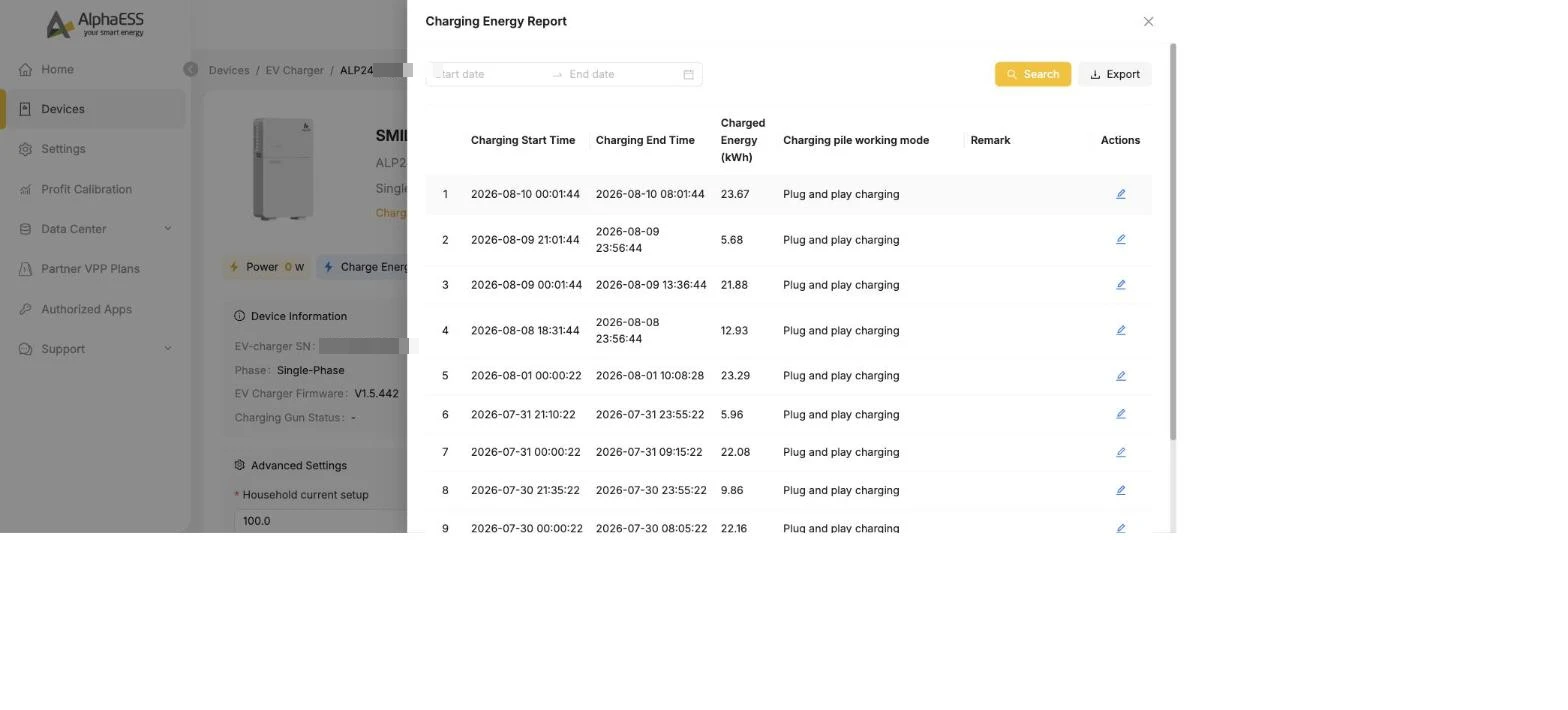
Charging Energy Report
Click Charging Energy Report to see every charging session — start and end time, energy charged (kWh) and the charging mode used. Filter by date and Export the list, and add a Remark to a session (for example which car was charged).
Charger settings (Advanced Settings)
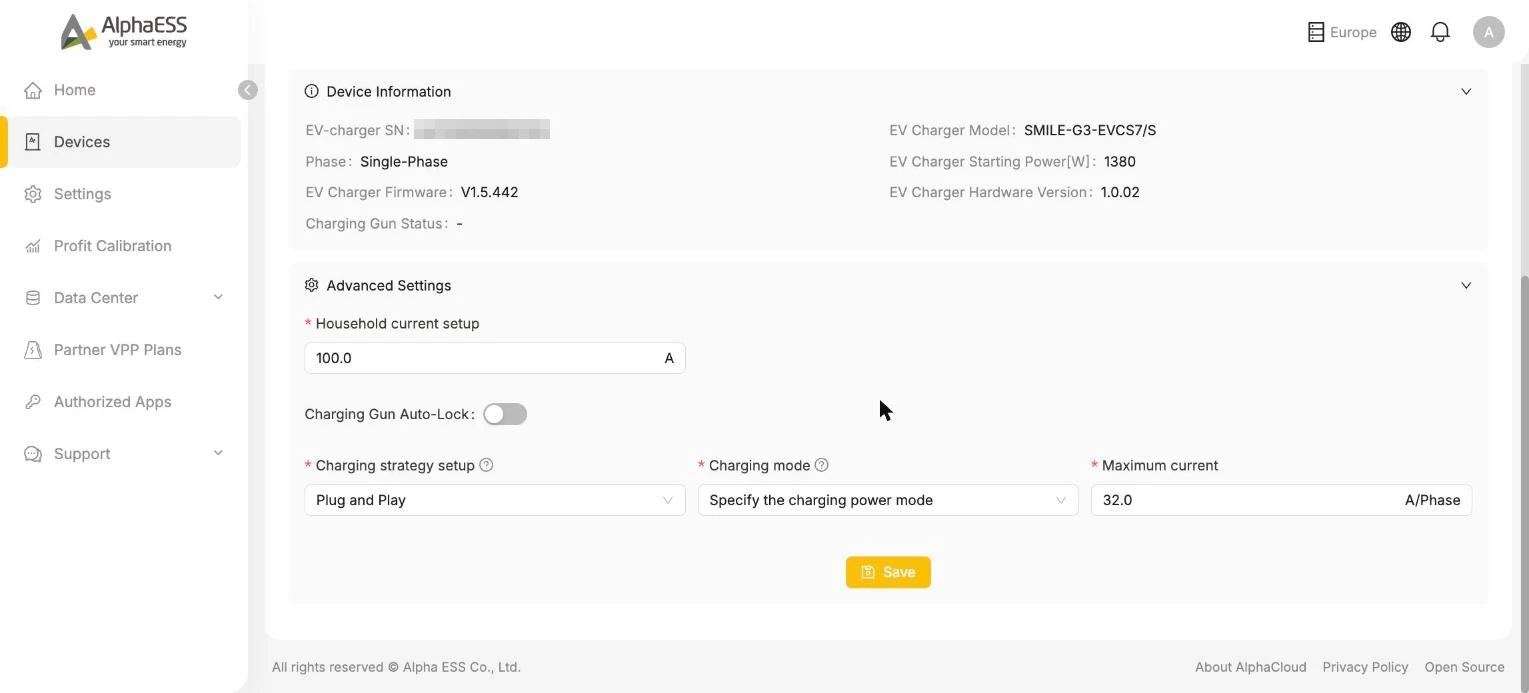
| Setting | Meaning |
|---|---|
| Household current setup | The main-fuse limit of your home (A) — the charger stays below it so charging never trips your supply |
| Charging Gun Auto-Lock | Automatically lock the charging gun |
| Charging strategy setup | Plug and Play (start charging as soon as the car is plugged in), Manual Setting, or Timed Charging (charge in defined time windows) |
| Charging mode / Maximum current | How much power the charger may draw (e.g. a fixed maximum current per phase) |
💡 Day-to-day charging control (start/stop, mode switching on the go) is most convenient in the AlphaESS App — see the EV Charger chapter of the App manual.