

Home Dashboard at a Glance
The Home page is your live view of the whole system: where your energy is coming from, where it is going, and how your battery is doing — right now.
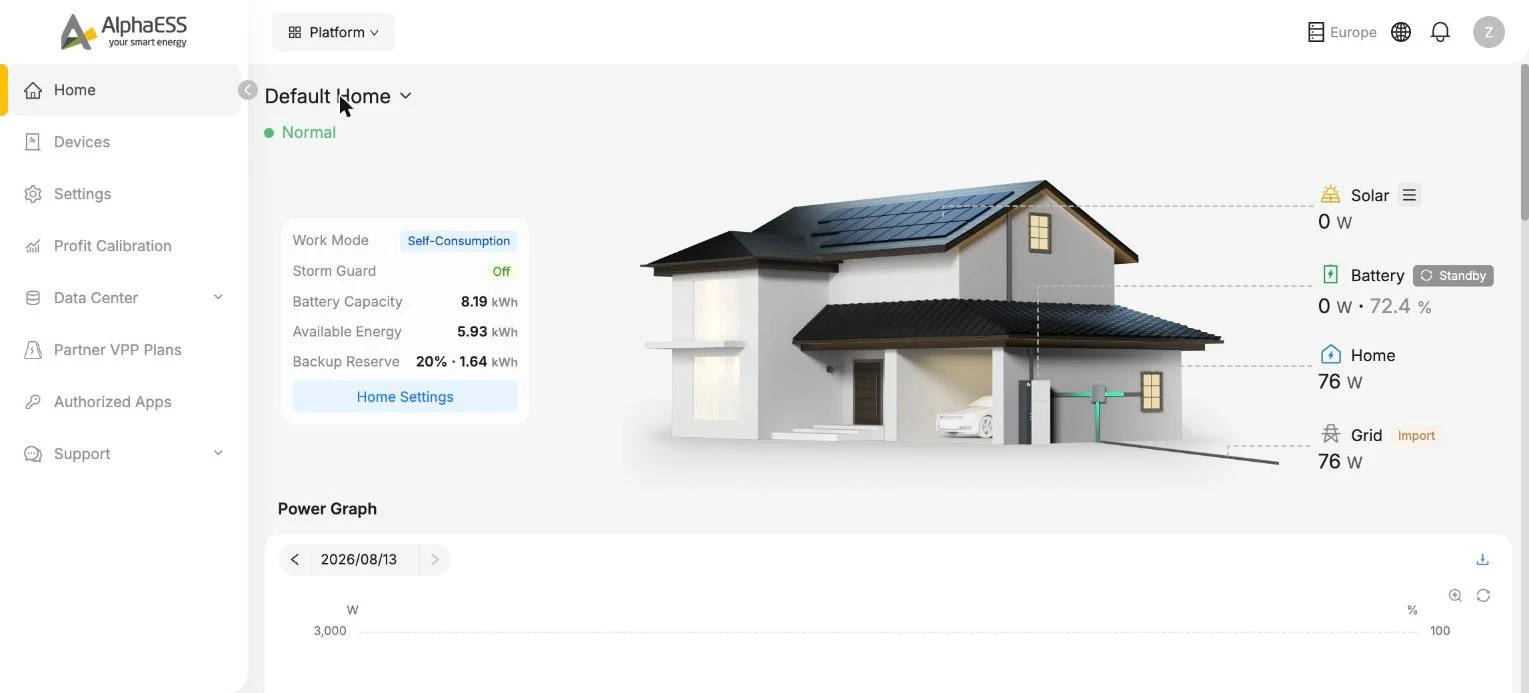
Live energy flow
The house illustration shows real-time power on four points, updated continuously:
| Point | Meaning |
|---|---|
| Solar | Power currently generated by your PV panels |
| Battery | Power flowing into (Charging) or out of (Discharging) the battery, with the current state of charge (%) — Standby means the battery is idle |
| Home | Power your household is consuming right now |
| Grid | Power exchanged with the grid — Import (buying) or Export (selling) |
Animated lines between the house, battery and grid show which way energy is flowing at this moment.
System status
Under the home name you see the overall status — Normal means everything is running as expected. If the system reports a fault, contact your installer.
The system card
The card on the left summarises how your system is set up:
| Field | Meaning |
|---|---|
| Work Mode | The strategy your system follows (e.g. Self-Consumption) — see Home Settings |
| Storm Guard | Whether storm protection is on — see Home Settings |
| Battery Capacity | Total installed battery capacity |
| Available Energy | Energy currently stored and available |
| Backup Reserve | The share of the battery reserved for power cuts |
The Home Settings button takes you straight to the settings page.
More than one home?
If your account has several homes (for example a holiday house), click the home name at the top (e.g. Default Home ⌄) to switch between them. See [Home Info and Multiple Homes](Home Info and Multiple Homes.md).
Below the fold
Scrolling down the Home page you will find the Power Graph, Energy Balance, Energy Graph and ROI / Profit sections — covered in [Power and Energy Graphs](Power and Energy Graphs.md) and [Savings and Profit](Savings and Profit.md).