

Battery Expansion
Battery Expansion guides you through adding another battery to your system, so that you can store more of the energy your panels produce.
This function is available on VitaPower 3600 AC only. If your system is a different model, the setting does not appear in the app.
How many batteries you can have
A single storage system supports up to 4 batteries: the one it came with, plus up to 3 more. Each battery holds 4 kWh.
You can add them one at a time: one battery to two, two to three, and three to four are all supported, and each addition follows the same process described below.
Why the app has to guide you
A new battery and the battery already in your system rarely hold the same amount of charge. If the difference between them is too large when they are connected, the system cannot balance them, and the battery holding less charge holds the whole system back: it never fills up, and you never get the full capacity you paid for.
To avoid this, the app charges or discharges your existing battery first, until it is within 5% of the new battery, and only then asks you to install the new one.
WARNING
Fitting a battery without going through Battery Expansion in the app can leave your system permanently short of capacity. Always start in the app.
Before you start
- Have the new battery to hand. You will need to scan the barcode on it.
- Your system must be online and connected to the grid.
- Check the current electricity price. The preparation step actively charges or discharges your battery, so it is worth choosing a sensible time of day.
- Set aside enough time. Preparation typically takes about an hour when the system needs to discharge, but the exact time depends on how far apart the two batteries are.
Step 1: Open Battery Expansion
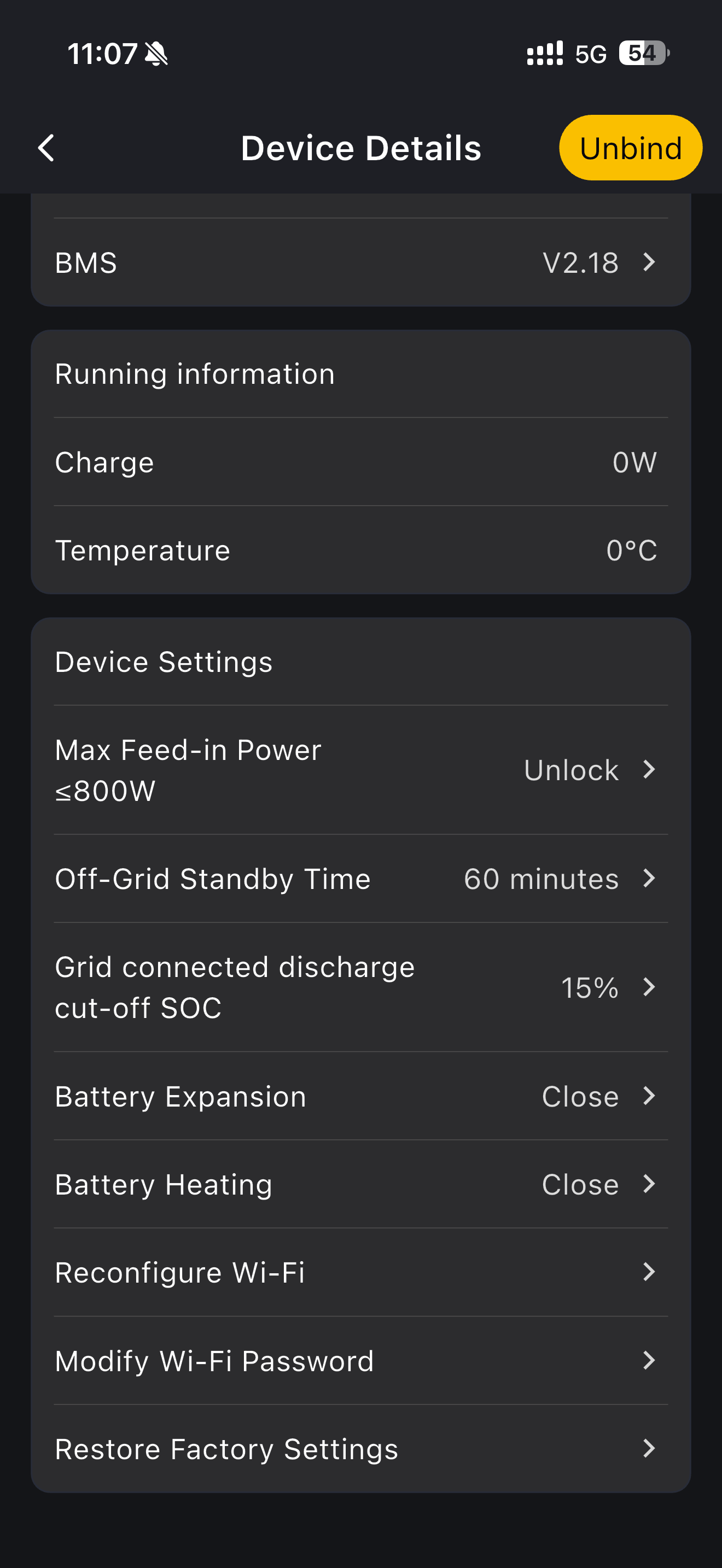
- On the home page, open your storage system to go to the device details.
- Tap Device Settings.
- Tap Battery Expansion.
Step 2: Switch the function on and scan the new battery
Switch the toggle on. The app checks that your system is online, that you have not already reached 4 batteries, and that the system is connected to the grid.
A prompt then appears explaining what is about to happen and asking you to scan the new battery. Tap Scan code, then scan the barcode on the label on the side of the new battery. The app reads how much charge the new battery is holding.
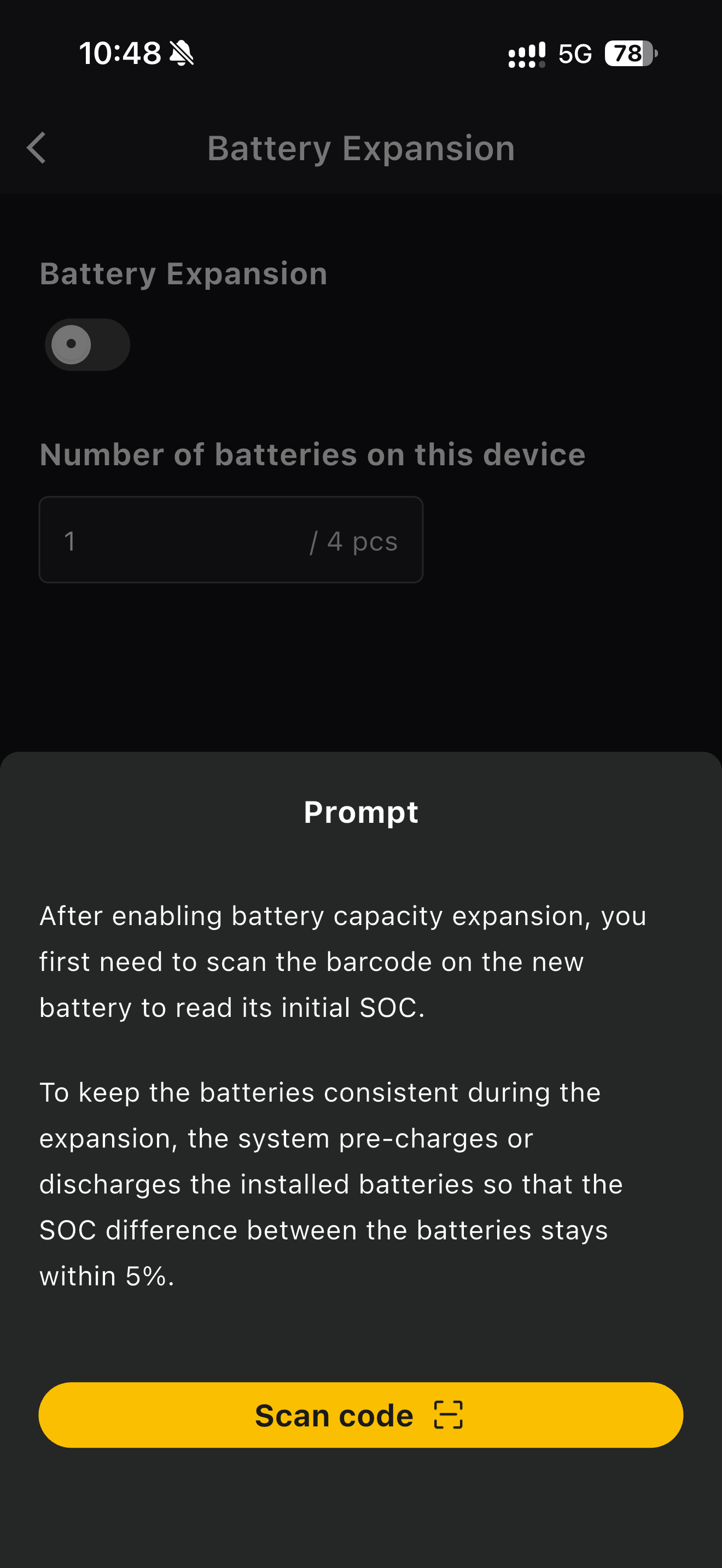
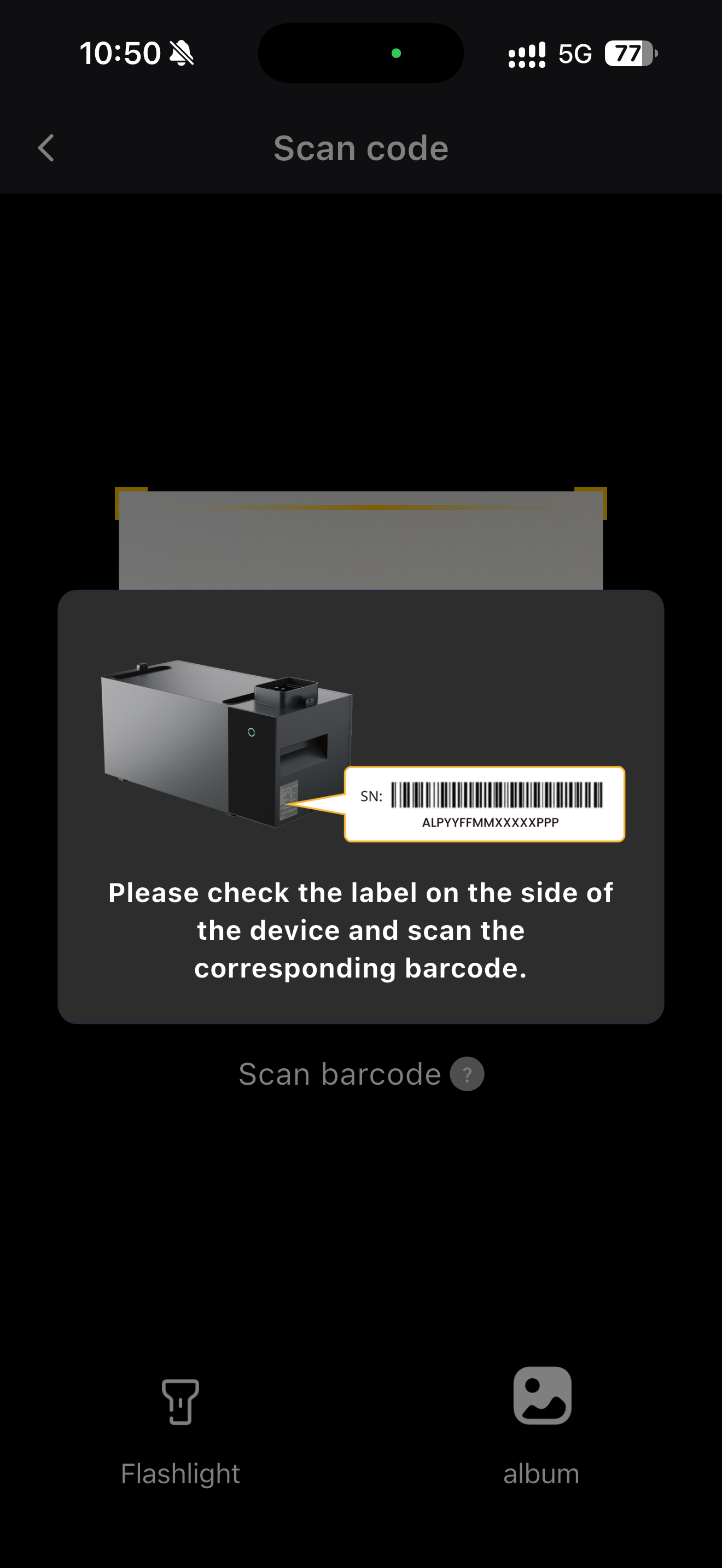
If you close the prompt or cancel the scan, the toggle returns to off and nothing happens.
Step 3: Confirm and start preparation
The app shows you the new battery's charge level and explains what it is about to do. Tap Start Pre-charge/Discharge to begin.
Your existing battery is now charged or discharged to bring it within 5% of the new one. Which of the two happens depends on where the batteries started: if your existing battery holds less than the new one, it charges; if it holds more, it discharges.
WARNING
Do not disconnect your system or cut its power while it is preparing. Wait until the app tells you it is ready.
Step 4: Wait for preparation to finish
You can follow the progress in two places.
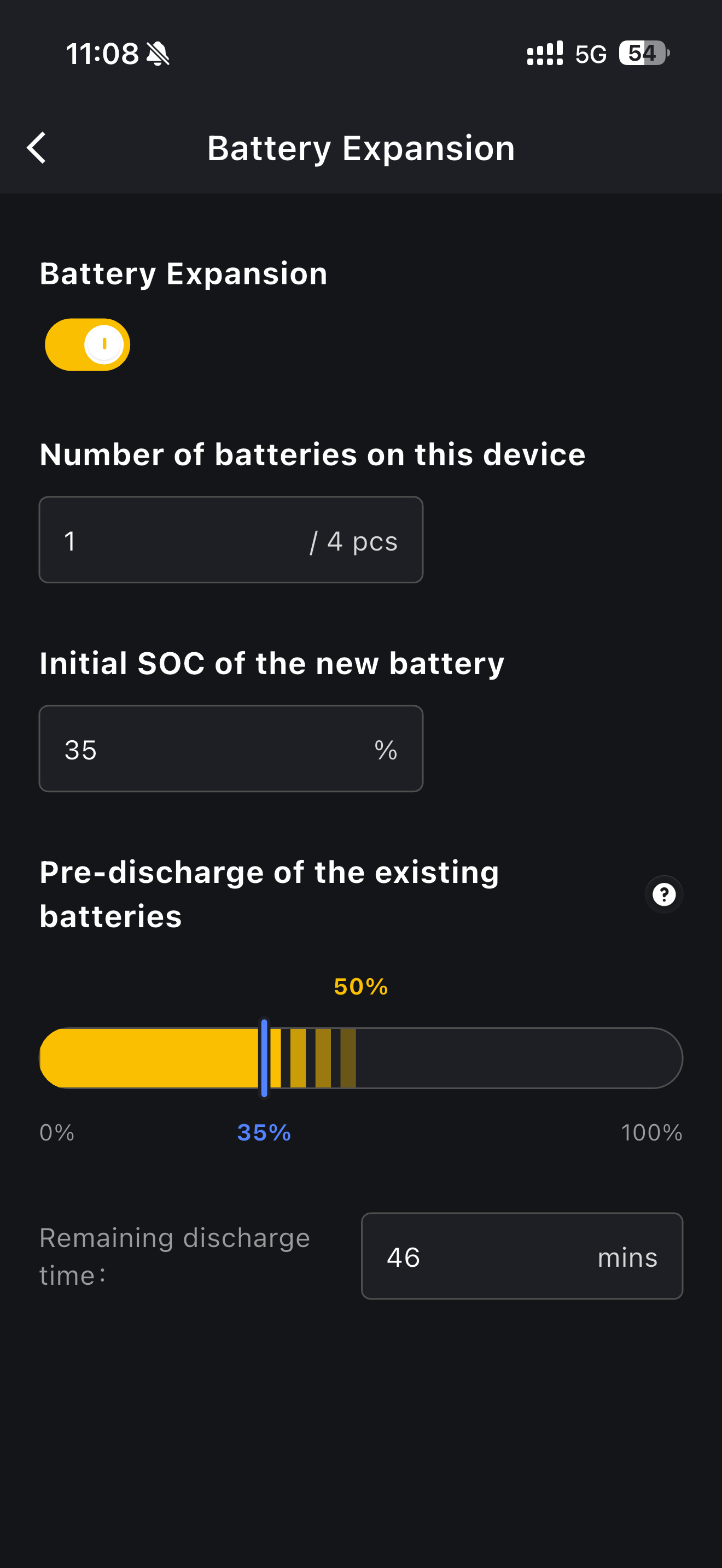
On the Battery Expansion page you can see:
- Initial SOC of the new battery
- Number of batteries on this device
- Pre-charge of the existing batteries or Pre-discharge of the existing batteries, with a progress bar
- Remaining charge time or Remaining discharge time, in minutes
On the home page, the tips bar shows a scrolling message such as Battery is precharging for expansion!. Tap the message to jump straight to the Battery Expansion page.
Your system keeps running normally throughout. You can stop the process at any time by switching the toggle off.
Step 5: Install the new battery
When your existing battery is ready, a message appears: Ready For Battery Expansion. Tap View the Operation Instruction and follow the guide in the app to fit the new battery.
INFO
Installing a battery means switching the system off, disconnecting it and working on the hardware. Follow every step of the in-app guide, in order.
WARNING
If you connect the new battery before preparation has finished, your system may end up with less usable capacity than it should have. Wait until the app tells you it is ready.
Step 6: Switch the system back on
When you power your system back up, it checks the two batteries automatically.
If they are within 5% of each other, expansion is complete. Battery Expansion switches itself off, your system returns to its normal operating mode, and a message confirms the result: Battery Expansion Completed. The Number of batteries on this device field updates to show the new total.
If something does not go to plan
SOC Verification Failed. The two batteries are still more than 5% apart. Remove the new battery as instructed and let the system finish preparing the original one. You will be prompted again when it is ready.
Attention. You installed the new battery before preparation had finished. Remove the new battery as instructed and let preparation finish.
Continue Pre-charging and Discharging. Your system is ready to carry on preparing after you removed the new battery. Tap Continue. Check the electricity price first if it matters to you.
The expansion limit has been reached. Your system already has 4 batteries, so no further batteries can be added.
The device is currently off-grid. Reconnect your system to the grid, then try again.
Nothing responds and the app says your system is offline. Wait for it to come back online. Anything already in progress is paused rather than cancelled, and picks up where it left off.
INFO
If you switch Battery Expansion off part-way through, the current attempt ends and your system returns to its normal operating mode. To try again you have to rescan the barcode and repeat the preparation from the beginning.
If you are somewhere else in the app when one of these messages is due, it waits and appears when you return to the home page or to the Battery Expansion page. You will not miss it.
Where Battery Expansion is available
Battery Expansion is released in Germany, Belgium, the Netherlands, France, the United Kingdom and Luxembourg. The function works the same way in every one of these countries.